The post installer activates the license required to use Studio Desktop.
You must activate Studio Desktop before using the software. You can run the Post Installer immediately after installation or later from the Windows Start menu.
If the license expires or activation was skipped during installation, you can manage the license from ArcGIS Pro. The license status can be monitored in ArcGIS Pro > Settings > Licensing. The section for external components shows the current license status.
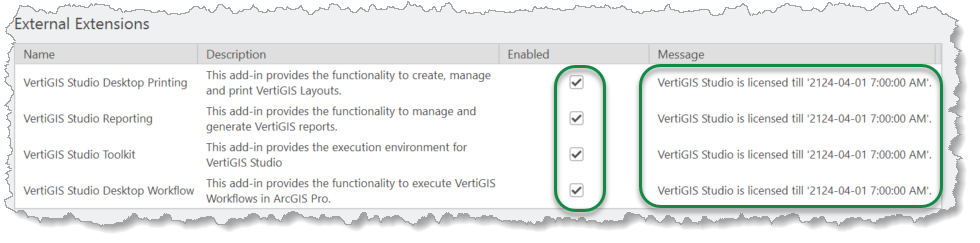
Select the Enabled checkbox to re-evaluate the currently installed license and automatically start the Post-Installer if the valuation fails.
To configure the post installer:
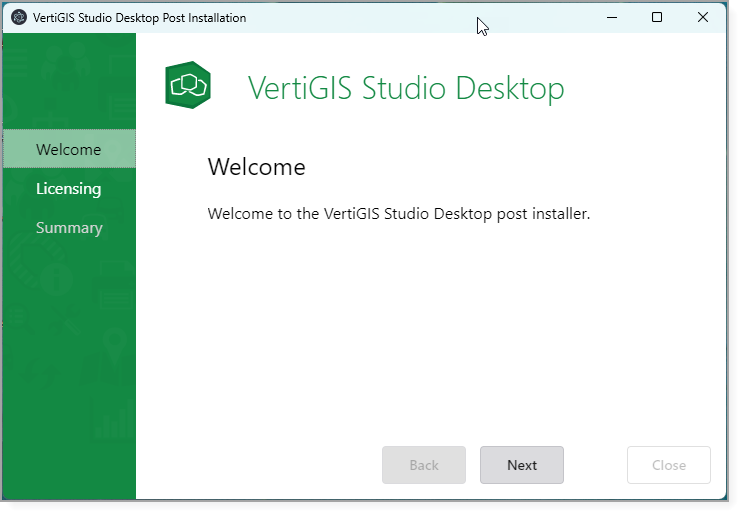
1.Launch the post-installer by running the VertiGIS Studio Desktop Post Installer from the Windows Start menu and click Next.
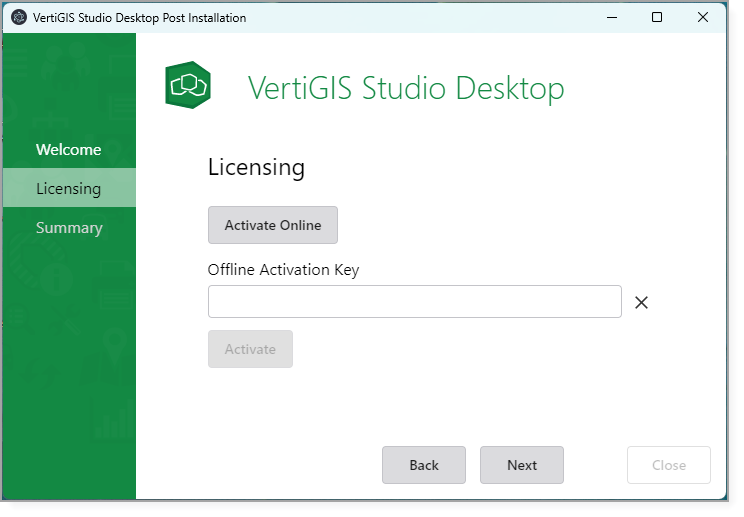
2.When prompted for a license key, you have the following options:
•Activate Offline: Contact Customer Service for an activation key.
•Activate Online (AGOL): Redirects you to the Esri authentication form. After you authenticate with an ArcGIS Online organization connected to the VertiGIS Identity server, the license is retrieved and activated automatically
•Activate with VertiGIS Account ID: Enter your VertiGIS Identity Account ID to retrieve and activate the license on the local machine.
See Licensing.
Studio Desktop comes with a 60-day trial license. To continue using Desktop after the trial period, the product must be activated with a valid license.
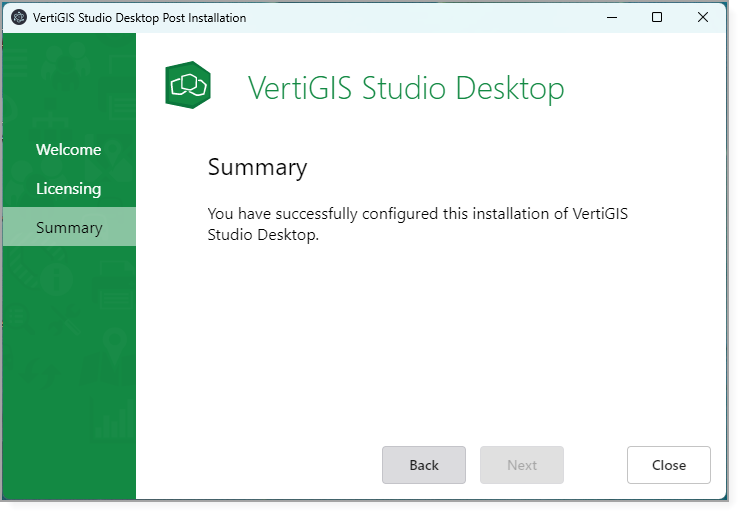
3.After you activate the product key, click Close.
The first time you run Studio Desktop, you may be asked to allow it to access your ArcGIS Online account information. If so, click Approve.