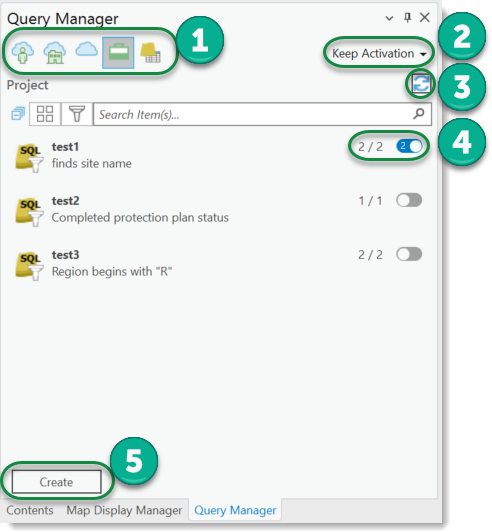
Query Manager controls:
1.The main view lists query profiles from various sources. The first three selectable sources search query profiles on the current, connected portal. The three options are used to indicate the release types of a portal.
Icon |
Description |
|---|---|
|
My Content |
|
My Favorites |
|
My Groups |
|
My Organization |
|
All Content |
|
Visible to me |
 |
Project profiles |
|
Offline Folder |
|
Queries on map layers/tables These queries can be converted into portal or project query profiles using the Import context menu function. |


2.Keep Activation / Activate New toggle. Allows you to keep active queries or to overwrite active queries.
3.Query list controls:
 - All query definitions of all layers of the current map view are deactivated.
 - The listed query profiles are deactivated.
 - Reloads the complete list of query profiles.
4.When a source is selected, the corresponding query profiles are loaded and displayed. Each query profile is displayed with name and description. The numbers behind (n / n) show the following information:
▪First number - On how many map layers/tables the query profile has already been applied.
▪Second number - The second number indicates the maximum number of map layers/tables to which the query profile can be applied without error.
▪Third number (inside activation switch) - The third number inside the activation switch (if it is set active) indicates the number of map layers/tables on which this query profile is active.
5.The Create button creates a new profile. Clicking this button opens the New Query Profile to be edited.