Existing annotations can be moved, rotated, or realigned.
To move, rotate, or realign an annotation:
1.Select the annotation on the map.
The annotation and its associated annotation feature are highlighted.
2.In the Studio Toolkit ribbon, select Edit > Move Rotate Align.
The Move-Rotate-Align Annotations window opens.
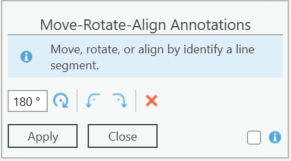
3.Choose one of the following options:
•Move: Specify the angle you want to rotate the annotation.
Alternatively, you can either use the buttons to rotate -90°/90° per click or use the Ctrl+Left/Ctrl+Right keys.
•Align: Select a line segment on the map to align the annotation to.
The direction is determined by the proximity of the click to the start-end point.
4.Click Apply.
The annotation is updated with the selected changes.
For horizontally labeled point features, the point is shifted the next time you specify a position on the map.
For aligned annotations, the annotation is realigned to the nearest line segment of the labeled feature. The updated alignment is immediately reflected in the cursor feedback and is applied the next time you specify a position on the map.