To view the toolbar for each Studio Desktop component:
1.Launch ArcGIS Pro and sign in.
2.Open the desired project.
3.Click the Studio [Component] tab.
ArcGIS Pro Licensing
See ArcGIS Pro licensing.
Offline storage
Most VertiGIS Studio tools store their information on the portal as portal-items. Many tools can be run as a local copy without an internet connection to the portal:
•Studio Printing Layouts
•Studio Printing Packages
•Studio Printing Field Presets
•Map Displays and Components
•Layer Presets
•Query Profiles
•Studio Workflows
Location of the Offline Storage
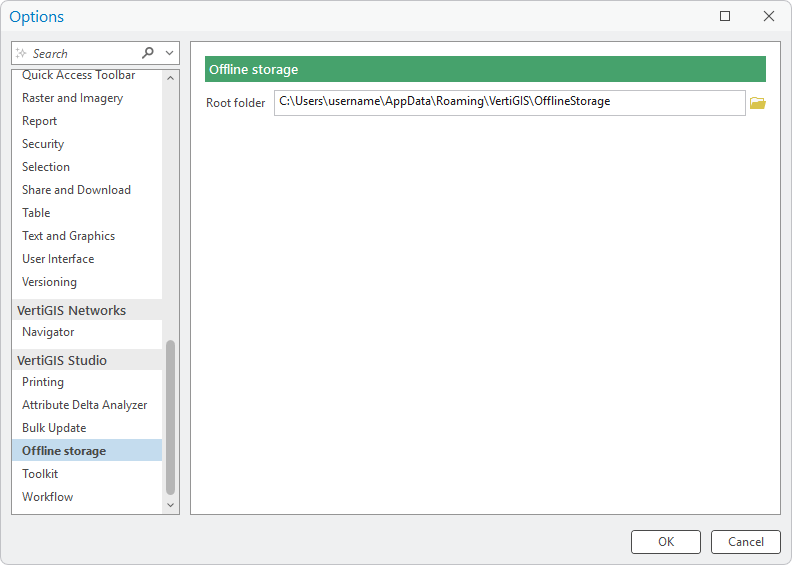
The Options dialog > VertiGIS Studio > Offline storage allows for a user-defined path to the offline storage location. This allows items to either be shared across the company or stored in a use-defined location. By default, the path is set to:
%APPDATA%\VertiGIS\OfflineStorage
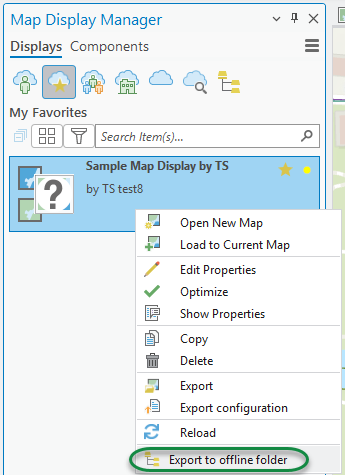
Export to Offline Folder
Any tool supporting offline usage, provides a context menu Export to offline folder in the portal-bound tab of the explorer view. Use this menu to export the selected item to the offline folder, including all required dependencies to other resources. For example, if a MapDisplay requires multiple MapDisplayComponents, they will be exported as well. Conversely, if a MapDisplayComponent is required by multiple MapDisplays, it will be recognized and exported only once.
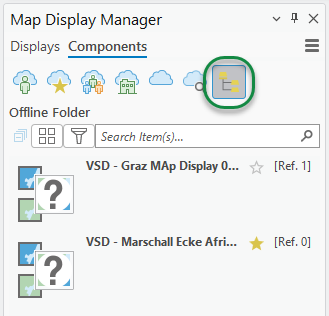
Usage of offline stored items
The explorer view includes the Offline Folder tab to list the offline stored items. These items can be used similarly to portal-items from the other tabs, but often provide a limited set of functionality. For example, editing is typically not available. Offline items can be used as a backup, shared on a USB memory stick, or shared by email.
Administrators and end-users can create dedicated offline storage location folders for individual use cases or projects. Change the Offline Storage root folder path in your settings to point to one of these specific directories to activate and view only the offline items relevant to that specific use case within your managers.