To run VertiGIS Studio Inline views in Web AppBuilder (Developer Edition) apps, you must:
▪Deploy the Inline widget to ArcGIS Web AppBuilder.
▪Create a new 2D app, add the Inline widget to the app, and then configure the widget to run the view.
This procedure assumes that you have already installed Web AppBuilder (Developer Edition). You can download Web AppBuilder (Developer Edition) here for free. Follow the instructions to install it.
To configure a Web AppBuilder (Developer Edition) application:
1.Download the widget.
2.Locate the root of your Web AppBuilder (Developer Edition) installation.
By default, the root is called WebAppBuilderForArcGIS.
3.Extract the files to the root. This places the widgets in the correct locations within your Web AppBuilder (Developer Edition) installation.
▪The Inline widget is a 2D widget.
▪2D widgets are stored in the Web AppBuilder's \[root]\client\stemapp\widgets folder.
4.In Web AppBuilder, create a new 2D app using the Dashboard Theme.
Inline supports Web AppBuilder's Dashboard theme only.
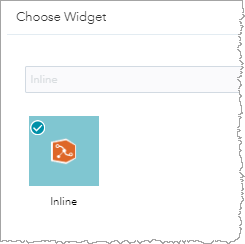
5.Open the Widget panel, select the Inline widget and click OK.
The Configure Inline window opens.
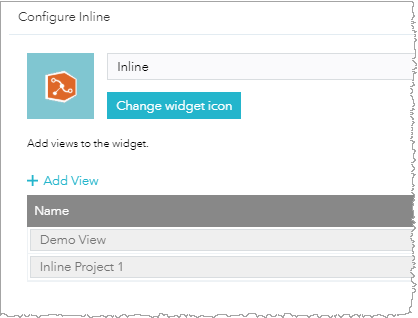
6.Click Add View.
7.Select the views you want to add to the widget. You can add views from different data sources.
8.Click OK.
Inline appears in your app.
9.Save the app.
You can now run the Inline view in the ArcGIS Web AppBuilder (Developer Edition) app.
