The installation procedure involves running the installer, which adds Mobile Designer files to the server.
Before you run the installer, there are several prerequisites that must be met. For more information, see Pre-Installation.
After you have installed Mobile Designer, you must complete the post-installation process.
During the post-installation process, you will also need the App ID and the Redirect URL from the ArcGIS Mobile App that you created in your ArcGIS portal.
To install Mobile on premises:
1.Navigate to the folder containing the installer file.
2.Double-click the VertiGIS Studio Mobile x.x.x.msi.
The Welcome page of the installer wizard opens.
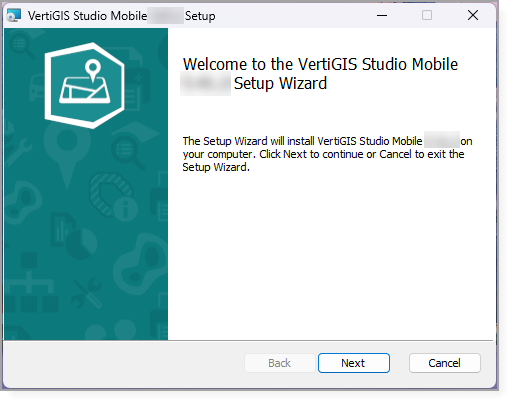
3.Click Next.
The End-User License Agreement page opens.
4.Select I accept the terms in the License Agreement, and then click Next.
The Destination Folder page opens.
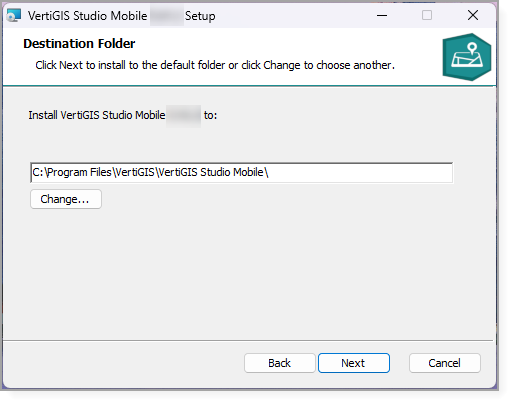
By default, VertiGIS Studio Mobile is installed in
C:\Program Files\VertiGIS\VertiGIS Studio Mobile\
5.If you want to change the default location to install Mobile Designer, click Change and paste in the path to the folder.
6.Click Next.
7.When the Ready to Install page opens, click Install.
If you are asked whether you want to allow this app to make changes to your device, click Yes.
After the installation, the Completed page opens.
The option to Launch VertiGIS Studio Mobile Viewer Post Installer is selected by default.
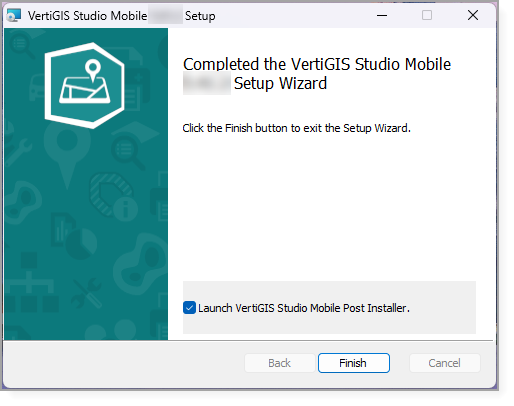
8.Click Finish.
9.If you are asked again if you want to allow this app to make changes to your device, click Yes.
The post installer opens.
Follow the instructions in Configure the Post-Installer to activate the application and set up IIS.
