To add your workflow to your app in Mobile Designer:
This procedure adds a command to the I Want To menu that you can use to run an existing workflow that you have already created in VertiGIS Studio Workflow Designer. However, you can also use workflows that others have shared with you.
1.In Mobile Designer, in the Components panel, click I Want To menu > +Add Menu Item.
A window appears that lets you select a command or workflow.
2.Click the Workflows tab.
3.Select a workflow.
By default, the title of the workflow is also the title of the menu item.
If you can't find the workflow, try using the Search box or, in the Filter by menu, select one of the other options.
4.Click Select.
The menu item for the workflow with is added to the I Want To menu.
5.Click the menu item named after the workflow.
The Menu Item panel appears.
6.In the Menu Item panel, in the Title box, type in a title for your workflow, for example, My Mobile Workflow.
This title appears in your app in the I Want To menu as an option.
7.Click Select Icon and choose an icon to be displayed beside your menu option in the I want to menu.
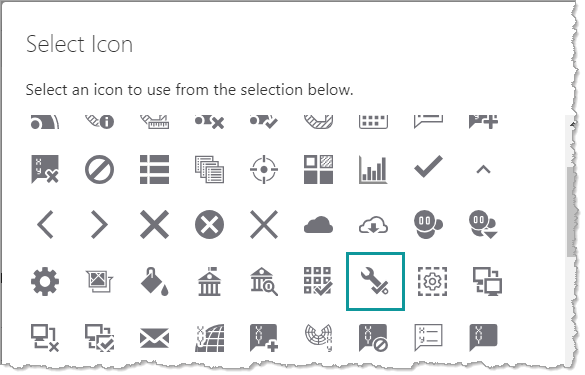
8.In Mobile Designer, click File > Save to save the workflow option to your new app.
9.Return to VertiGIS Studio Go and in the I want to menu, click Refresh App.
The map refreshes.
The new workflow appears in the I want to panel as a new option.
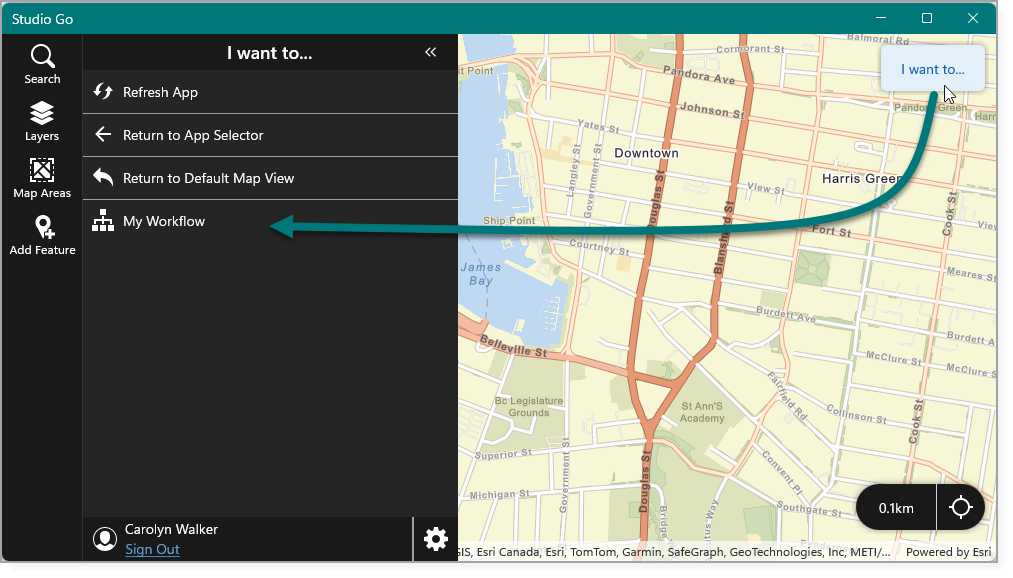
10.When you click the new option in the I Want To menu, the workflow runs and also adds a temporary icon to the task bar.
