Once you have configured the app to have the settings you want and saved it, you can push it through the deployment stages.
To select the deployment stages for your app:
If you reduce the number of deployment stages for your app, the excluded stages are permanently discarded.
1.Once you have saved your app in Web Designer, click Deploy.
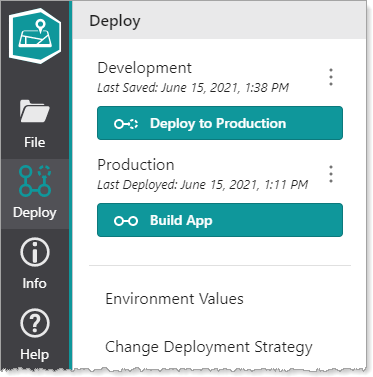
2.In the Deploy panel, click Change Deployment Strategy, and then choose one of the following:
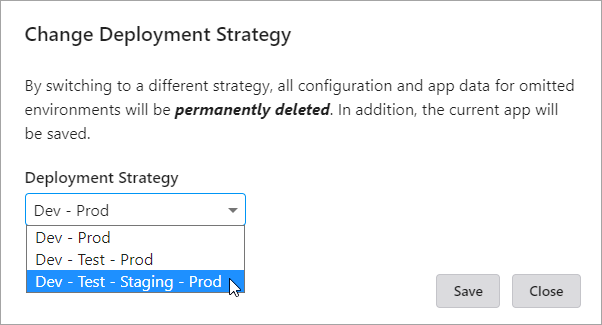
•Dev - Prod: Sets the strategy to two stages only -> Development and Production.
•Dev - Test - Prod: Sets the strategy to three stages -> Development, Testing and Production.
•Dev - Test - Staging - Prod: Sets the strategy to four stages -> Development, Testing, Staging and Production.
3.Click File > Save.
To deploy the app:
1.Once you have saved your app in Mobile Designer and selected the deployment stages, if you are not in the Deploy panel, click Deploy.
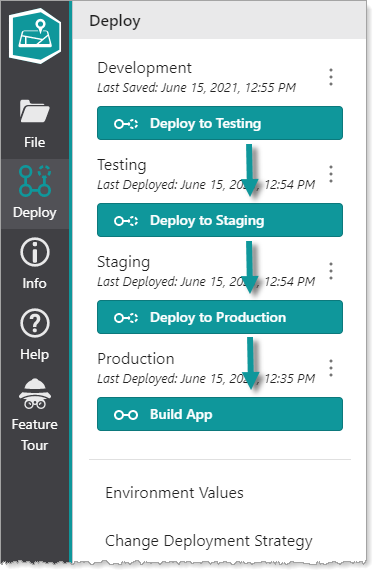
2.When your app is ready for testing, click Deploy to Testing if applicable.
If applicable, in the Deployment Summary window that appears, review the changes that have occurred since the last time you deployed to the Testing stage, and click OK.
3.When your app is ready for staging, click Deploy to Staging if applicable.
If applicable, in the Deployment Summary window that appears, review the changes that have occurred since the last time you deployed to the Staging stage, and click OK.
4.When your app is ready for production, click Deploy to Production.
In the Deployment Summary window that appears, review the changes that have occurred since the last time you deployed to the Production stage, and click OK.
Once your app has gone to Production, it is ready to be built into a file that can be distributed to users.
