The following is a summary of the high-level steps for creating an app. For detailed step-by-step instructions, see Tutorial - Create Your First Mobile App and Build an App.
Create, Name, and Save a New App
To create a new Mobile app, open the Mobile Default template, give your app a new name and save it. When you save the new app, it is also saved to your Esri portal.
For more information, see Build an App.
Import Components
To make creating an app easier, you can import a single component or multiple components from:
•The default template.
•Existing apps you have created.
•Other apps shared with you.
For example, you could import the branding from a shared app and the I Want To menu from the template, and then the Region settings from a different app. Should you want all the components from a particular app, you would select them all and then import them.
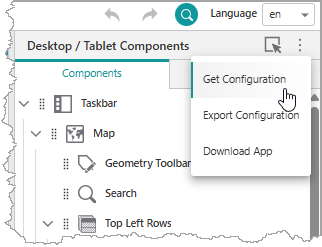
For more information, see Configuration Options.
Deployment Stages
Once you have configured the app to have the settings you want, you can deploy it to Testing, then Staging, and then Production. You can choose to go directly to Production if you prefer. At each stage, a copy of the application is created and given an ID. Once the app reaches Production, it gets an ID that remains with the app and can be sent to end users. At each stage, a separate copy of the app and its web map is also saved to your portal.
An app only moves in one direction through the stages. Any changes must be made in Development and then moved through the stages again to Production.
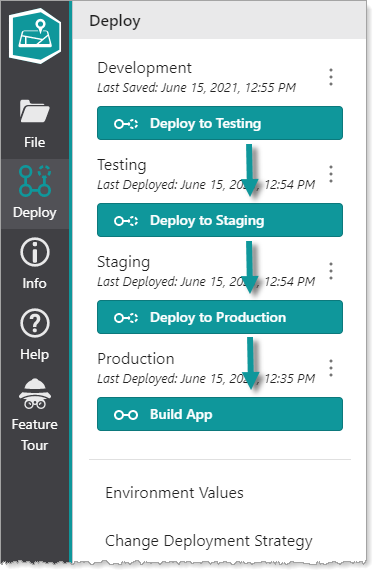
For more information, see Deploy an App.
App
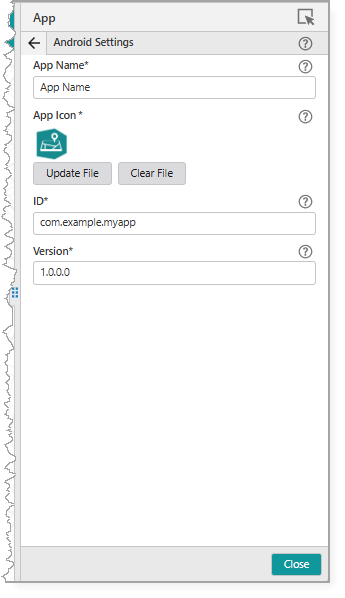
In Services > App, you give each app an App Name, App Icon , App ID and a Version number. If you are planning to deploy your custom app through Google Play, the App Store, or Microsoft Store, there are requirements for the ID and Version numbers that are important to follow. For more information, see App Settings .
Build an App
Once the app has gone through the Deployment stages, you can build specific versions of the app to be used on either Android, iOS, or Windows devices. When you build the app, in each case, the result is a file that can be distributed to users. The process and requirements are slightly different depending on the platform.
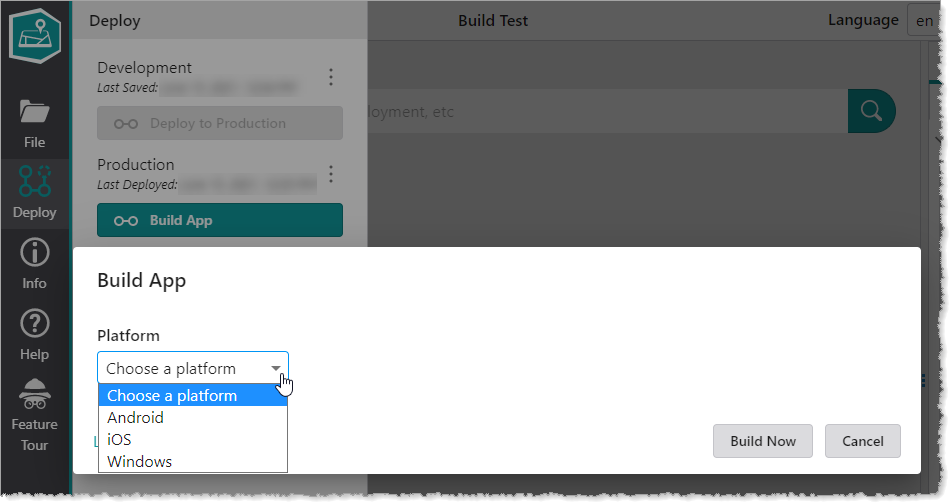
For more information, see Build an App for a Specific Platform.
Distribute to a Device
The method you use to distribute an app is dependent on the platform type, your users, and your organization. For more information, see Distribute an App.
