Because apps are saved in your portal and a new version of the same app is saved at each deployment stage, it's important to know where to find the apps you want to share, or work on. For example, you may want to give your QA testers access to the app in the Testing stage in your portal, or give your field workers access to the app in the Production stage.
You can find a list of apps that you have created or others have shared with you in the following:
•VertiGIS Studio Go: The selection screen opens when you first open VertiGIS Studio Go and displays a list of apps that you have created or have permissions to view.
When you have deployed an app to other deployment stages, each version is listed under the deployment stage: Development, Test, Staging or Production.
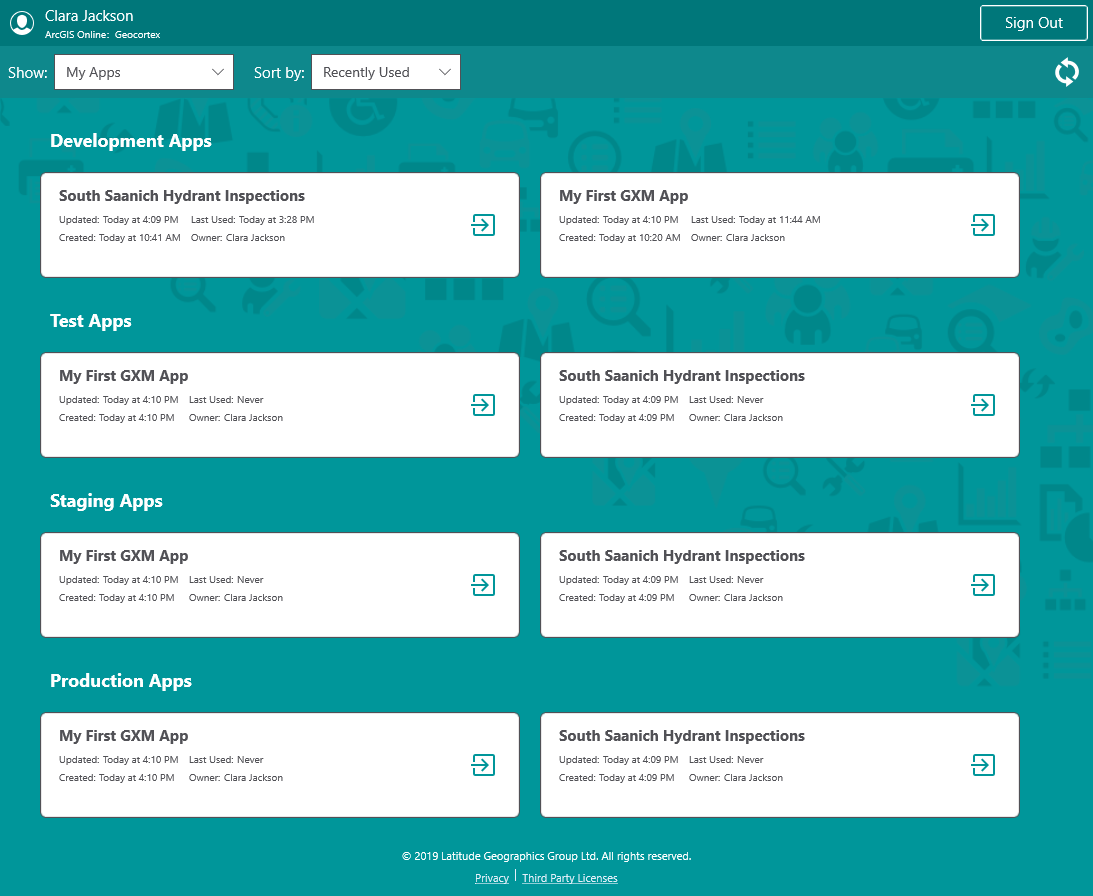
When an app is deployed to a deployment stage, the name of that stage is added to the app name in brackets, for example, 1-Salish Sea Orca Mapping (staging).
•ArcGIS Online/Portal for ArcGIS:
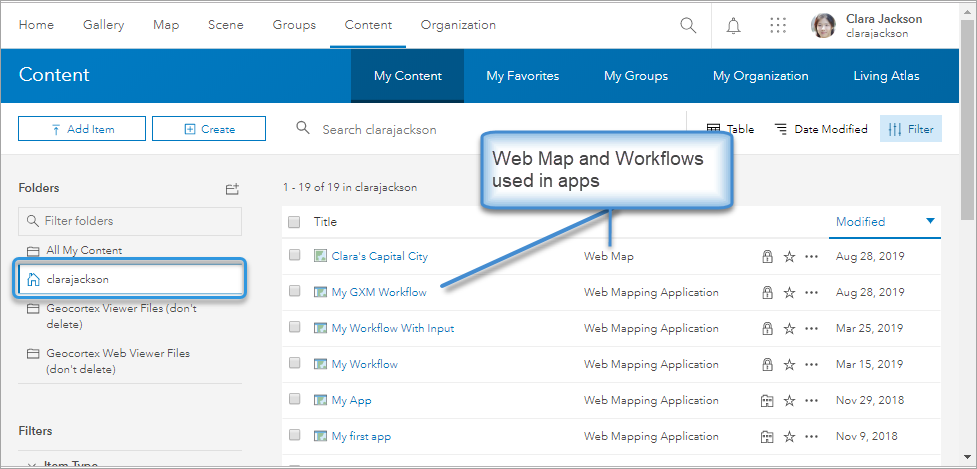
Your original web map and workflows that are used in the apps you create in Mobile Designer are saved in the root of your ArcGIS Online or Portal for ArcGIS account.
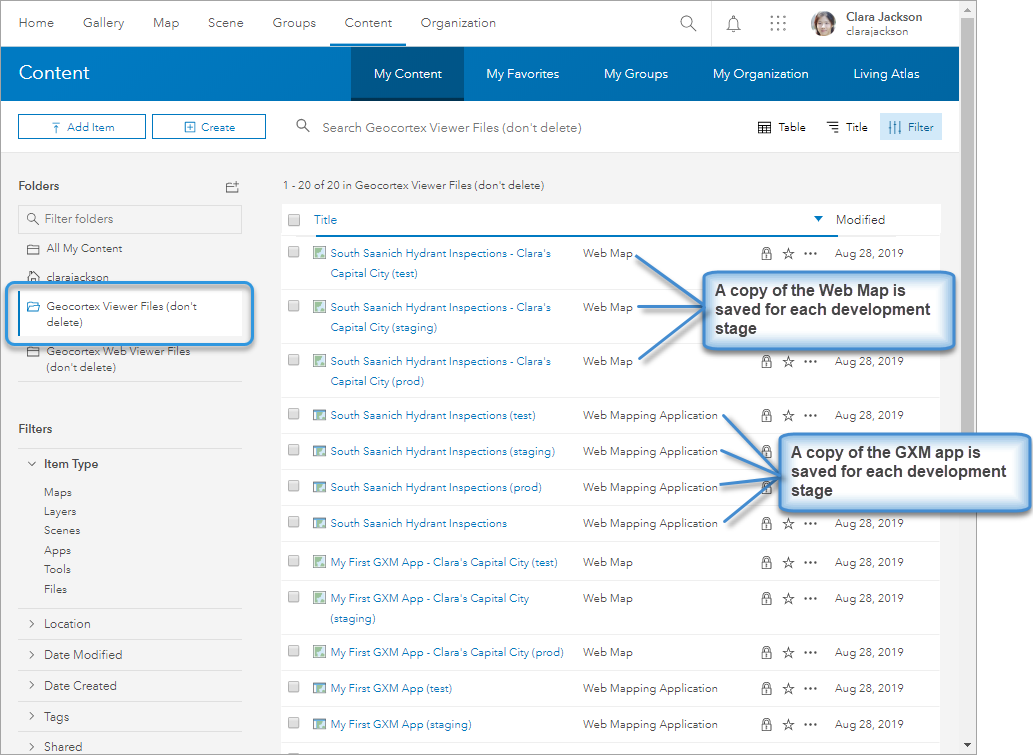
All the subsequent stages of your app after the development stage, are saved in the Web Viewer Files folder.
The table below shows you where to find each version of an app in a Portal or in the VertiGIS Studio Go app.
File Name |
Is saved here in Portals: |
Is listed here on the selection screen of Studio Go: |
|---|---|---|
Name of Mobile app No (dev) label is added to the name |
Root folder label: Web Mapping Application |
In the Development Apps section No (dev) label is added to the name |
Name of Mobile app (test) |
VertiGIS Studio Web Viewer Files folder label: Web Mapping Application |
In the Test Apps section |
Name of Mobile app (staging) |
VertiGIS Studio Web Viewer Files folder label: Web Mapping Application |
In the Staging Apps section |
Name of Mobile app (prod) |
VertiGIS Studio Web Viewer Files - label: Web Mapping Application |
In the Production Apps section |
