To register a widget with Experience Builder Enterprise Edition, create an application item in your portal that points to the widget's manifest.json file.
After you have registered the widgets, share the widget items with other Printing authors in your organization. This allows them to configure their Experience Builder apps to run workflows. If the widgets are not shared, the other authors will not see the widgets in Experience Builder.
If you would like to host the widget on your own server download the vertigis-studio-printing-experience-builder-widget-ENTERPRISE.zip widget from here and follow these steps.
To register the Printing widgets with Experience Builder Enterprise Edition:
1.Sign in to Portal for ArcGIS as an administrator.
2.In Content, click Add Item and select Application. The New Item window opens.
3.Set the Application Type to Experience Builder widget.
4.In the Manifest URL box, enter the URL to the manifest.json file for the widget you want to register.
You can either use the copy of the manifest.json file in your local Printing deployment or, if your portal has Internet access, you can use the public copy: https://static.vertigis.com/exb-widgets/printing/[version]/manifest.json
You can find the public URL for the version you wish to use here.
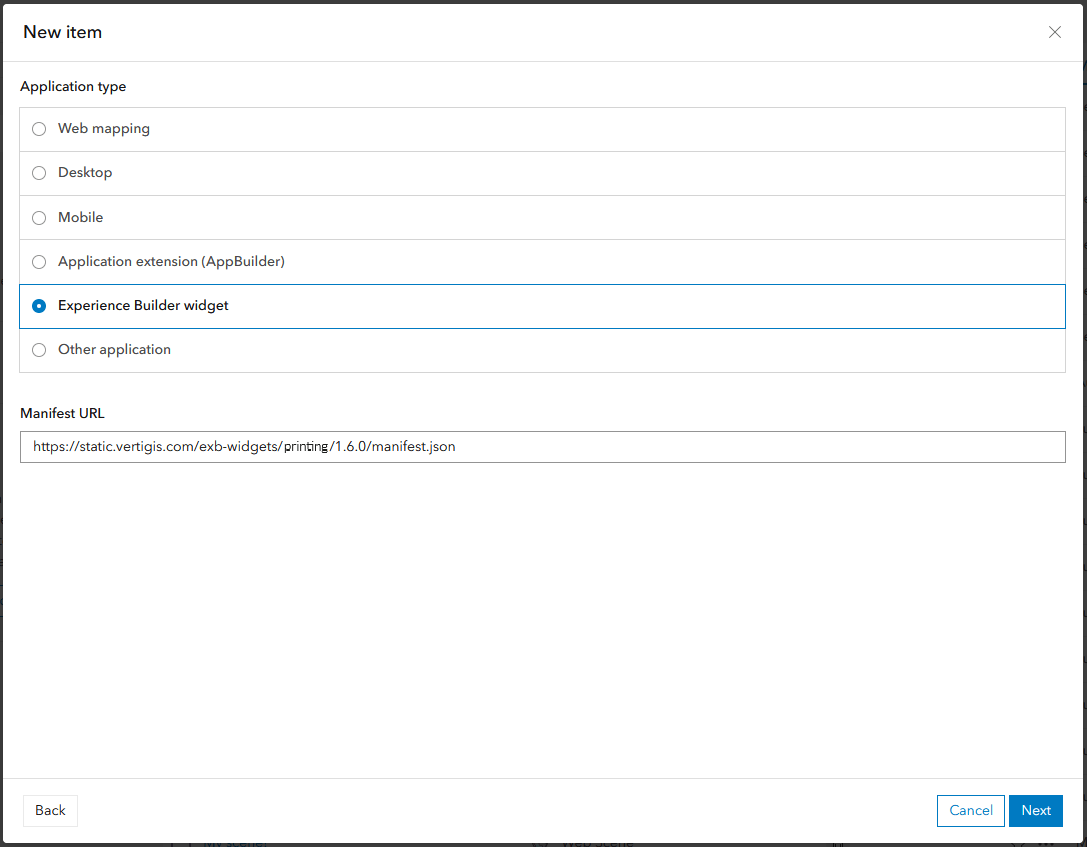
Example configuration for a Printing widget's manifest in Portal for ArcGIS
5.Click Next.
6.Enter a meaningful Title, for example: VertiGIS Studio Printing.
7.Click Next.
You should see a new item in your content list. You will see the widget in Experience Builder Enterprise Edition at the bottom of the widget panel under the Custom section.
