Install VertiGIS Studio Reporting on Premises
The instructions given below step you through the installation of VertiGIS Studio Reporting, including component installation, post-installation configuration, and registering the application with ArcGIS. When you have completed these steps, you will have a working installation of VertiGIS Studio Reporting.
Before you begin,
For information about system requirements, see
The main steps to install VertiGIS Studio Reporting on premises are as follows:
Install VertiGIS Studio Reporting
To install VertiGIS Studio Reporting:
-
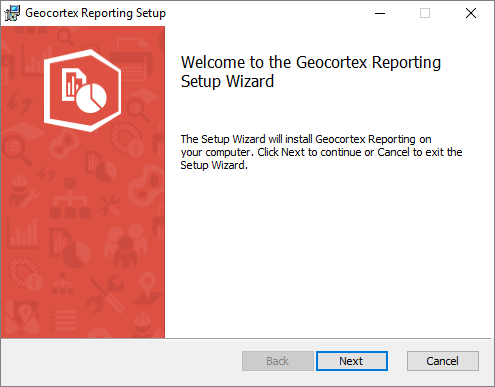
Run the VertiGIS Studio Reporting installer.
-
Click Next.
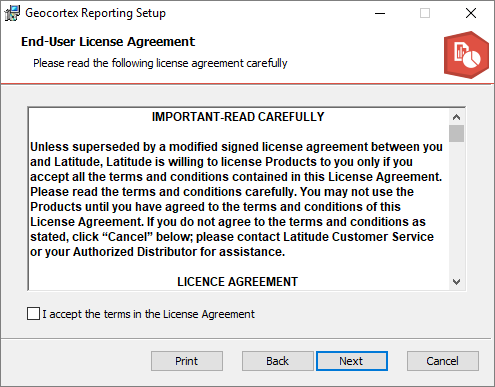
The End-User License Agreement panel opens.
-
Read the license agreement.
To print a copy of the agreement for your records, click Print.
-
If you agree to the terms of the license agreement and supporting documents, select the I accept the terms in the License Agreement checkbox, and then click Next.
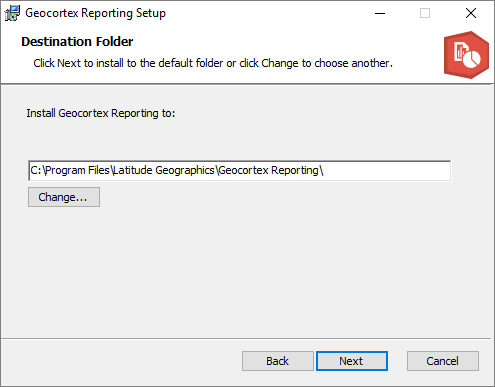
The Destination Folder panel opens.
-
Select a location to install VertiGIS Studio Reporting, and then click Next.
By default, VertiGIS Studio Reporting is installed in
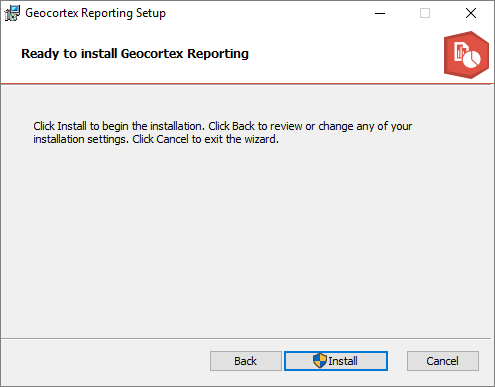
C:\Program Files\VertiGIS\VertiGIS Studio Reporting\.The Ready to Install panel opens.
-
Click Install and wait for the installation to complete.
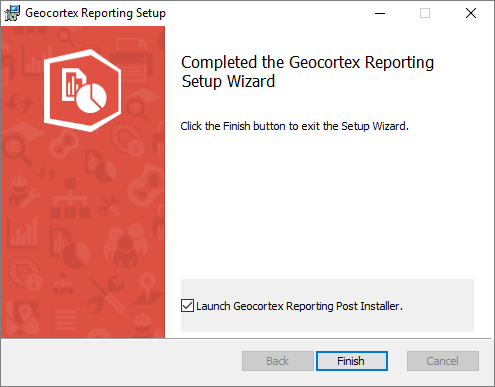
The Completed panel opens.
-
Make sure the Launch VertiGIS Studio Reporting Post Installer checkbox is selected and click Finish.
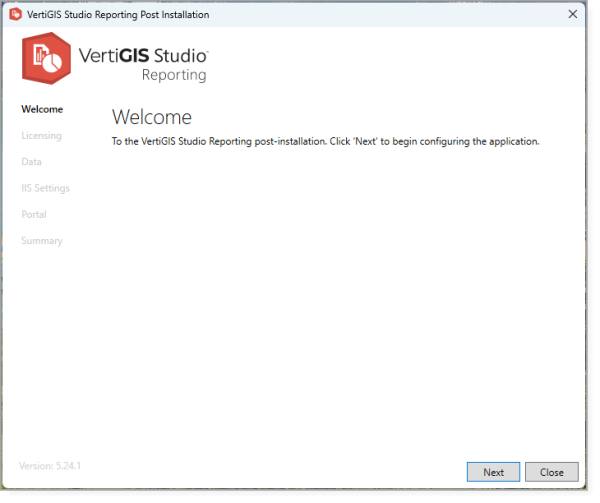
VertiGIS Studio Reporting Post Installer
-
Follow the steps in Configure Post-Installation Settings.
Configure Post-Installation Settings
The VertiGIS Studio Reporting Post Installer is used to configure on-premises deployments of VertiGIS Studio Reporting. You must configure the post-installation settings before you can run your on-premises installation of VertiGIS Studio Reporting.
The Post Installer creates a local user called GeocortexReporting that is required to run
By default, when you install VertiGIS Studio Reporting on premises, the Post Installer opens after the installer completes. This allows you to do the required post-installation configuration right away. You can run the Post Installer at any time later to modify your configuration. See
The Post Installer allows you to do the following:
-
Licensing: Activate your license
-
IIS Settings: Configure VertiGIS Studio Reporting's deployment in IIS
-
Portal: Register the application with Portal for ArcGIS or ArcGIS Online
To configure post-installation settings:
The first time you run the Post Installer after installing VertiGIS Studio Reporting, you must visit every panel in order and click Next to apply the panel's settings. If you navigate away from a panel by clicking a link in the sidebar, the configuration for that panel will not be applied, not even the default configuration.
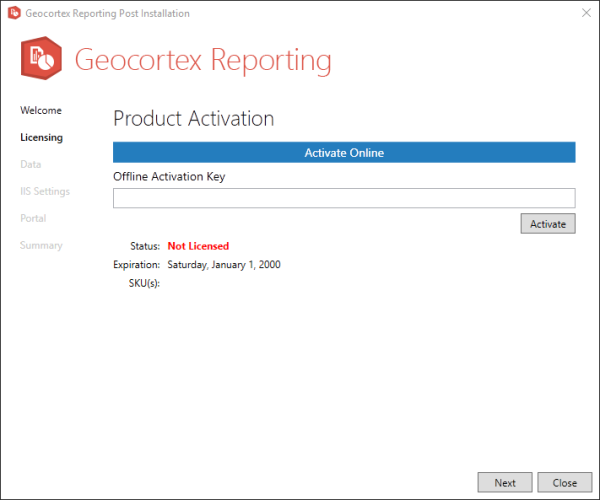
VertiGIS Studio Reporting is licensed software. Use the Licensing panel to activate the product.
-
Open the Licensing panel.
-
When prompted for a license key, you have two options:
-
Activate Offline: Contact Customer Service for an activation key.
-
Activate Online: Sign in to your ArcGIS Online organization associated with your VertiGIS Studio Reporting license. If your organization already has a license, activation completes automatically. If your organization does not have a license, you are asked if you would like to submit a request for a trial license.
VertiGIS Studio Reporting comes with a 60-day trial license. To continue using VertiGIS Studio Reporting after the trial period, the product must be activated with a valid license.
-
After the product key is activated, the status changes to show that the product is Licensed and the SKUs for this product display.
The Data panel allows you to specify the folder for storing files related to your VertiGIS Studio Reporting installation, such as configuration files and
The default data directory is C:\ProgramData\Geocortex\Reporting
-
On a different drive: For example,
D:\Data\VertiGIS Studio Reporting\ -
On a network share via UNC path: For example,
\\servername\data\vertigis-studio-reporting\
If you use a custom location, ensure that both the Reporting application pool identity and the Reporting service account have read and write access to the data directory. The default identity is IIS AppPool\VertiGISStudio.Reporting
If you choose a data directory on another machine, you must configure both the
To move the data directory after you have used VertiGIS Studio Reporting, follow these steps to ensure you don't lose access to your existing
-
Stop the application pool to take the
This prevents data changes while you move the data directory.
-
Copy the data directory to the new location.
-
Ensure the application pool identity has write permissions to the new location.
The default identity is
IIS AppPool\.VertiGISStudioReporting -
In the Post Installer, change the data directory to the new location.
-
Close the Post Installer.
-
Restart the application pool.
-
Delete the old data directory.
-
Open the Data panel.
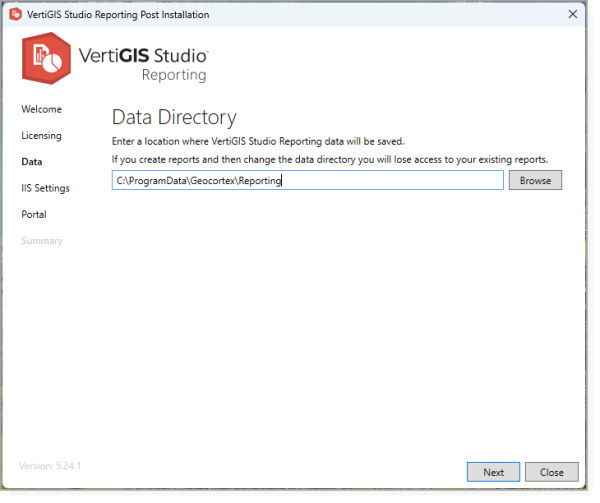
Data panel
-
Enter the path to the data directory. Alternatively, if the data directory is on the same machine as VertiGIS Studio Reporting, click Browse to browse to the data directory.
Remember to give the application pool identity write permission to the new location.
The IIS Settings panel allows you to manage how VertiGIS Studio Reporting is deployed in IIS.
-
Open the IIS Settings panel.
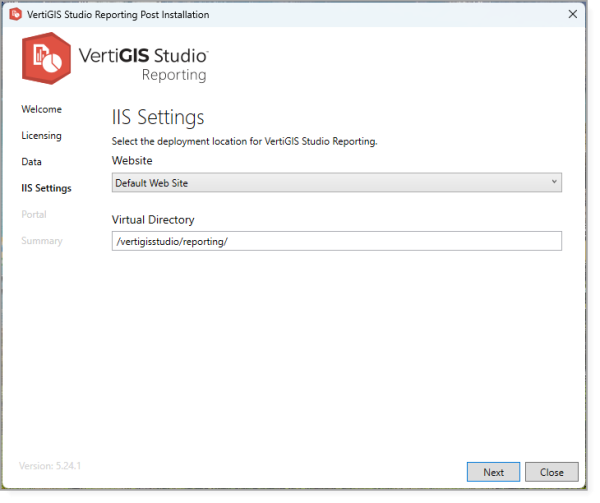
IIS Settings panel
-
To use a different website, select the website from the Website drop-down list.
By default, VertiGIS Studio Reporting is deployed to IIS's Default Web Site.
-
To use a different virtual directory, type the path in the Virtual Directory box.
By default, VertiGIS Studio Reporting uses
/vertigisstudio/reportingas the virtual directory.
To save and share
-
Create an application item and register the item to create an app ID and secret.
-
You then configure the app ID in the Post Installer.
Follow this procedure to create and register a new application on your portal using OAuth 2.0 credentials.
Esri periodically updates the user interface for ArcGIS Online/Portal. The following steps are accurate as of this writing. Be aware that older versions of your Esri portal could be different.
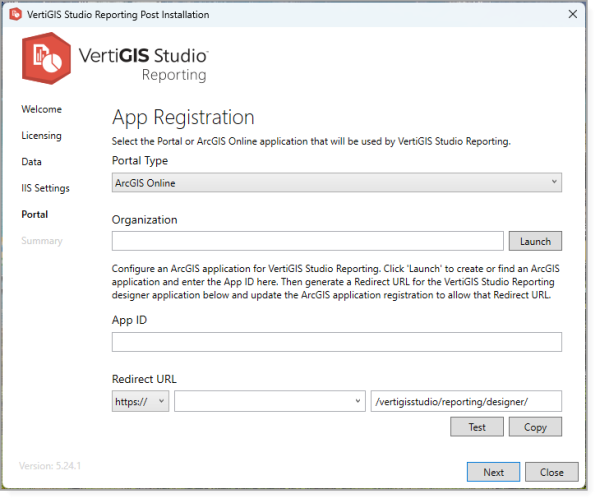
To configure your AppID in the Post Installer:
-
Navigate to the Portal tab of the Post Installer .
-
Select the Portal Type you are using.
-
In the Organization field, do one of the following:
•Portal for ArcGIS: Enter the URL to your portal instance (for example, https://host.domain.com/arcgis/).
•ArcGIS Online: Enter your organization name (for example MyOrganization) or the URL of your ArcGIS Online portal (for example, https://myorganization.maps.arcgis.com). -
Paste the App ID (from the app you created in your portal) into the App ID field.
-
In the Redirect URL section, select HTTPS and copy and paste the Redirect URL from the app you created in your Esri portal.
-
Click Test to test the registration of your application.
The Post Installer tests your registration and either shows a success message or prompts you to fix any errors.If Portal for ArcGIS is secured using Windows Integrated Security and anonymous access to the portal is disabled in IIS, the Post Installer will present a warning that says: "The portal application registration is valid—however the specified portal requires authentication." You must install the VertiGIS Studio Web Adaptor Extensions to allow VertiGIS Studio Reporting to communicate with Portal for ArcGIS.
-
Click Next.
-
In the Summary tab, you can launch VertiGIS Studio Reporting or copy the Designer URL to the clipboard.
The Summary panel shows Report Designer's URL for you to distribute to
-
Click Launch Report Designer or copy the URL under Designer URL for distribution to your team.
Before other members of your organization can access Report Designer, you must share the application item that was created with your organization within your portal.
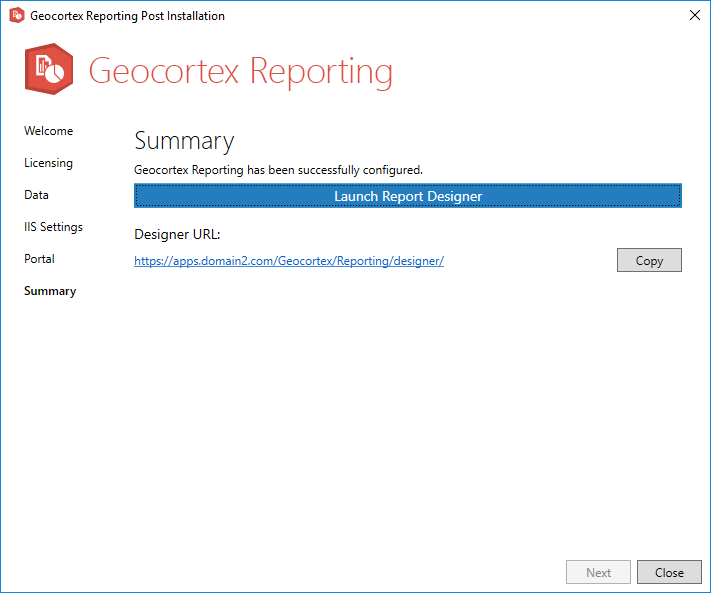
Summary panel
-
Click Close to exit the Post Installer.
You have now completed the post-installation configuration and deployment of VertiGIS Studio Reporting.
Configuration Options
Configure a Geometry Server
Once VertiGIS Studio Reporting is installed, you can specify a geometry service URL by configuring the web.config file.
To add a geometry server to your installation:
-
Open the
web.configfile.Use the following file path as a guide to locate your own
web.configfile:C:\Program Files\VertiGIS\VertiGIS Studio Reporting\Deployment -
Within the
<appSettings>tag, enter a new line, using the following as a guide:<add key="app:geometryServiceUrl" value="<your geometry service url>"/>