Studio Desktop can be installed silently or using the installation defaults.
The VertiGIS Studio Desktop installation can be either standard or silent. The standard installation uses a setup wizard to walk the user through the process. A silent installation is a method of installing software without any human interaction.
Silent Installation
To install with no UI components, use the /qn parameter. The software installs completely in the background. You will not see a welcome screen, a progress bar, or a "Finish" button.
msiexec.exe /i VertiGIS-Studio-Desktop-v99.99.99 /qn
The administrator privilege prompt will not show using this method.
To install silently and still show UI dialogs, use the /qb parameter. The "q" means quiet and the "b" means basic UI. This shows the progress bar only and there are no buttons to click.
msiexec.exe /x VertiGIS-Studio-Desktop-v99.99.99 /qb
Standard Installation
To install Studio Desktop using defaults:
1.Launch the VertiGIS Desktop Installer for ArcGIS Pro.
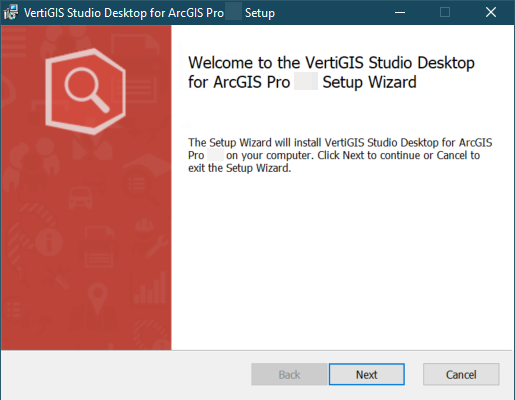
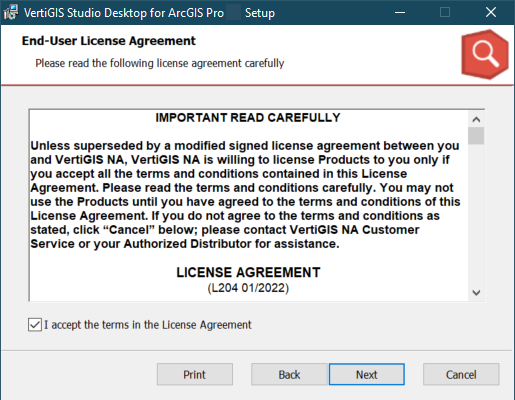
2.Accept the License Agreement and click Next.
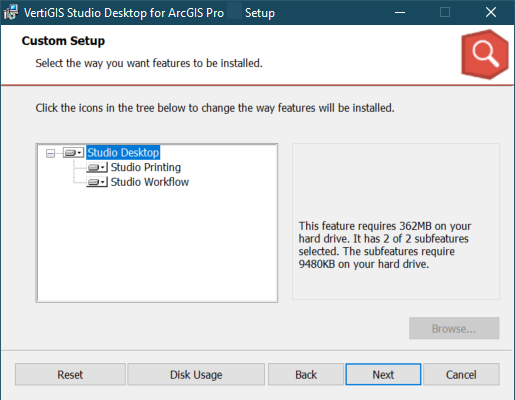
3.Ensure that both Studio Printing and Studio Workflow will be installed and click Next.
4.Choose whether to enable the Start Landing Page by default option and click Next.
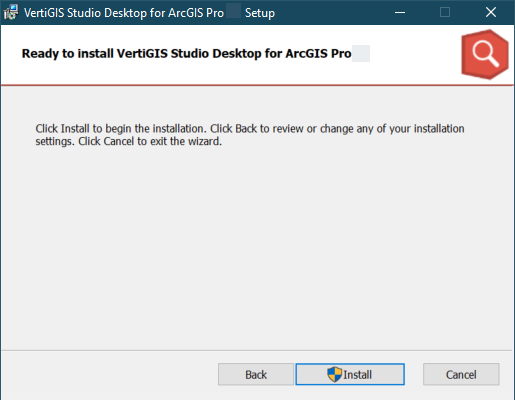
5.Click Install to begin the installation.
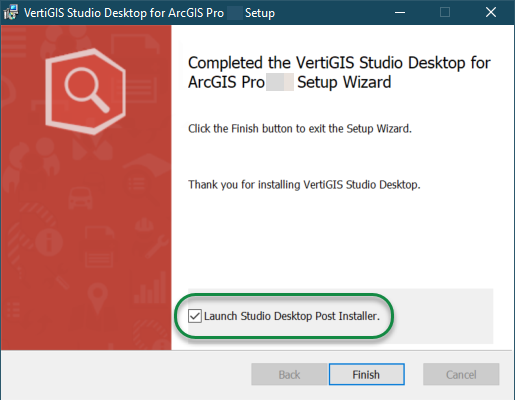
After the installation, the Completed window appears.
6.Click Finish.
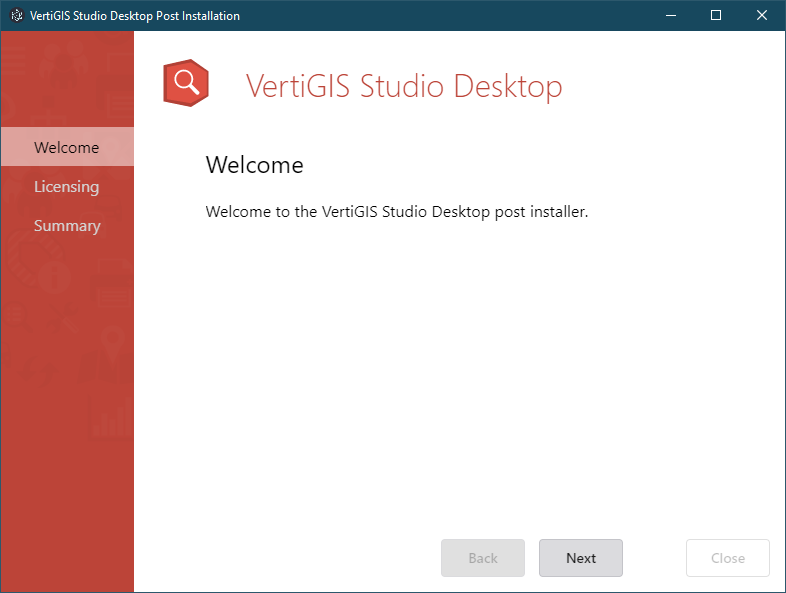
7.Configure the post installer to complete the installation.
You must complete all steps in the post installer before you can use the software. You can run the post installer later by running the VertiGIS Studio Desktop Post Installer from the Windows Start menu.