The VertiGIS Studio Desktop installer automatically determines whether to perform a per-machine or per-user installation based on the installation context of ArcGIS Pro.
You can install Studio Desktop using the installation wizard or from the command line. For information about command-line installation, see Silent Installation.
To install Studio Desktop using the installation wizard:
1.Launch the VertiGIS Desktop Installer for ArcGIS Pro.
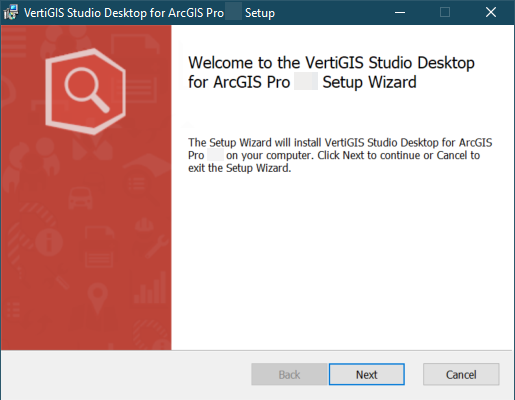
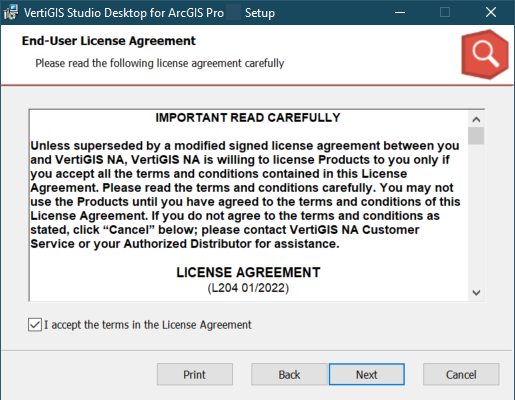
2.Accept the License Agreement and click Next.
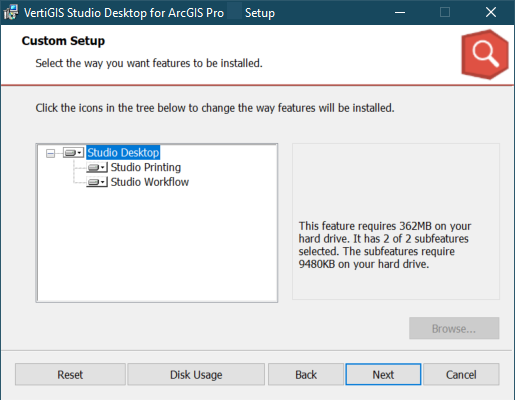
3.Ensure that both Studio Printing and Studio Workflow will be installed and click Next.
4.Choose whether to enable the Start Landing Page by default option and click Next.
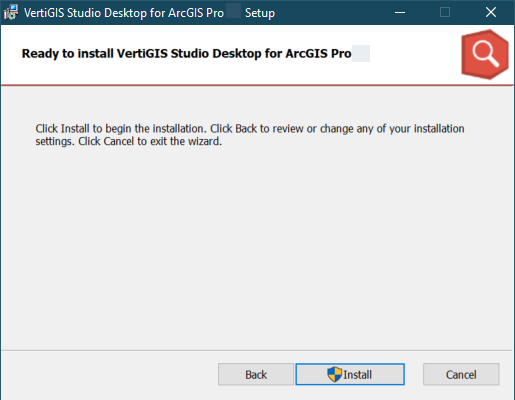
5.Click Install to begin the installation.
The installer automatically determines whether to install Studio Desktop per-machine or per-user based on the ArcGIS Pro installation.
•If ArcGIS Pro is installed per-machine, you may be prompted to provide administrator credentials or approve a User Account Control (UAC) prompt.
•If ArcGIS Pro is installed per-user, the installation proceeds without administrator privileges or a UAC prompt.
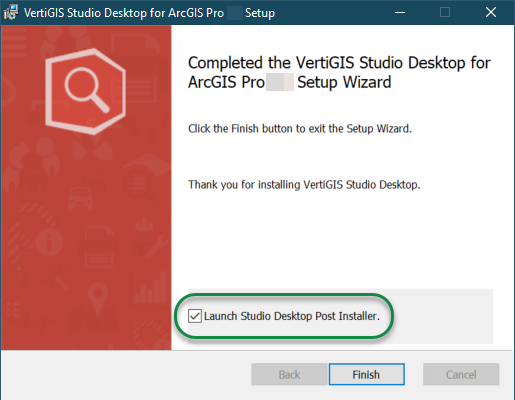
After the installation, the Completed window appears.
6.Click Finish.
The installation location depends on the installation scope.
|
Per-machine Installation |
Per-user Installation |
|---|---|---|
Application Files |
Installed under: C:\Program Files\VertiGIS\Studio\Desktop\ |
Installed in the current user's local application data folder: C:\Users\<user>\AppData\Local\VertiGIS\Studio\Desktop\ |
Application Data |
Stored under: C:\Program Files\VertiGIS\Studio\Desktop\Data\default.prod-info |
Installed in the current user's local application data folder: C:\Users\<user>\AppData\Local\VertiGIS\Studio\Desktop\ |
Application Components |
Installed in the corresponding subfolders, including: •AddIns •Configurations •Post-Installer •PrintingLayouts •Setup |
Installed in the current user's local application data folder: C:\Users\<user>\AppData\Local\VertiGIS\Studio\Desktop\ |
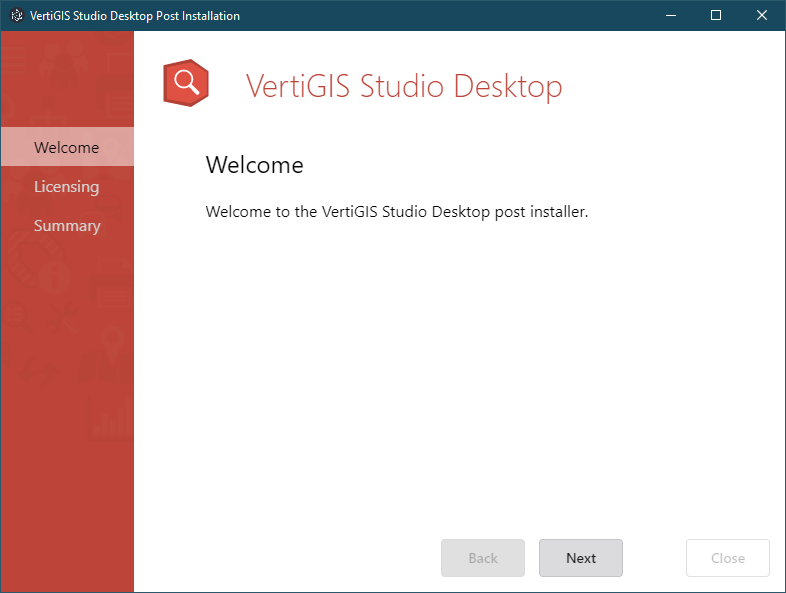
7.Configure the post installer to complete the installation.
You must complete all steps in the post installer before you can use the software. You can run the post installer later by running the VertiGIS Studio Desktop Post Installer from the Windows Start menu.