VertiGIS projects can be created and configured using the VertiGIS WebGIS Projects add-in. To do this, open the Project tab in the menu bar and select the Studio Projects button.
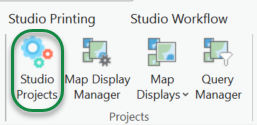
The Studio Projects interface provides the administrator with a list of all available VertiGIS projects.
To create or edit projects, the user must have administrator privileges.
The table below describes the Studio Projects toolbar functions.
Button |
Description |
|---|---|
|
Create a new VertiGIS project. |
|
Edit the selected VertiGIS project. Double-clicking on the selected project also switches to edit mode. |
|
Delete the selected project The selected project will also be deleted from the ArcGIS Portal. |
|
Refresh the list of available VertiGIS projects. |
|
Open the selected VertiGIS project and start a new ArcGIS Pro session. As project administrator you can use this button to test the created VertiGIS project for usability in ArcGIS Pro. |


Next to it, the URL of the currently connected portal appears in the upper right area of the dialog.
The figure below shows the Item Details interface for editing project details.
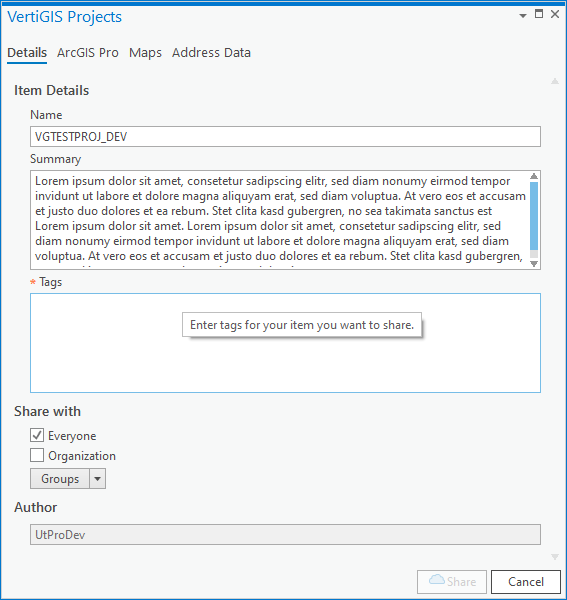
The table below describes the settings in the
Setting |
Description |
|---|---|
|
|
|
|
In this edit mask, the project name and tags for the project can be set in the Item details section.
With Share with, settings for storing the project as a portal item can be stored: The sharing options can be specified here.
In the ArcGIS Pro section, an ArcGIS Pro project package can be searched and selected on the connected portal. In the Maps section, both web maps and map displays can be selected and assigned for the VertiGIS project to be modified. Both web maps and map displays are available as elements in ArcGIS Portal. These elements can be searched and assigned to the project.
For the address search with the Navigator, address tables in the same schema as the GIS data are used by default. If the addresses are in a different schema, they can be addressed via an address service. In this case, the URL of this address service must be specified in the Address Data tab.
Geolocators can also be linked to the project. However, these must be available in the same portal as the project.
Create a new VertiGIS project using the wizard. See chapter Create VertiGIS Project.