You can add a new component to your layout with the + Add Component button. A Toolbox panel will appear with three categories of components you can drag to your layout:
•Map: All map-related components.
•Layout: All layout components.
•Other: All other components.
The following example demonstrates adding a Panel component to the top of the taskbar.
To add a component:
1.While editing your app in Designer, at the bottom of the Components panel, click + Add Component.
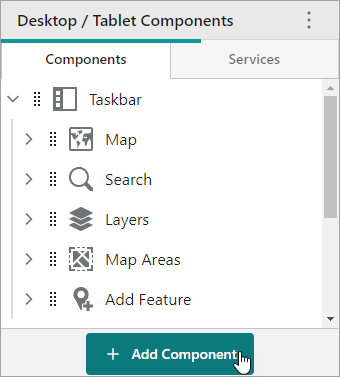
If the + Add Component button is not visible, you are likely viewing your app's Services; click Components to view the components of your layout.
The Toolbox panel appears.
2.In the Toolbox panel, click the Layout tab.
3.In the Toolbox panel, drag  beside the Panel component to where you want to place it in the Components panel.
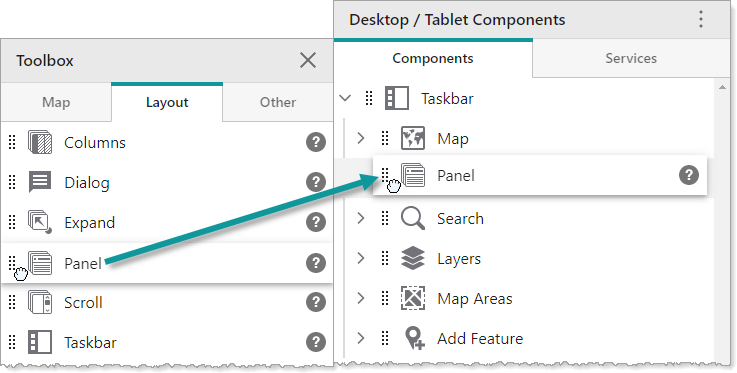
The Panel component is added to your layout.
