You can copy an existing component in your app. If the component contains other components, they will also be copied. A Copy From Current App panel will appear where you can drag components to your current layout in the Components panel. This is particularly useful if you have configured a component in one layout and want to copy that component to another layout in your app.
The following example demonstrates copying the I want to... component.
To copy a component:
1.While editing your app in Designer, in the Components panel, click the expand arrow ( ) beside + Add Component and then click Copy from current app.
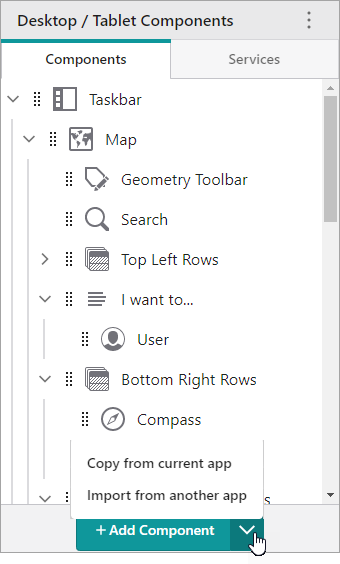
If the + Add Component button is not visible, you are likely viewing your app's Services; click Components to view the components of your layout.
The Copy From Current App panel appears.
2.If your app contains more than one layout, in the Copy From Current App panel, click the layout tab that contains the component you want to copy.
3.In the Copy From Current App panel, drag  beside the I want to... component to where you want to place it in the Components panel.
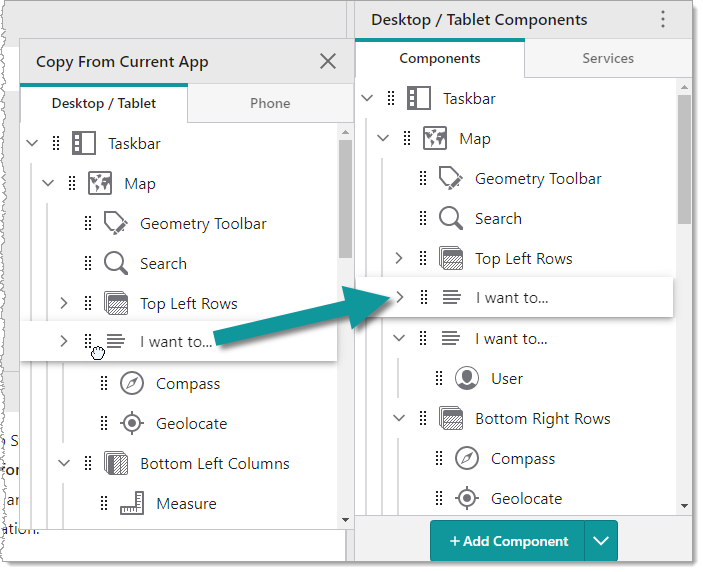
The I want to... component is copied to your layout.
