You need to create an app in ArcGIS Online or Portal for ArcGIS to enable the use of an ArcGIS Login for Mobile Designer and VertiGIS Studio Go. You can use the same app for both Mobile Designer and VertiGIS Studio Go. You also need this application to log in to a Custom Mobile app.
To create an app in ArcGIS Online or Portal for ArcGIS:
1.Open your browser and sign in to ArcGIS Online or your Portal for ArcGIS.
You can also add an ArcGIS application just after you install Mobile Designer, during the post-installation process. To create an application from the Post Installer, click Launch to open your Portal in the browser, then continue from step 2 below.
2.Select the Content tab.
3.Click New Item.
4.Select Application.
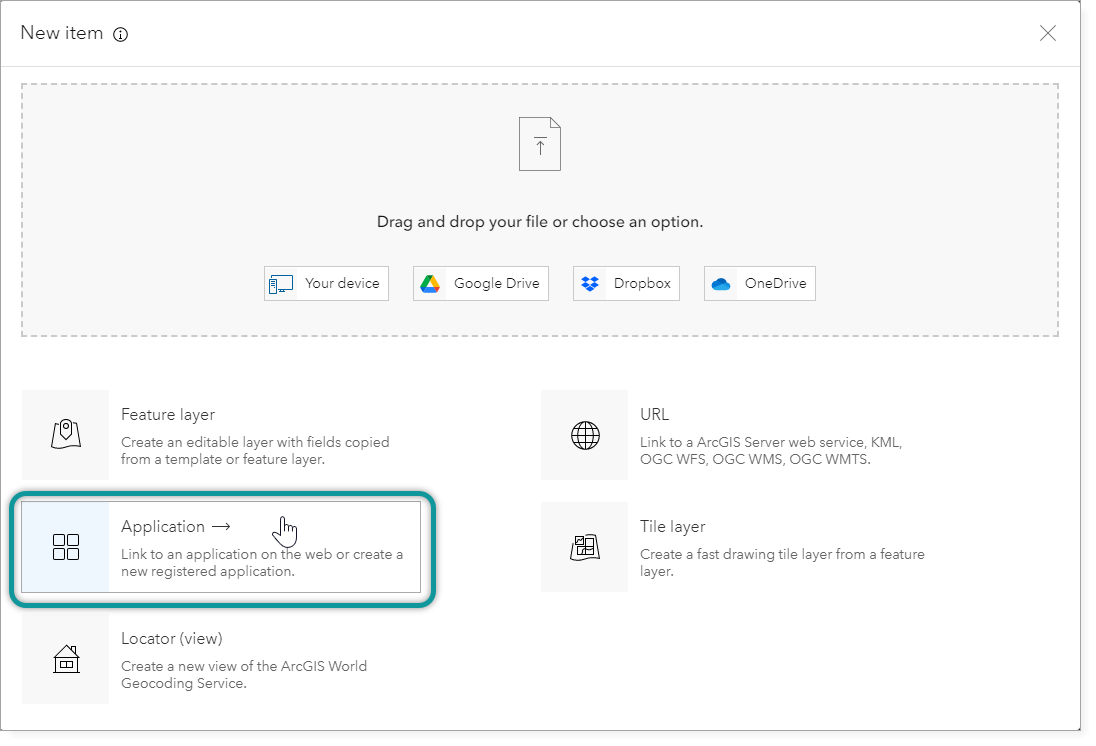
5.Select Other application as the Application type.
6.Click Next.
7.Configure the application using the following settings:
•Title: Enter "VertiGIS Studio Mobile". This is the title you see when you log in to Mobile Designer and VertiGIS Studio Go and it requests your permission to use your login information.
•Tags: Enter "vertigis-mobile-viewer". This is a required tag. You can add other optional tags, such as, "vertigis-studio", "mobile", "Go", or tags for your organization. Type each tag name and press Enter to separate multiple tags.
These tags should only be applied to this Portal for ArcGIS application, not the web mapping applications that you create in Mobile Designer.
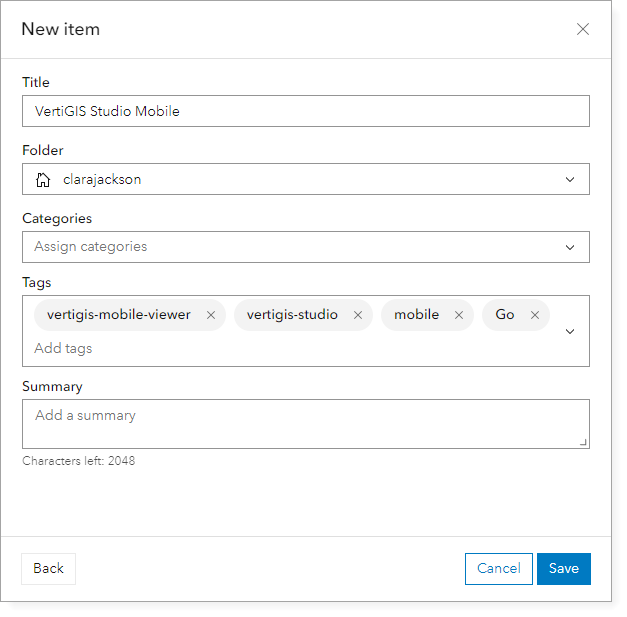
8.Click Save.
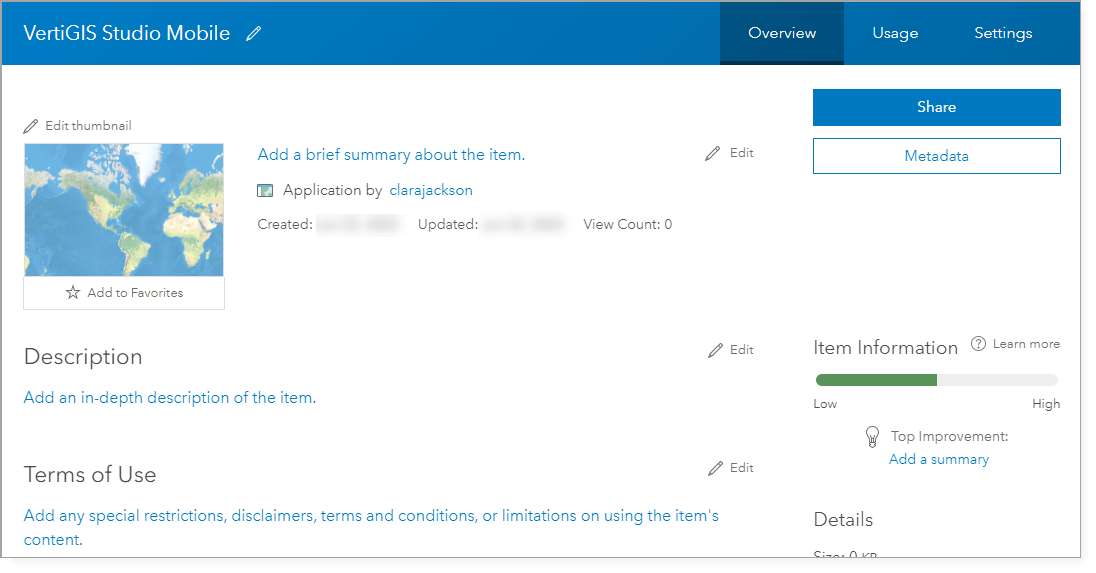
9.The VertiGIS Studio Mobile application opens in the Overview tab.
Register the Application
To register the application:
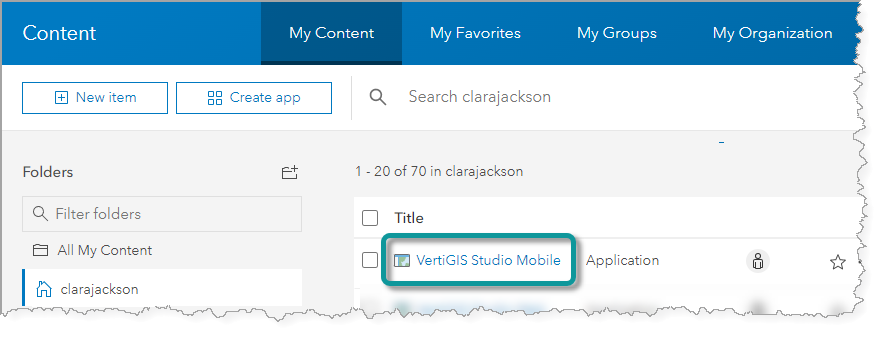
1.In your ArcGIS portal, select the Content tab.
2.Select the VertiGIS Studio Mobile application.
3.Select the Settings tab and scroll to the Application section.
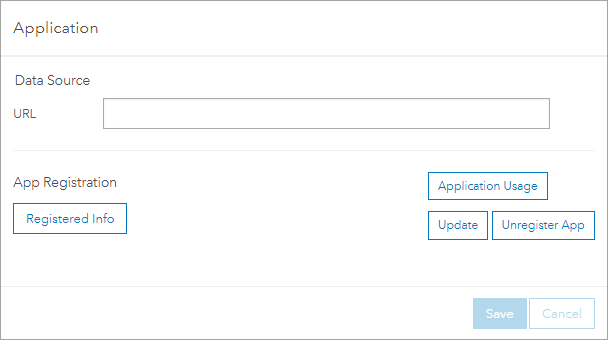
4.Click Update.
If the Update button is not available, click Register.
The Registered Info window opens.
5.Ensure that the following host name is in the Redirect URI field:
urn:ietf:wg:oauth:2.0:oob.
If the Redirect URI box is blank:
•Type the host name for your web server into the Redirect URI field.
•Click Add.
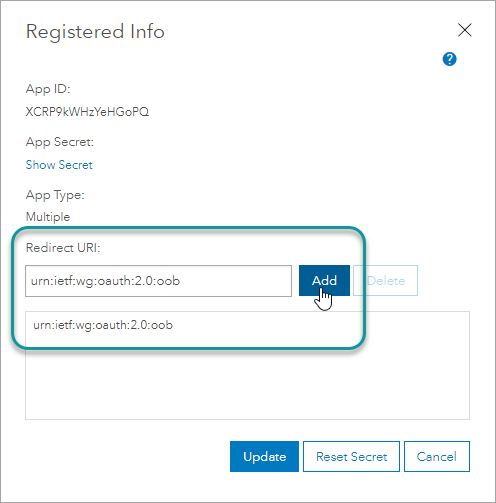
6.Click Update to complete the registration of the application.
If the Update button is not available, click Register.
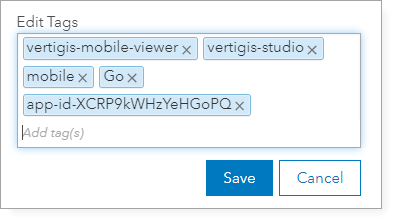
7.Copy the App ID in the Application section, as you will need it in the next steps to add the app-id-[App-ID] tag. In the figure below, the App ID is XCRP9kWHzYeHGoPQ.
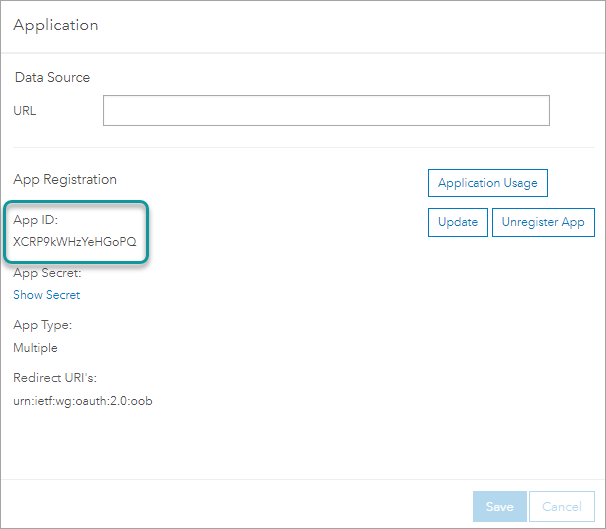
Leave the application open in the browser so that you can copy and paste the App ID and Redirect URL when you need them during installation.
8.Select the Overview tab.
9.Click Edit in the Tags section, located in the right sidebar.
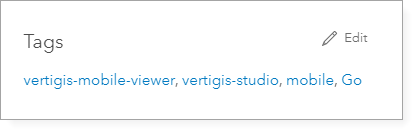
The Tags section changes to Edit Tags.
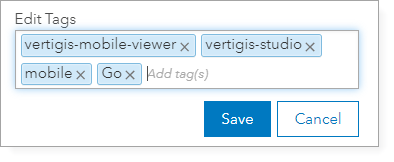
10.Add the app-id-[APP-ID] tag, replacing [APP-ID] with the App ID copied from the Application section. For example, the tag in the figure below is app-id-XCRP9kWHzYeHGoPQ.
Do not include the square brackets in the App ID tag.
11.Click Save.
12.In your portal, share this application with everyone.
You must share this application with everyone so that users can sign into Mobile Designer with Esri identities. If you use other VertiGIS Studio products, we recommend using the same portal and app ID across all applications so users can switch between them without needing to sign in again.
