The procedure below uses a web map Capture GPS receiver option enabled to indicate how the GNSS metadata fields appear in Mobile Designer.
To configure an app for GNSS:
1.In Mobile Designer, create a new app.
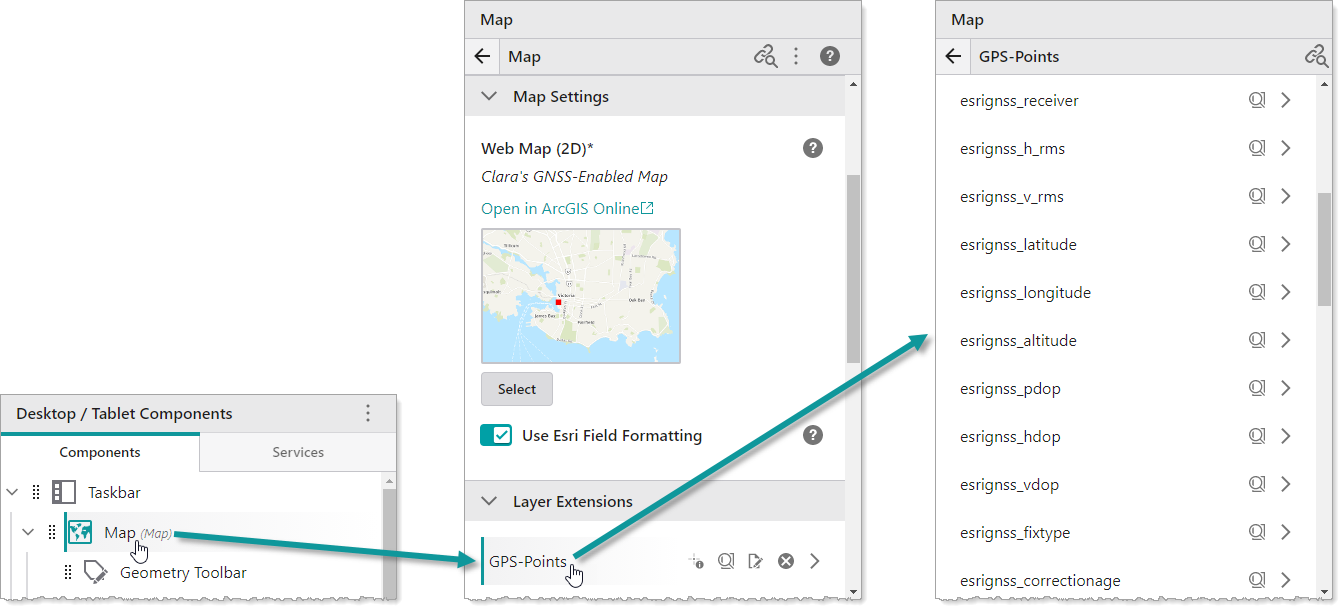
2.Click Map and select your web map.
When you click the points feature layer on which you enabled GPS, you will see all the metadata fields that the Mobile app will populate with information from your GNSS receiver.
3.In the Map panel, expand GNSS Settings.
If the default Receiver Data Spatial Reference and the Web Map Data Spatial Reference are not the same, you will need to select a Datum Transformation that will convert the receiver spatial reference to the web map's spatial reference.
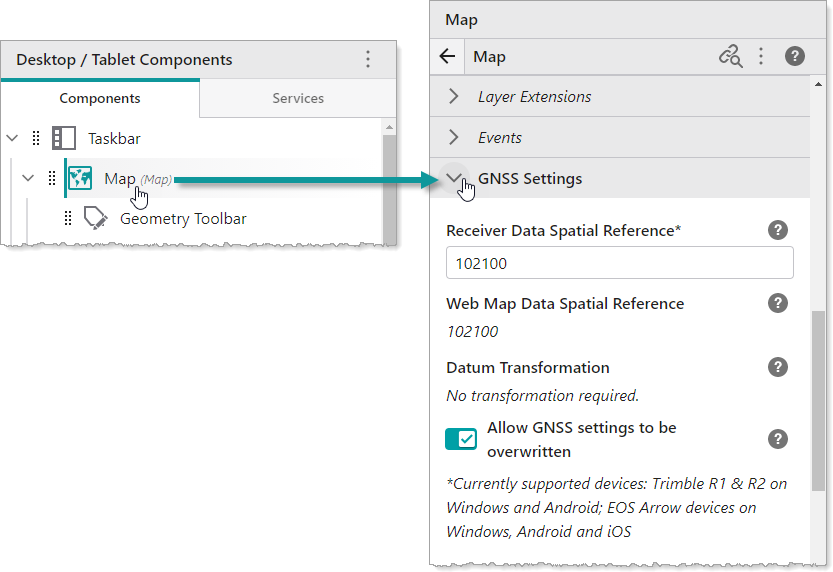
4.Select the Allow GNSS settings to be overwritten, if you want to enable field workers to select a different Datum Transformation in their Mobile app. If you do not want field workers to change these settings in the field, do not activate this setting.
5.Click File > Save to save your GNSS app.
