You can configure Branding options for your app that affect the background colors and the accent colors within the app.
To set branding options:
1.In VertiGIS Studio Mobile Designer, in the Components panel, click Branding.
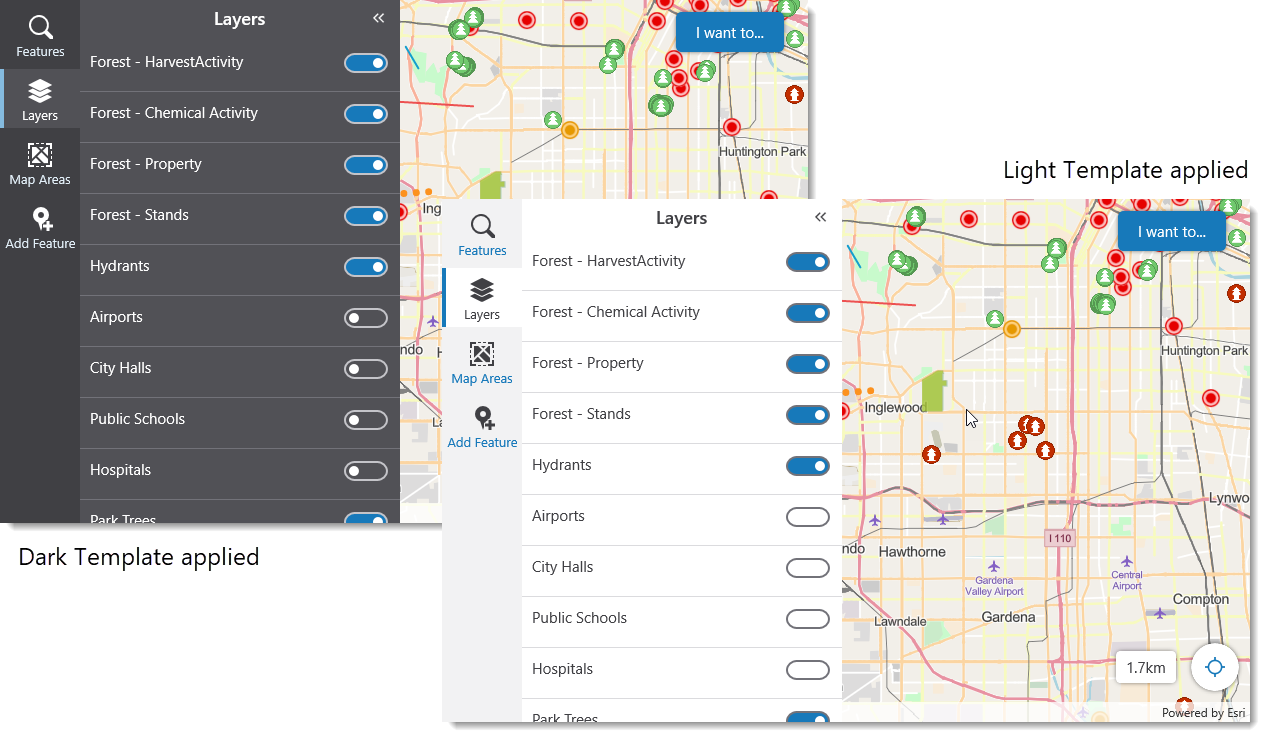
2.In the Color Template drop-down list, select either the Light or Dark Template.
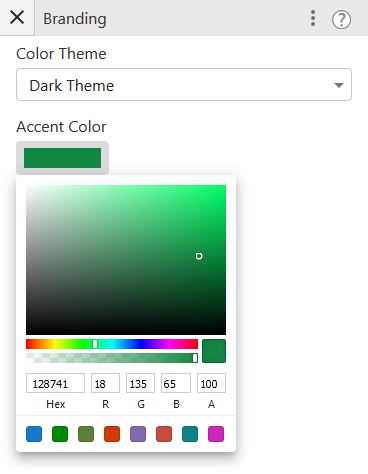
3.To change the Accent Color, click the colored bar, and select the color you want to use.
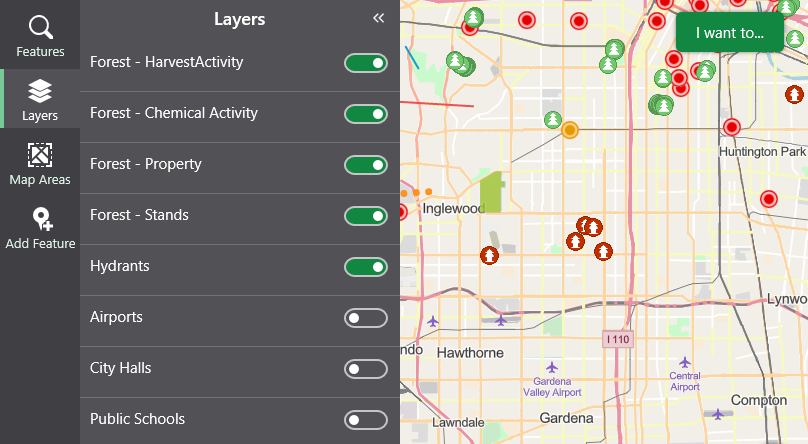
The app with accent color changed to green.
4.Click File > Save.
Settings
The following settings apply to the whole app.
•Color Template: Applies an overall background color scheme. You can select either the Light Template or Dark Template.
•Accent Color: Applies a color to UI elements, such as layer toggle switches and the I Want To menu. To select an accent color, click the color picker on the right, or manually type in red/green/blue rgb(#, #, #) values. For example, rgb(0, 127, 255).
To revert to the default color once you have changed it, click the three-dot menu beside the Branding title, and then click Revert to Defaults.
Revert to Defaults affects all the settings in the panel, so the Color Template and Accent Color will also revert to the default if you have changed them.
