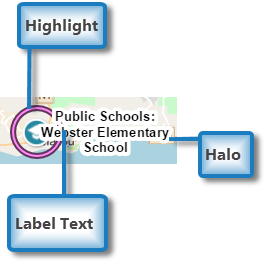
When you search for features and they are found within the visible part of your map, each one is highlighted in a specific color and if there is room, an identifying label appears beside each feature found. When you click a feature on the map to focus on it, the feature is highlighted in a different color and a label appears to identify the feature you selected.
You can change the colors used to highlight searched features or a clicked feature. You can also change the font size and color used for the text label and the size and color of the surrounding halo that makes the label easy to read against the map.
To change the highlight or focus color:
1.In the Components panel, click Highlighting.
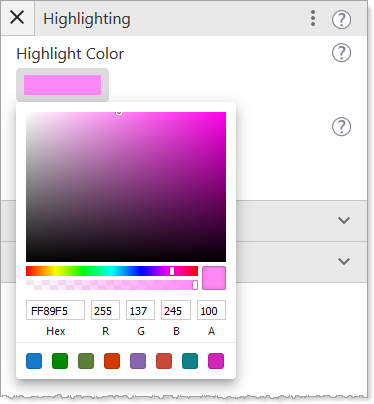
2.To change the color that surrounds features found when you do a search, click the color bar in the Highlight Color box, and then select a new color.
3.To change the color that surrounds features you click on the map, click the color bar in the Focus Color box, and then select a new color.
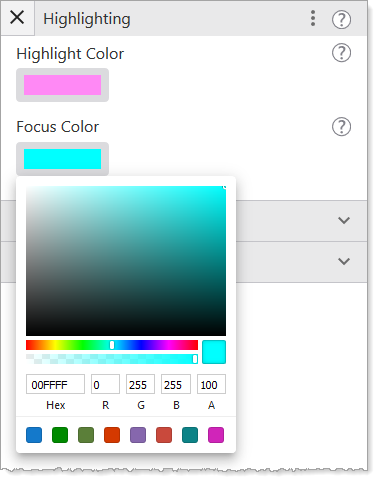
4.To use a custom color for either the Highlight or Focus color, replace the default RGBA numbers with those for your custom color.
5.Click File > Save.
To change the size or color of the text or halo of feature labels:
1.In the Components panel, click Highlighting.
2.Expand one of the following:
•Highlight Label Text Symbol: Changes the color and size of the text or the color and size of the halo surrounding the text of labels attached to features found during a search.
•Focus Label Text Symbol: Changes the color and size of the text or the color and size of the halo surrounding the text of labels attached to features you click on the map.
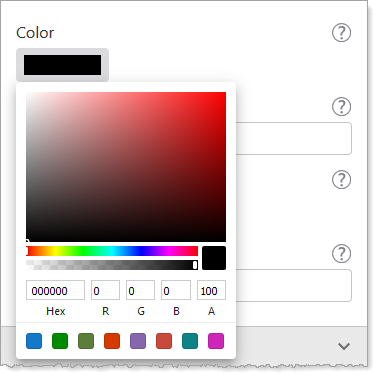
3.To change the color of the text, click the black square in the Color box and select a different color, or replace the RGBA numbers with those of a new color.
4.To change the size of the text, click Font Size and type in a smaller or larger number.
5.To change the color of the halo that surrounds each label, click the color bar in the Halo Color box and select a new color, or type in the color's RGBA numbers.
6.To change the width of the halo around text labels, click Halo Size and increase or decrease the number of pixels.
7.Click File > Save.
Settings
The following settings apply to the colors and text that appear around features to highlight them when they are returned in search results or to surround a feature on the map when it is in focus.
•Highlight Color: Sets the color that shows highlighted features returned in a search.
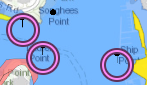
•Focus Color: Sets the color that surrounds a feature that is in focus.

•Highlight Label Text Symbol: Sets the color and size of the text of feature labels and the color and size of the halo surrounding the labels of features found in a search.
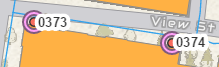
•Color: The color of the text that appears when features are found in a search.
•Halo Size: The size of the background that surrounds the label to ensure the text is visible against the multiple colors of the map.
•Halo Color: The color of the background surrounding the label.
•Font Size: The size of the text that appears when a feature is found in a search.
•Focus Label Text Symbol: Sets the color and size of the text of feature labels and the color and size of the halo surrounding the labels of features that you click on.
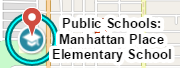
•Color: The color of the text that appears when you click a feature.
•Halo Size: The size of the background that surrounds the label to ensure the text is visible against the multiple colors of the map.
•Halo Color: The color of the background surrounding the label.
•Font Size: The size of the text that appears when you click a feature.
