The Features search allows you to look for features on the map, for example, a particular airport, park, school, or building. Any search you make is limited to the area of the map that is currently visible, which means that zooming in or out to the right scale can make a big difference to the results you get when you click Search. If you don't get the results you expect, try zooming in or out to ensure that the type of feature you want is within the visible area and that those features are turned on in the Layers panel.
Find the Results you Want
The search is a full-term search only, which means that the search only finds the whole term that you type in.
For example, imagine you are looking for the Cowan Elementary school on the map:
▪If you type "Cowan" in the Search box and that is the name of both a school and a park, you will see both those features in the results - if they are in the visible part of the map.
▪If you type in "Cowan School" and the name is actually "Cowan Ave Elementary School", you will get no results. The search does not look independently for "Cowan" and "School" and give you results for both words.
Similarly, if you search for "hydrants", and they are named as a "hydrant" on the map, you will see no results unless you change your search to "hydrant" and then you will see all the hydrants in the visible area.
Only the first 50 results of any search are displayed by default, and the results are ordered by proximity to the center of your visible map area.
If you do not see the feature or features you expect, it may be any of the following issues:
•A feature may be the 51st item in the results and you cannot see it. Try:
•Changing to a slightly different term or spelling.
•Panning or zooming in to a different area.
•A feature may be outside the visible part of the map. Try zooming out so that more of the map is visible or pan the map, and then try the search again. To make this process faster, you can use the Search This Area button that appears at the top of the map when you pan it after a search. When you click the button, the app performs the same search in this new area of the map.

•That feature may be on a layer that is currently turned off. Check to see that the layer is on.
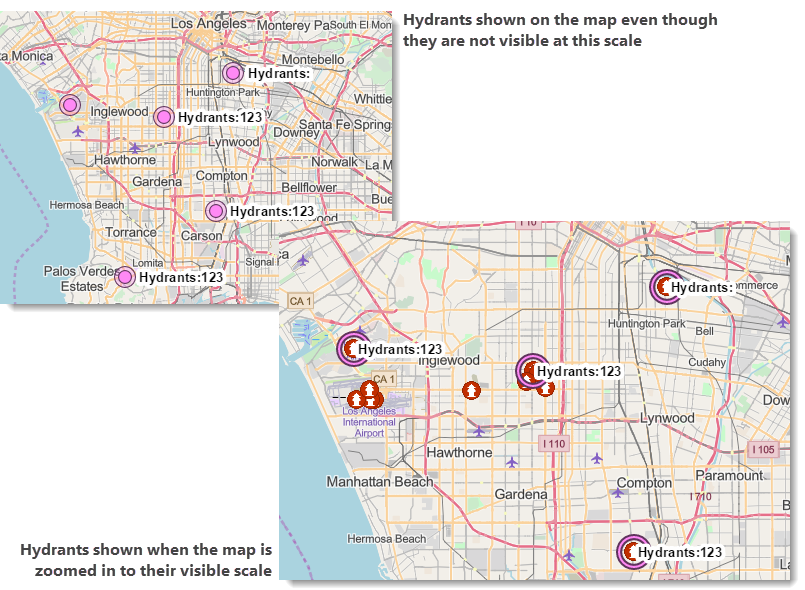
•That features may not be visible at the scale the map is currently on. If the features you are looking for are present (the layer is on) but only visible at a different scale, the features appear as a dots with a label. When you see those dots, you can zoom in to the necessary scale. For example, if you were searching for Hydrants with a specific serial number and they were not visible at the current scale, you would see:
To search for a feature:
1.In the Mobile app, on the taskbar, click Features.

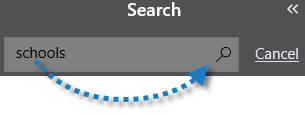
2.In the Search box, type in the name of the features you want to find, and then click the search icon or press Enter.
The features found in the visible area of the map are displayed in the Results list and each feature found on the map is highlighted and labelled with the feature name, if labels are configured for that layer.
Labels are not shown if they will collide with other features or their labels. This is done to avoid one label obstructing another feature or its label.
In the screen shot below, for example, a real estate agent has searched for schools in an area for a couple thinking of buying a house within the area but they want to know what schools are available. The schools found are highlighted and have clear labels.
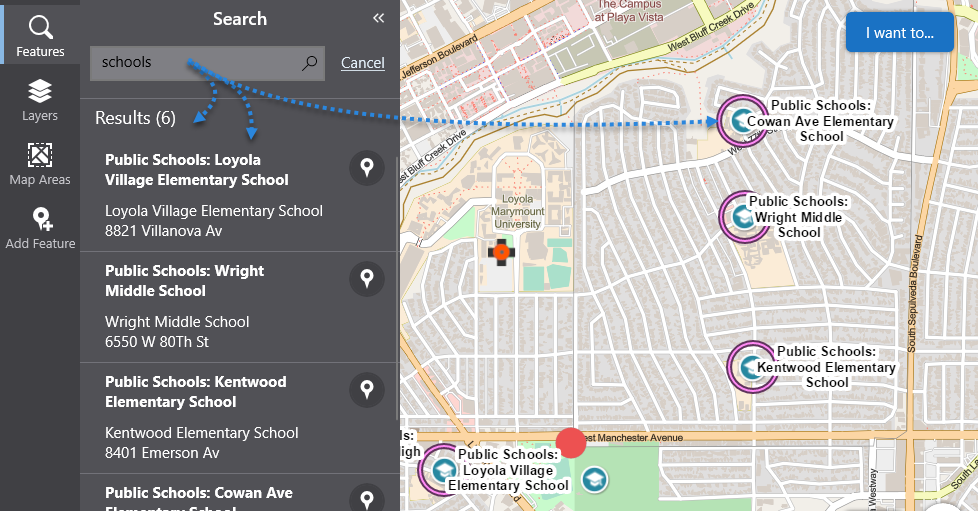
If you want to find a single search result on the map, click the pin beside it  . The map pans to that feature and centers it, so that you can easily see the feature.
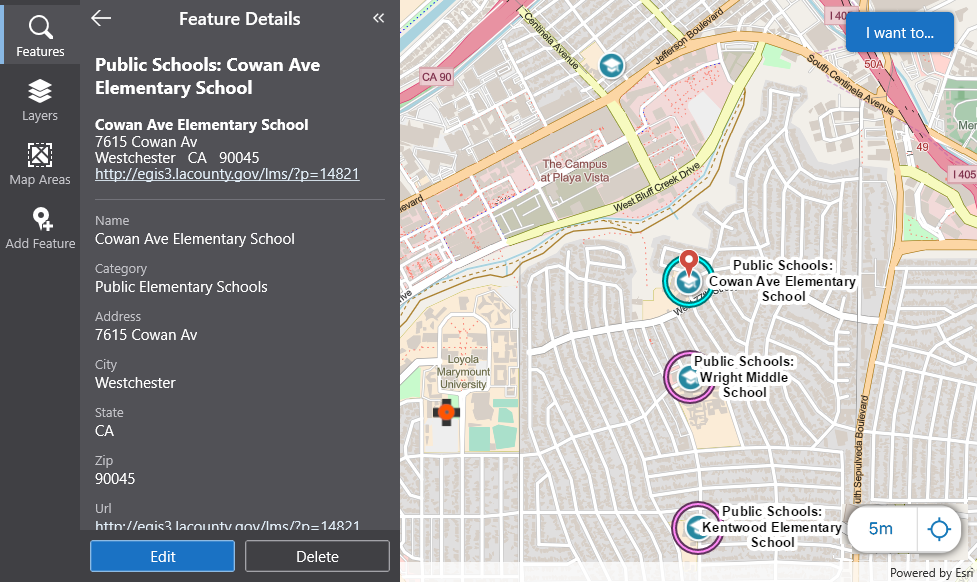
3.To see detailed information about a single feature in the Result list, tap a result in the list, or tap the result on the map.
The Results list changes to show details about that particular feature.
On the map, the selected feature usually has a different color highlight and a red location marker.
Click any result in the list and the map automatically pans to the feature and centers it,