Each feature on a layer can be selected to view detailed information about it, usually including a title, feature actions icons that you can click to do something with the feature, as well as feature attributes. You can display a feature's attributes by clicking it on the map, or selecting a feature in the list of search results.
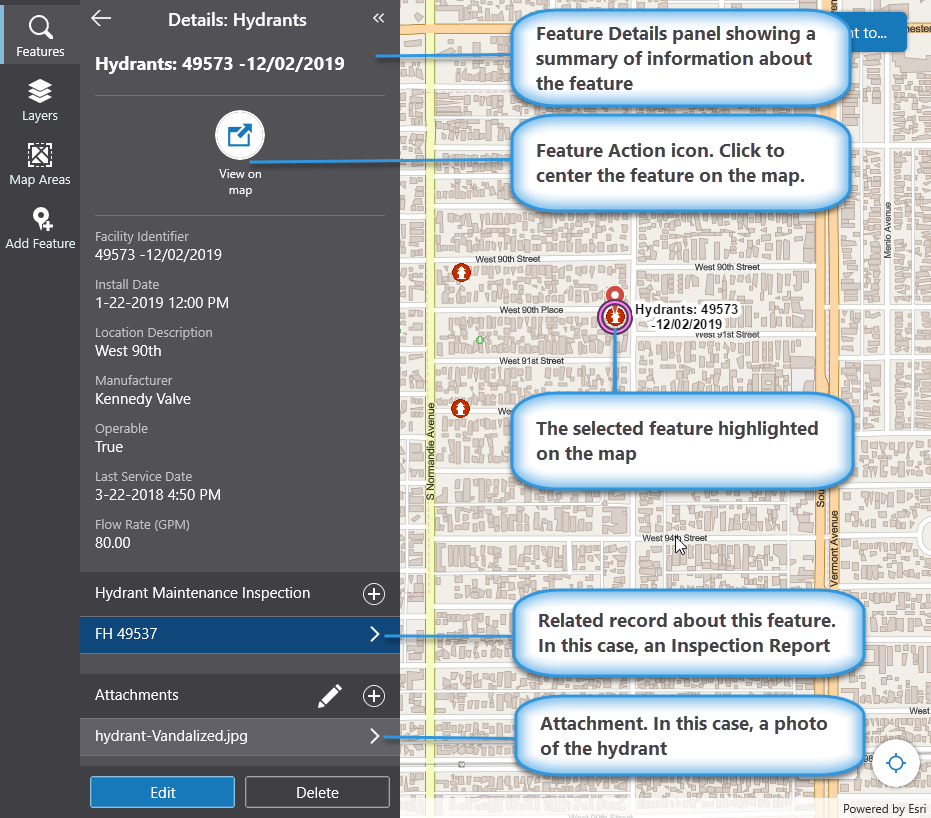
At the bottom of the feature Details panel, you may find attachments if they have been been added to this feature, for example, PDFs or photos. In addition, there may be related records that you can view. In the screen shot above, for example, there is an inspection report.
To view details about a single feature:
1.On the map, or in a list of search results, click a feature.
The feature Details panel opens with information about that feature.
If you happened to click on an area where two features are close or overlapping, the Results panel displays a list of all the selected features and you can then click on the feature you want and display its details.
If a feature contains one or more attachments or related records, then you can click on each one to view them.
