Some menus have a context in which they are used. You can pass the context of the menu as the value to a workflow input. For example, a menu item in the Result Details passes the results as the input to a workflow.
The following table indicates the types of context of each kind of menu.
Component Menu Types and Contexts
Component Menu |
Type |
Context |
|---|---|---|
I Want To |
null |
None |
Map > Events > Map Initialized |
null |
None |
Launch Link Workflows |
null |
None |
Result Details |
Feature[] |
An array of Feature objects representing the result in the Result Details panel. |
Map > (Specific layer) |
Feature[] |
An array of Feature objects representing the results from the specified layer in the search results. |
Map > Context Menu |
Geometry |
The geometry at the point of the secondary click. |
To use the menu context as a workflow input:
This procedure adds a menu item to the Result Details menu that runs an existing workflow with the results in the Result Details as its input.
1.While editing an app in Mobile Designer, in the Components panel, click Result Details.
2.Click +Add Menu Item.
A window appears that lets you select a command or workflow.
3.Click the Workflows tab.
4.Select a workflow.
By default, the title of the workflow is also the title of the menu item.
If you can't find the workflow, try using the Search box or, in the Filter by menu, select one of the other options.
5.Click Select.
6.In the Result Details panel, click the new menu item to edit it.
7.Optionally, to rename the menu item, type a Title for the menu item, for example, Run My Workflow With Input.
8.Under the command, to the right of the workflow title, click  to customize the command.
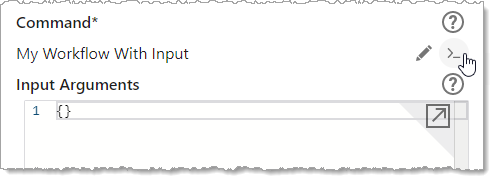
9.Find the code box below the command.
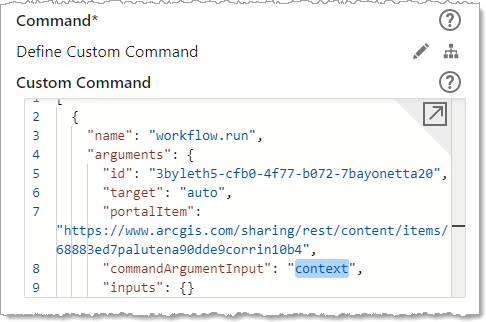
10.Set the commandArgumentInput property to the name of the workflow input you want to pass the menu's context to. For example, MyFeaturesWorkflowInput. By default, this property is set to context, which only works if that is the name of your workflow input.
The type of the workflow input should match the type of the context of the component menu. For example, the workflow input type is an array of Feature objects which is the same type as the context of the Result Details component menu. For a list of types and contexts, see Component Menu Types and Contexts.
When a context is passed into a workflow, the context is passed in via the inputs object under the value specified by commandArgumentInput. For example, if the value of commandArgumentInput is "map-context", then the workflow input arguments will contain a property called map-context whose value is the context.
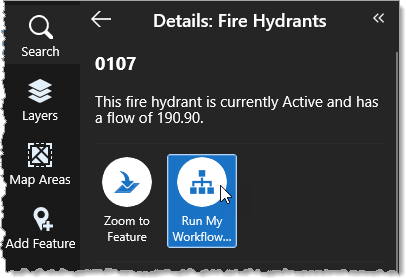
The workflow menu item appears in the Result Details menu as follows.
11.Click File > Save to save the app.
If you want the workflow to be available to other users, see Configure Sharing Permissions.
