Some feature layers may be configured to use related records, for example, a series of Hydrant Inspection Reports that might have be added for a specific feature over several years. If related records are configured, there will be a section in the Details panel that lists previous records with a title to indicate the type of record they are.
If you have permission, you can add related records to a feature and delete them.
To add a new Related record:
1.In the Details panel of the feature you want to add a record to, scroll down to the related records section, and then click +.
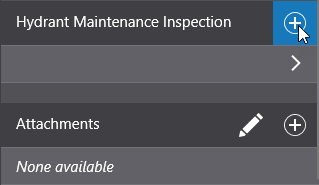
A form opens with a set of pre-configured fields for you to fill in.
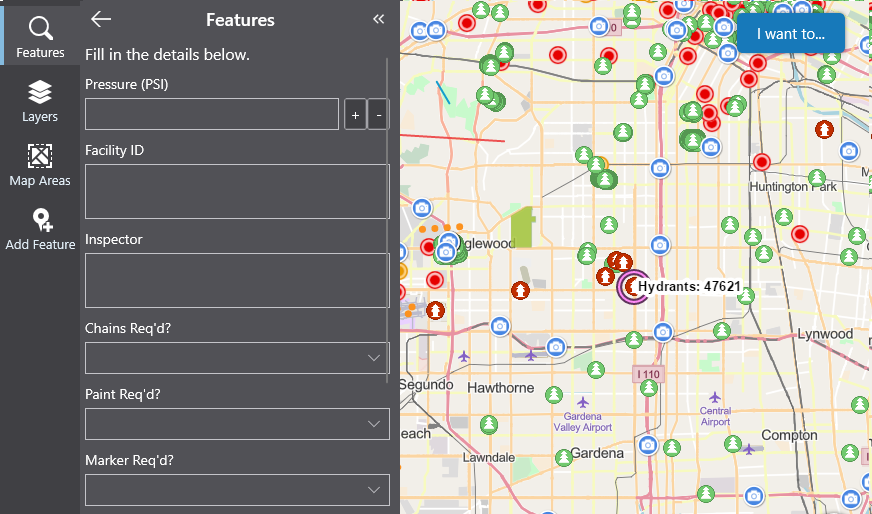
2.Fill in the information in the fields.
3.Set a location for the record (if supported).
4.Scroll to the bottom of the Details panel, and then click Save.
To edit a related record:
1.In the Details panel of the feature whose record you want to edit, scroll down to the related records section, and then click the related record to open it.
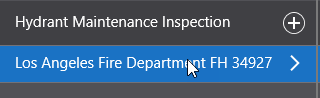
2.When the related record opens in the Details panel, click Edit at the bottom.
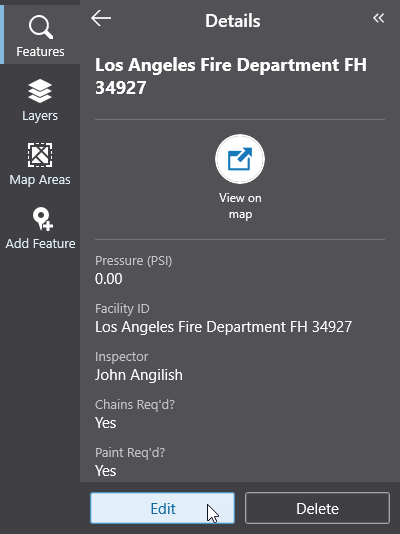
The Edit panel opens and displays the fields of this record that you can edit.
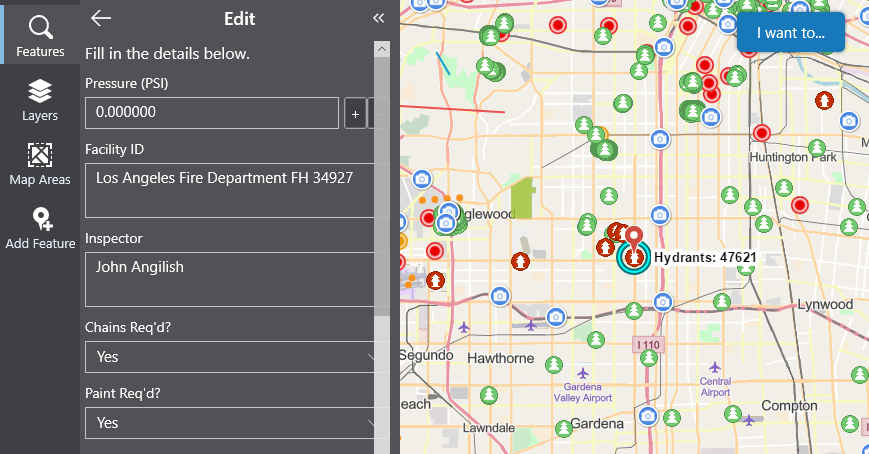
3.Edit any of the fields you want to change, and then scroll to the bottom of the panel and click Save.
If a geometry has been configured for the related record, you can also set the geometry.
To delete a related record:
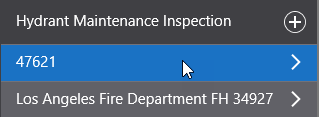
1.In the Details panel of the feature whose record you want to delete, scroll down to the related records section, and then click the related record to open it.
2.In the Related panel that opens, scroll to the bottom of the panel and click Delete.
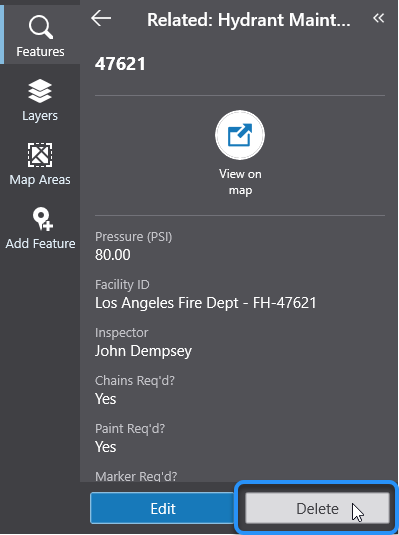
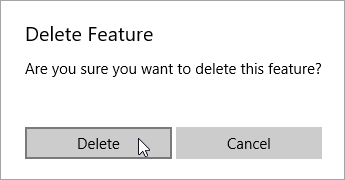
3.When the Delete Feature dialog opens, click Delete to confirm the deletion.