If a feature layer supports attachments, then the Details panel for any single feature has a section that lists any existing attachments. Mobile supports 2 types of attachments; photo attachments and non-photo attachments like PDFs. You can view an attachment of a feature as well as add or delete an attachment.
You can also delete an attachment that you no longer want.
GPS Metadata in Photo Attachments
Digital cameras automatically create and store data about each photo and store it with the photo as EXIF (Exchangeable image file format). Used by camera manufacturers to record information like exposure, shutter speed, focal length, EXIF also includes GPS information like Latitude and Longitude. When you take a photo within Mobile apps, this location data is managed in the following way:
•If you access the device camera directly and attach the resulting photo to a feature, then as long as the Mobile app has access to a location - either from the embedded device or an external GNSS receiver - that location is written into the EXIF metadata of the photo.
•If you access the camera directly, resize the output and attach the photo, then as long as the Mobile app has access to a location - either from the embedded device or an external GNSS receiver - that location is written into the EXIF metadata of the photo.
•If you select a photo from the device photo gallery and attach it to a feature, the Mobile app respects and preserves the EXIF data from the photo.
•If you select a photo from the device photo gallery, resize it and attach the resulting photo, the Mobile app respects and preserves the EXIF data from the photo.
To view an attachment:
1.In the Attachments section in the feature Details panel, click the attachment you want to open.
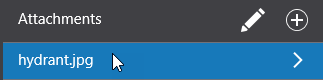
The attachment opens in it's own window.
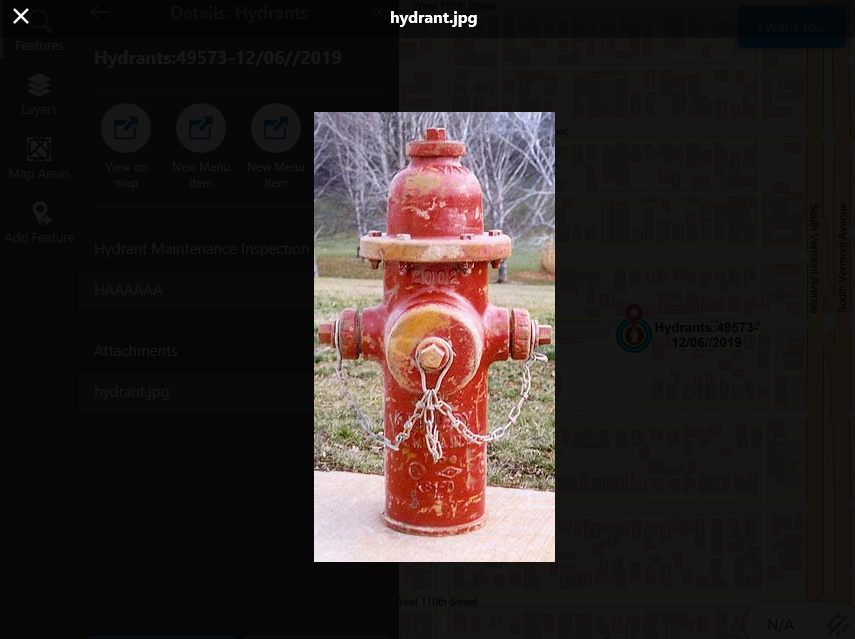
To add a new photo attachment:
1.In the Attachments section in the feature Details panel, click +.
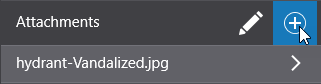
2.Do one of the following:
•Select Attach File if you want to add a file on the device that is not a photo. Navigate to where the file is stored and click Open.
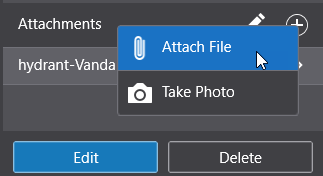
On iOS devices, you can also select a photo from the device’s Library.
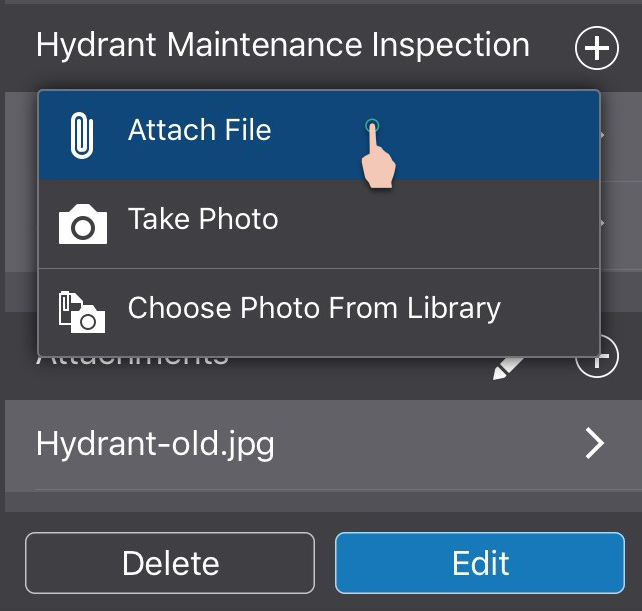
•Select Take Photo if you want to use the device camera and attach a photo. When you take a photo, the file name of the photo automatically appears in the attachments list.
The first time you take a photo on a device, you will need to grant the app permission to access the device camera.
If you are using a device that does not have a built-in camera, you will need to plug a camera into the device.
You can pre-configure a Mobile app to automatically resize photos when you add them as attachments. Under Settings, you can choose to leave the photo its original size or resize it to a Large, Medium, or Small .jpg file. For more information, see Change Your Options.
To delete an attachment:
1.In the Attachments section of the Details panel, click the edit icon.
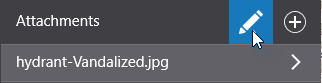
The file name of the attachment moves to the left and the red Remove icon appears.
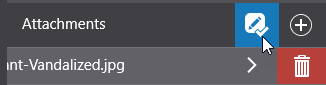
2.Click the Remove icon to delete the attachment.
