A typical VertiGIS Studio Printing deployment consists of one server that hosts both the Printing software and its data directory. This deployment case is suitable for most installations and can be installed and updated out of the box.
Alternatively, you may prefer to install VertiGIS Studio Printing in a multi-server environment.
In a multi-server VertiGIS Studio Printing deployment, each server operates independently to generate print content. This means that users can still generate prints if one server fails, and that servers do not share job information with each other.
All servers share a single copy of the Printing data directory. For VertiGIS Studio Printing, you need to set up a redundant file share for the data directory. This provides redundancy for Printing's configuration files and any temporary files.
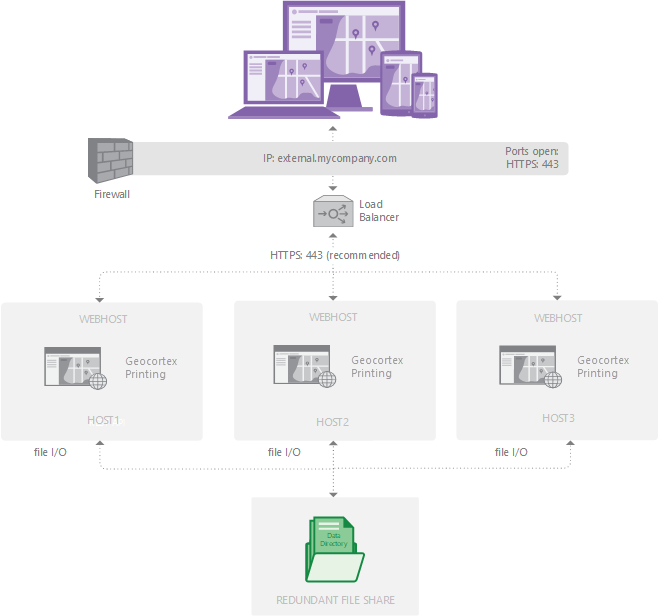
A redundant multi-server deployment of VertiGIS Studio Printing
The steps to install Studio Printing in a load-balanced environment are as follows:
1.Ensure the prerequisites are met.
3.Install the load-balanced deployment of printing.
