You can configure a print layout to take inputs at run time. This is useful if you want to allow the end user to supply a custom title, notes, or other text to include in the print output.
To configure a print layout to take a text input, you add a String parameter to the layout and then use the parameter in a Label control. The user will be presented with a text box to enter a value for the input.
You can configure default values for parameters. The preconfigured layouts have two parameters: Title and Notes. The Title parameter has a default value, while the Notes parameter does not.
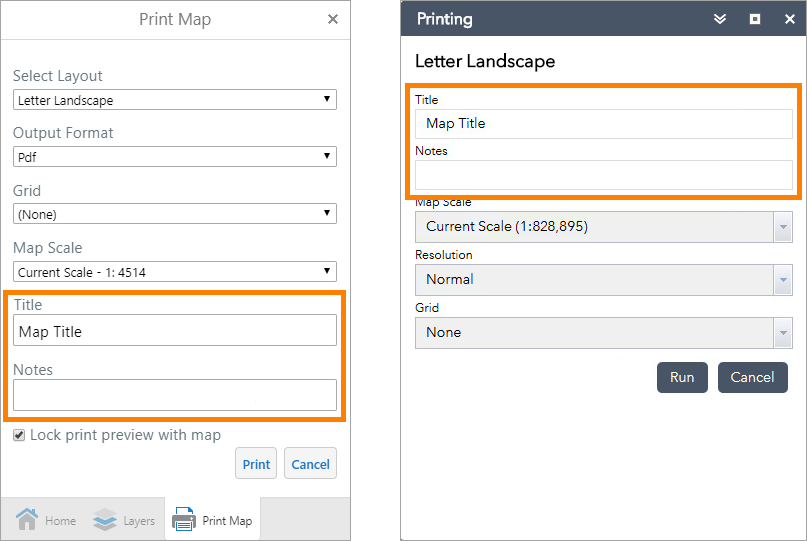
Example of input parameters in a Geocortex HTML5 viewer (left) and in a Web AppBuilder app (right)
Main Steps to Configure a Print Layout to Take Inputs
1.Add a parameter to the print layout.
2.Use the parameter in a Label control.
3.Repeat these steps for each input.
Configure a Print Layout to Take Text Inputs from the User
To configure a print layout to take text inputs from the end user:
Step 1: Add a parameter to the print layout
1.Launch Print Designer and open or create a print layout.
2.In the Field List  , click
  Parameters to show the Add button.
3.Click Add parameter  .
.
A new parameter is added.
4.Click Edit  to edit the parameter.
5.Configure the parameter's properties, as described in the table below.
Parameter |
Description |
Name |
Type a name for the parameter, for example, Title or Notes. Use the name to reference the parameter: [Parameters.Name] The name can include letters, numbers, and underscore characters (_). The name cannot contain spaces or special characters. The Preview function uses the name to label the input text box. |
Description |
The description is used to label the input text box in host applications. It can include letters, numbers, spaces, and special characters. |
Orientation |
Select the direction you want the layout printed on the page: ▪Portrait (vertical) ▪Landscape (horizontal) |
Type |
Set the Type to String. Only single-value parameters of type String are presented to the end user as inputs. |
Visible |
Determines whether the parameter is shown in the layout. |
Enabled |
|
Allow null value |
If enabled, the parameter can be left empty when the user runs the print job. If disabled, the parameter must have a value. The print job will not run until the use enters the required value. |
Allow multiple values |
Multi-Value: Make sure the Multi-Value checkbox is cleared. Only single-value parameters of type String are presented to the end user as inputs. |
Select all values |
|
Value |
Optionally specify a default value for the parameter. The default value is used if the user does not enter a value. It is also used when you preview the print in Print Designer, if you do not enter a value. |
The configuration will look something like this:
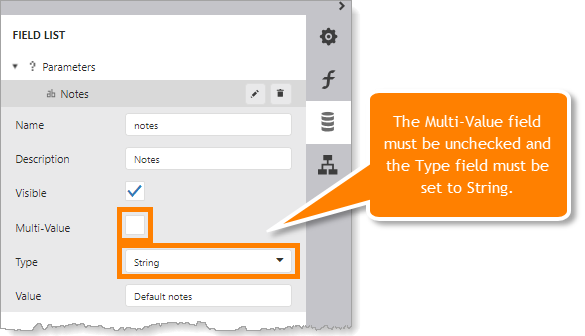
Example configuration for a parameter called notes
Step 2: Use the parameter in a Label control
1.Drag the parameter from the Field List to the desired band.
This adds a Label control that is configured with the expression [Parameters.parameterName], where parameterName is the name of the parameter that you added.
Alternatively, you can add a Label control to the design surface and set its Expression setting to [Parameters.parameterName] in the Properties panel.
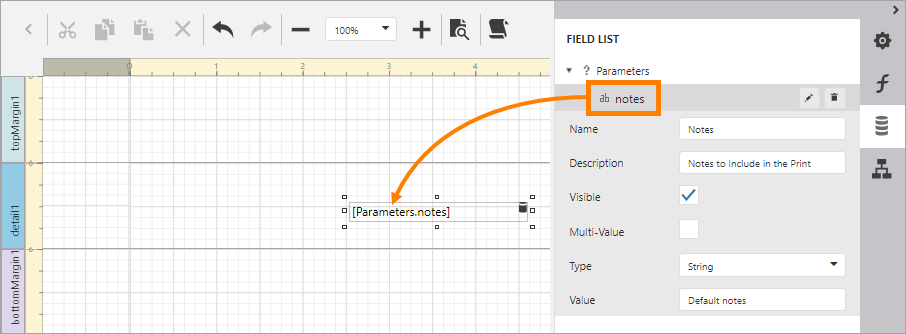
Use a parameter called Notes in a print layout by dragging it from the Field List to a band
2.Adjust the size and position of the control and format it.
3.Verify the parameter:
a.Click Preview  .
.
The preview prompts you for a value.
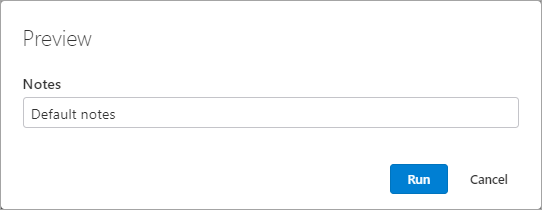
Prompt to enter a value for the notes input
b.Type a value in the Notes box.
Alternatively, you can skip this step to accept the default value.
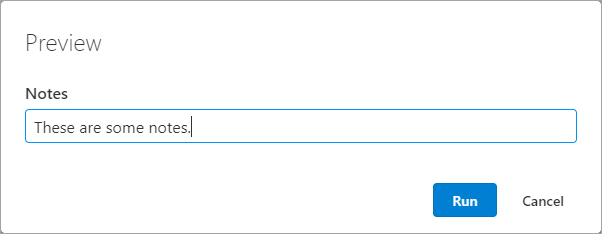
c.Click Run to generate the print.
The PDF opens in a new browser tab.
1.Repeat steps 1 and 2 for each input that you want to include in the print layout.
