Description
The Run Operation activity executes an operation in a VertiGIS Studio viewer application like VertiGIS Studio Web or VertiGIS Studio Mobile.
Operations are similar to activities. They perform a unit of work in an application. Depending on the operation specified, an input parameter may be required and the operations may produce an output result value.
See the following for a complete list of operations and their parameters:
▪VertiGIS Studio Web Operations
▪VertiGIS Studio Mobile Operations
Usage
A workflow could use the Run Operation activity to invoke the sketching.capture-geometry operation in a viewer. This operation allows the end user to draw a geometry on a map. Set the Operation Name input to sketching.capture-geometry. Set the Operation Parameter input to an expression that provides an object that specifies the desired drawing type. For example, ={ "geometryType": "point" }, ={ "geometryType": "polyline" } or ={ "geometryType": "polygon" }. When the user completes drawing a geometry the operation will complete. The operation's resulting geometry value will be assigned to the result output of the activity and the activity will complete.
Inputs
Operation Name |
Required Type: String The name of the operation to invoke. See the following for a complete list of operations and their parameters: |
Operation Parameter |
Optional Type: any The parameter to pass to the operation. The type of parameter value and whether it is required depends on the operation. |
Outputs
result |
Type: any The result of the operation. The type of result value and whether it is provided depends on the operation. |
Properties
For information about the ID, Display Name, and Description properties, see Properties Common to all Activities.
Connectivity Requirements
This activity works when the device has intermittent connectivity to the network.
See also...
▪VertiGIS Studio Web Operations
▪VertiGIS Studio Mobile Operations
Example
The Run Operation activity lets your workflow call any operation available in the VertiGIS Studio, such as retrieving user information, reading map state, or interacting with the UI. You provide an operation name and, when required, a parameter. The activity returns the operation's result, which you can reference in downstream activities.
In this tutorial, you will build a workflow for web that retrieves the currently signed-in user and displays their name in an alert dialog, then test it out in the sandbox environment.
Set Up the Workflow
Open VertiGIS Studio Workflow and create a new workflow for VertiGIS Studio Web.
Get the Current User
1.Drag a Run Operation activity onto the canvas and connect it to the Start activity.
2.Set the activity ID to runCurrentUser.
3.In the Operation Name field, enter auth.get-current-user.
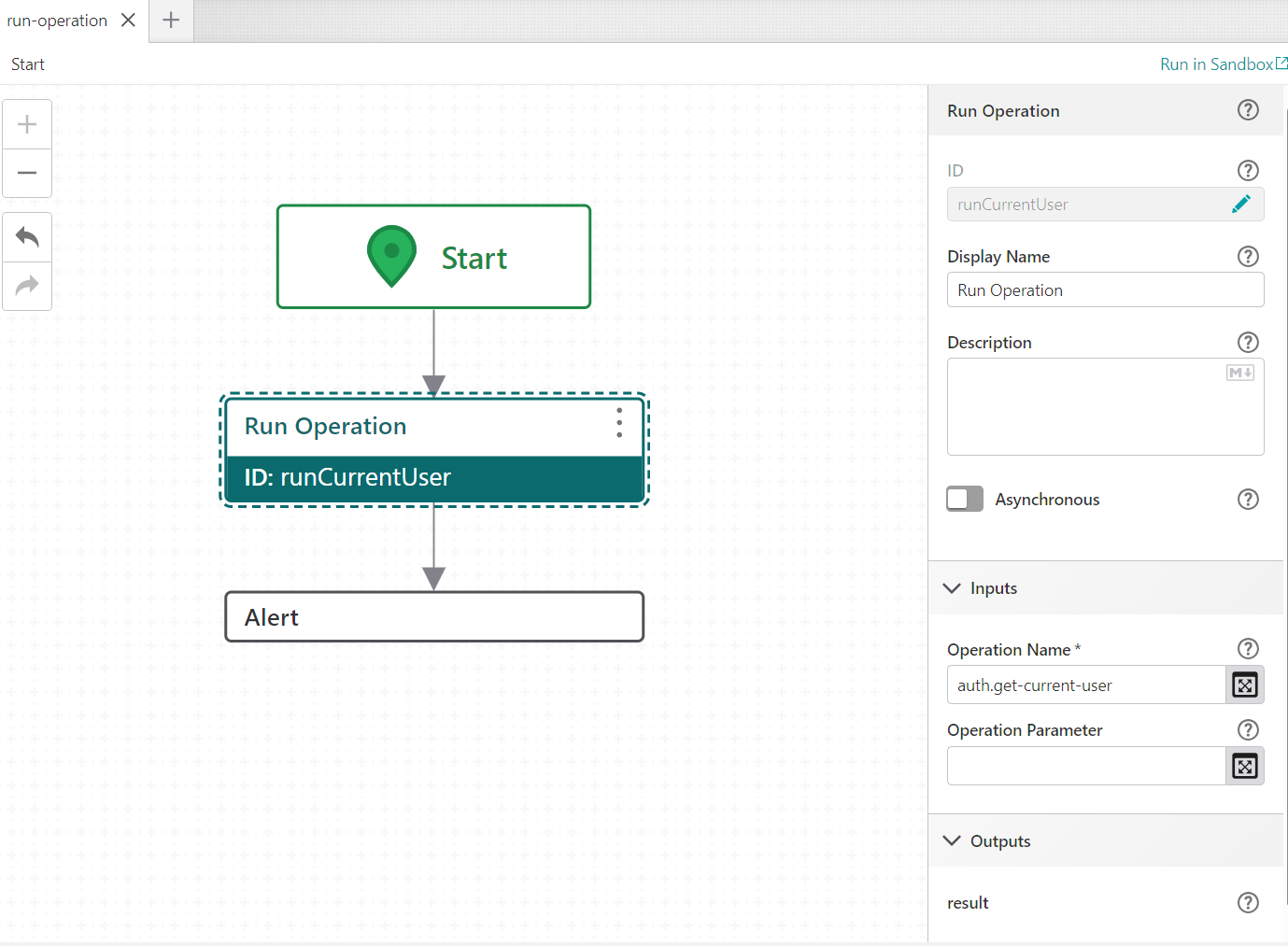
The auth.get-current-user operation takes no parameter, so leave Operation Parameter empty. When the workflow runs, the activity calls the operation and stores the signed-in user's information in its result output.
Display the User's Name
1.Drag an Alert activity onto the canvas and connect it to runCurrentUser.
2.Set Title to Welcome.
3.Set Text to:
= "Hello, " + $runCurrentUser.result.portalUser.fullName + "!"
$runCurrentUser.result.portalUser is the portal user object nested inside the operation result. It contains user details such as fullName and email.
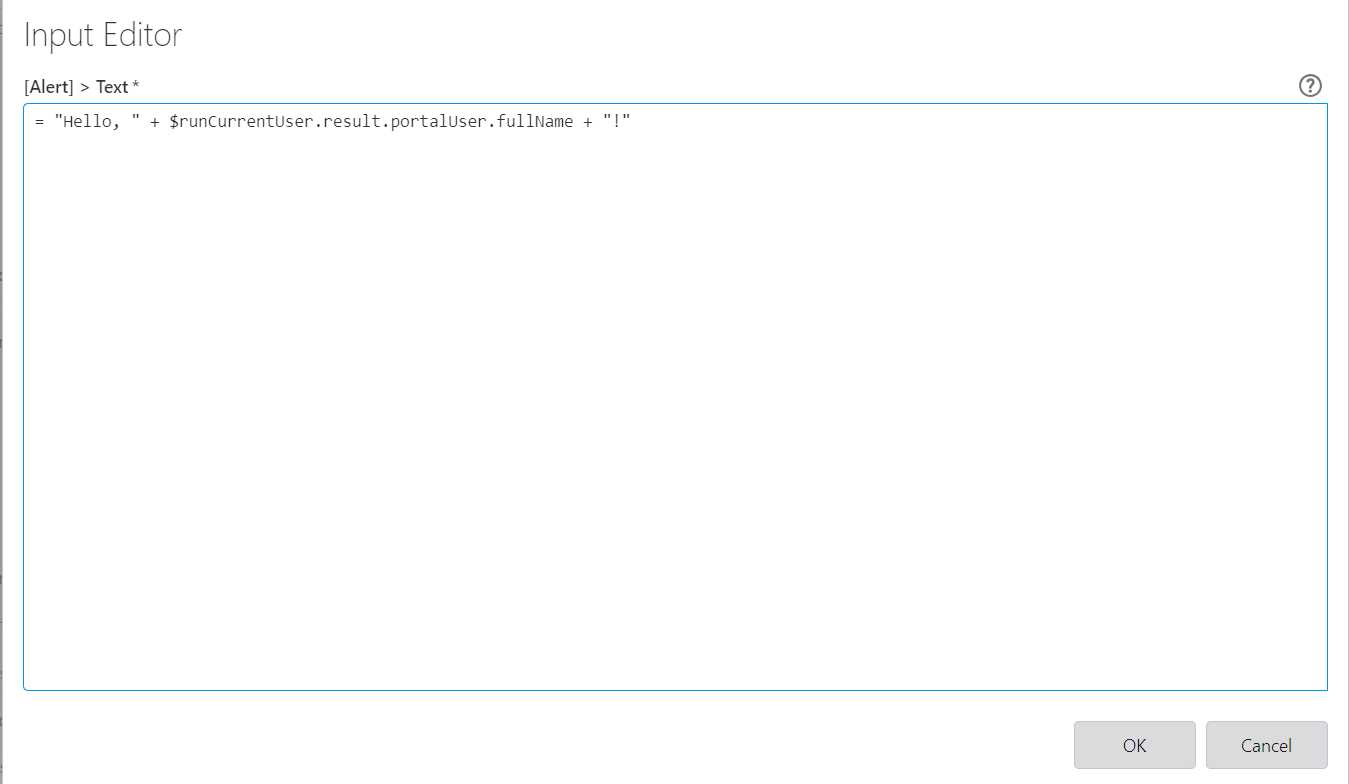
Select Expand against input fields to access the expanded editor.
To view the workflow in action:
1.Select Run in Sandbox.
2.Select one of the VertiGIS Studio Web options from the sidebar.
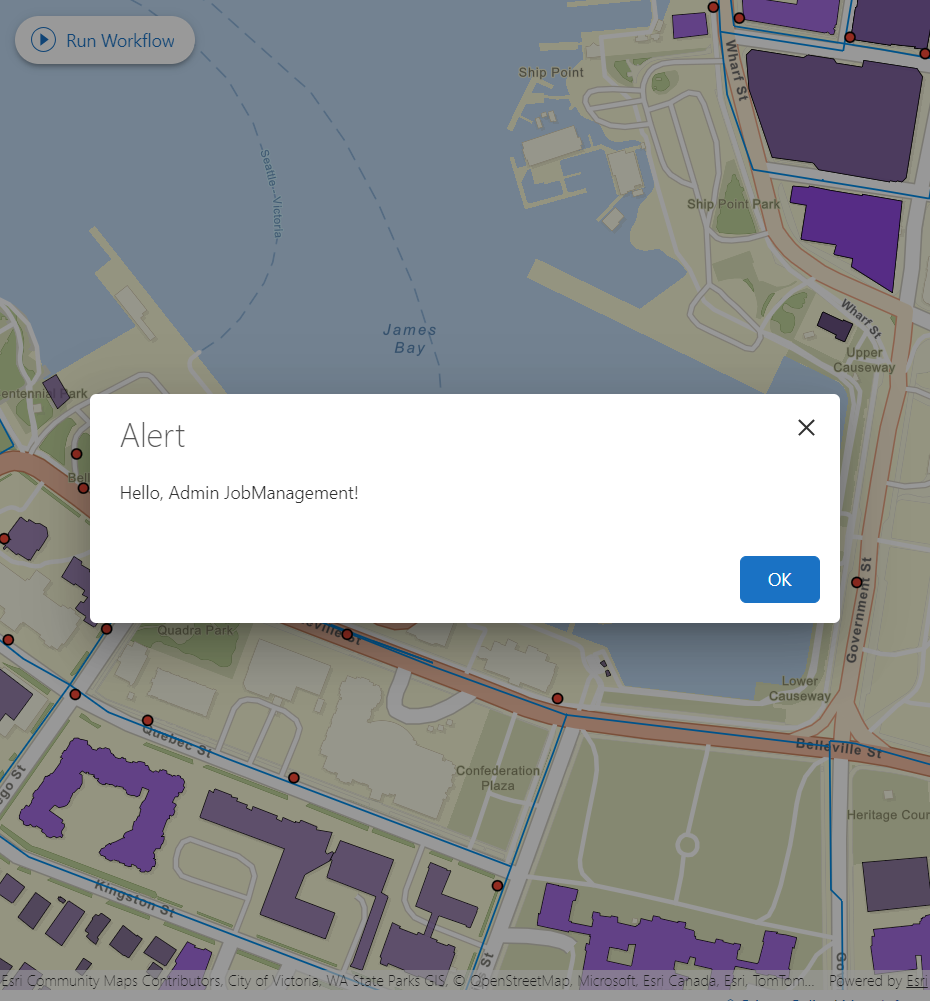
3.Select Run Workflow.
An alert appears greeting you by your full name.
To explore what a result contains, connect a Log activity after Run Operation and print = $runCurrentUser.result to the browser console while testing.
References: