Description
The Get Workflow Inputs activity gets the input parameters of the workflow.
Inputs
This activity has no inputs.
Outputs
inputs |
Type: Object The inputs to the workflow. |
Properties
For information about the ID, Display Name, and Description properties, see Properties Common to all Activities.
Example
Learn how to use the context passed as an input to a workflow.
Configure the Trigger in Web
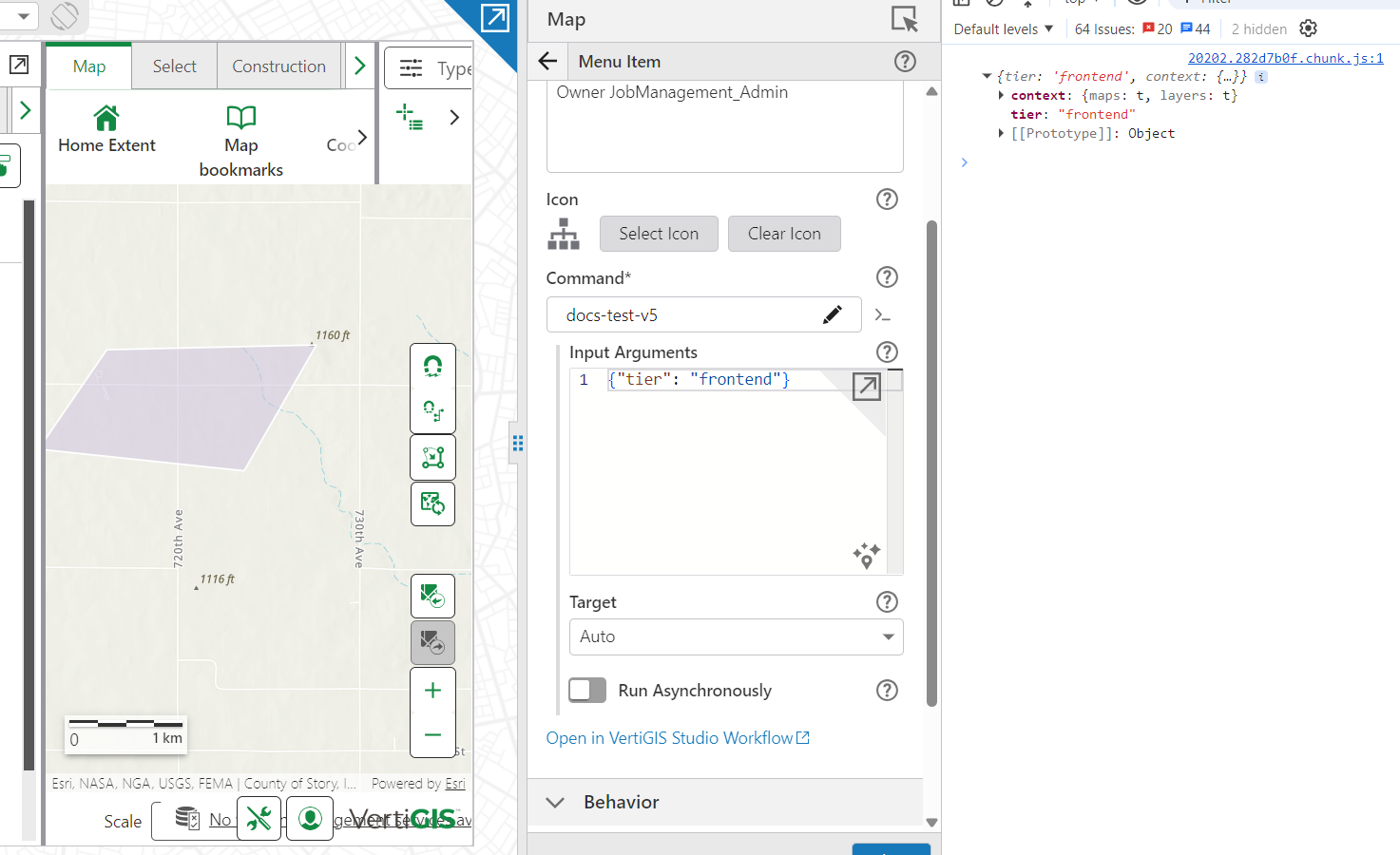
1.In VertiGIS Studio Web, open the configuration for the item that should trigger the workflow, such as a feature action, layer action, or menu item.
2.Set Command to the workflow's command ID, for example docs-test-v5.
3.Set Input Arguments to a JSON object containing any custom parameters the workflow needs, for example:
{"tier": "frontend"}
4.Leave Target as Auto unless the workflow needs to run against a specific view.
Inspect the Combined Inputs
Switch back to VertiGIS Studio Workflow.
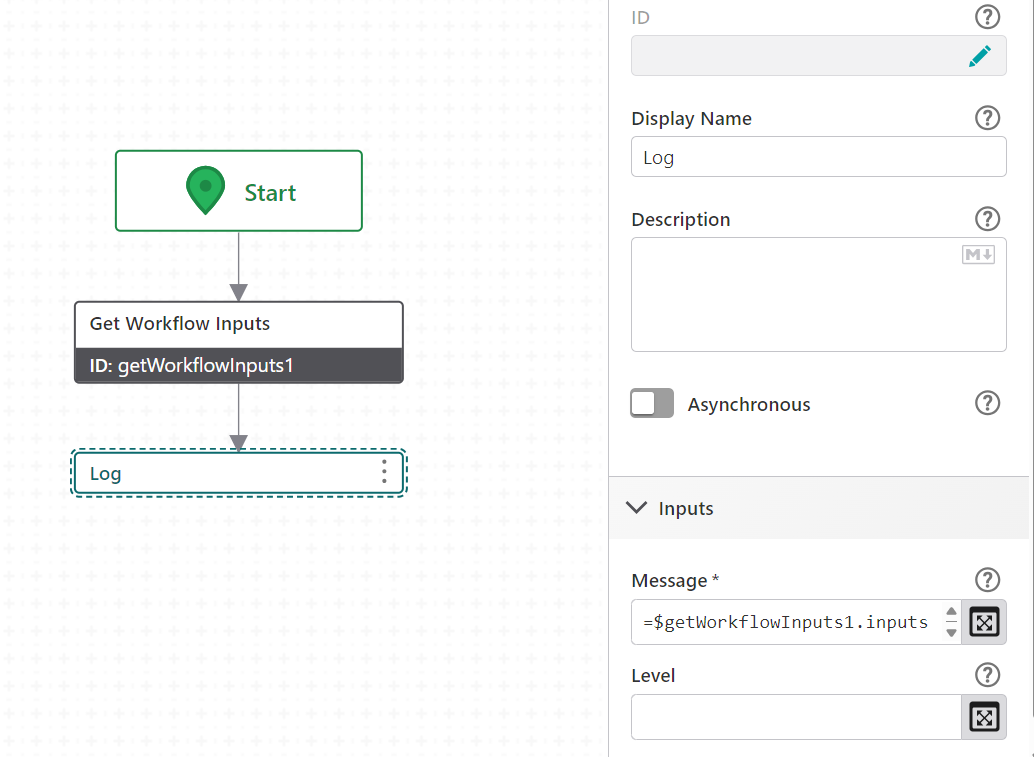
1.Add a Get Workflow Inputs activity after the Start activity.
2.Add a Log activity after Get Workflow Inputs. Set Message to:
=$getWorkflowInputs1.inputs
3.Trigger the workflow from the configured action or menu item and open the browser console.
4.The logged output contains the custom Input Arguments you configured (for example tier), plus a context property that Web adds automatically. Context typically includes maps and layers, and also includes features when the workflow is triggered from a feature's action menu.
Access Items in the Context Object
1.Reference a property nested inside context using the activity's output, for example:
=$getWorkflowInputs1.inputs.context.features
2.Reference a custom input argument the same way, without the context prefix:
=$getWorkflowInputs1.inputs.tier
3.Use the Log activity's console output to confirm the exact shape of context for the trigger point being used, since its contents depend on where the workflow was launched from (feature action, layer action, or menu item).
Working with Workflow Outputs
When designing workflows that return values back to a parent caller or host application, use the Set Workflow Output activity.
1.Add a Set Workflow Output activity to define parameters that should be returned upon completion.
2.When invoking workflows programmatically via the API, the workflow.evaluate operation or workflow.run command can be utilized.
3.When calling a sub-workflow or server workflow from within another workflow using the Run Workflow activity, the outputs of the Run Workflow activity are precisely the outputs returned by the target workflow via its Set Workflow Output activities.
Connectivity Requirements
This activity works when the device has intermittent connectivity to the network.