Description
The Run Application activity runs a command line application on the server.
Usage
1.A workflow in a client application could use the Run Workflow activity to run a server workflow.
2.The server workflow could use the Get Workflow Inputs activity to collect data passed from the client workflow.
3.The server workflow could use the Run Application activity to run PowerShell, or another application on the server, to perform a computation, business operation, or some other analysis. The input data from the client workflow could be sanitized and supplied as arguments to the application.
4.The server workflow could then interpret the exitCode and outputData results of the Run Application activity to determine the success or failure of the application and compute any result values.
5.The server workflow could use the Set Workflow Output activity to return result values to the client application.
6.Finally, the client application could use the result values to update the application or present information to the end user.
To use this activity:
▪The target application must be installed on the server.
▪The target application must not require elevated permissions.
▪The application pool running VertiGIS Studio Workflow must have permission to execute the target application.
▪The application pool running VertiGIS Studio Workflow must have permission to access any files or resources that the target application will access.
Inputs
File Name |
Required Type: String The file path of the application to be run on the server. |
Arguments |
Optional Type: String The command line arguments to pass to the application. |
Timeout |
Optional Type: Number The time span in milliseconds to allow the application to run. The default is 60000 (one minute). If the timeout is reached before the application completes, the application will be terminated. |
Wait For Result |
Optional Type: Boolean Whether the activity should wait for the application to exit before completing. If false, the activity will start the application and then complete immediately without returning any output values. The default is true. |
Outputs
exitCode |
Type: Number The exit code of the application. |
outputData |
Type: String The text written by the application to the standard output stream. |
errorData |
Type: String The text written by the application to the standard error stream. |
Properties
For information about the ID, Display Name, and Description properties, see Properties Common to all Activities.
Connectivity Requirements
This activity does not work when the device has intermittent connectivity to the network.
Example
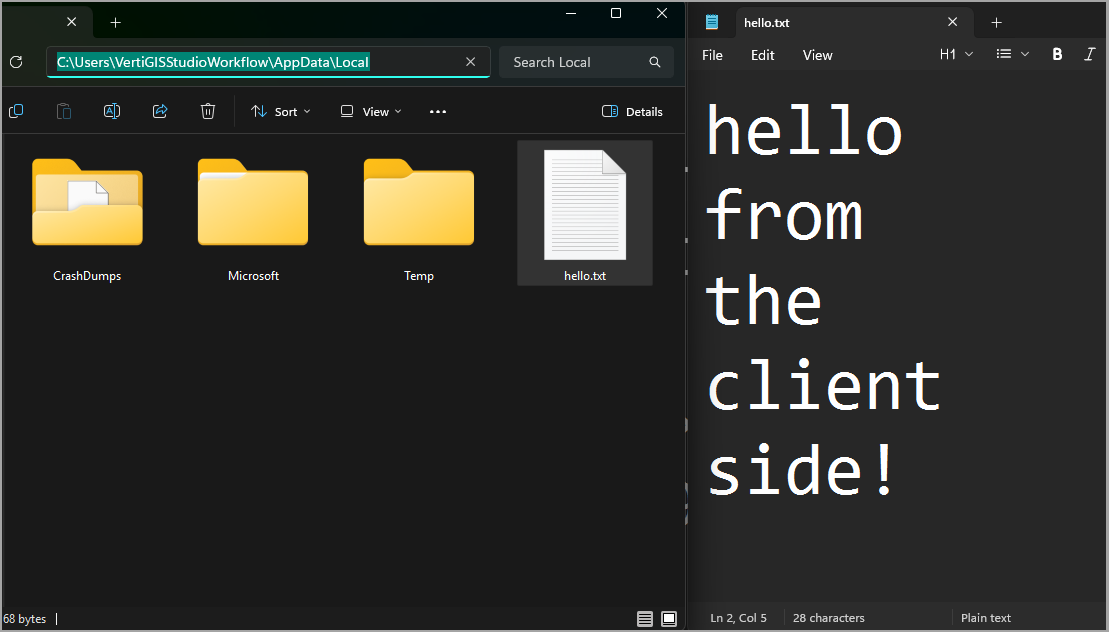
This example creates a server workflow that uses PowerShell to write a text file to a directory on the server.
The Run Application activity is only supported in Server Workflows.
Before using this activity, confirm the following:
•The target application is installed on the server.
•The target application does not require elevated permissions.
•The application pool running VertiGIS Studio Workflow has permission to execute the application and access any files or resources it needs.
Create the Server Workflow
1.Open VertiGIS Studio Workflow and create a new workflow.
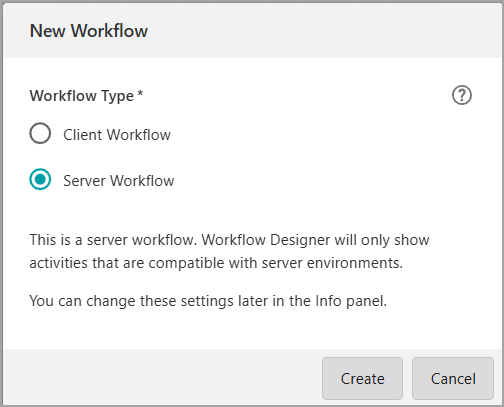
2.Select Blank Workflow and choose the type as Server Workflow.
Configure the Run Application Activity
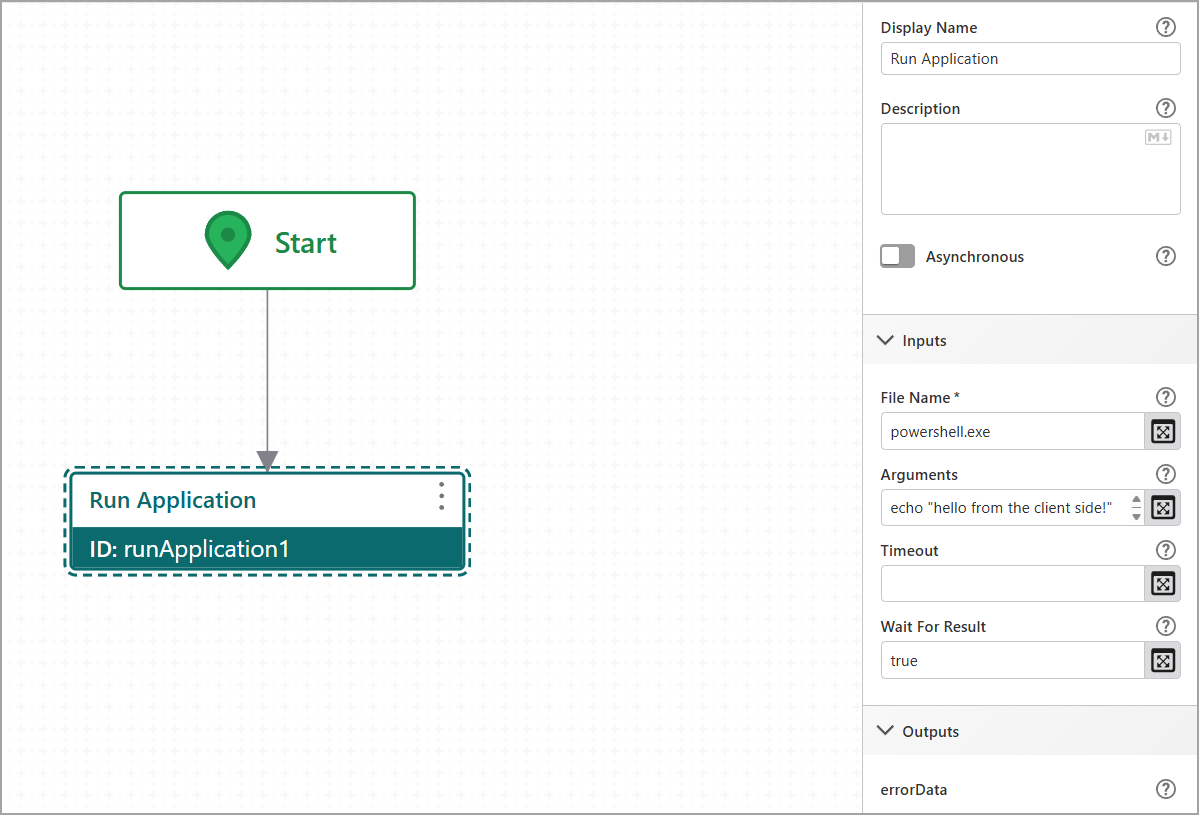
1.Add a Run Application activity after the Start activity.
2.Set File Name to:
powershell.exe
3.Set Arguments to:
echo "hello from the client side!" > C:\Users\VertiGISStudioWorkflow\AppData\Local\hello.txt
Adjust the output path to a directory the application pool has write access to.
4.Save the workflow.
When you select Run Workflow in the sandbox, it executes the PowerShell command and writes the text file to the specified path.