Description
This activity allows you to use the Arcade expression language to evaluate a script inside a workflow.
Inputs
Script |
Required Type: String The Arcade script to execute. |
Parameters |
Optional Type: Lookup<any> The parameters to pass to the Arcade script. |
Profile |
Optional Type: esri.Profile The profile describes the types of the parameters. Provide your own object, or choose one of the pre-defined profiles: •feature-reduction-popup •feature-reduction-popup-element •feature-z •field-calculation •form-calculation •form-constraint •labeling •popup •popup-element •visualization
|
Spatial Reference |
Optional Type: esri.SpatialReference The spatial reference to use when executing the Arcade script. |
Outputs
result |
Type: any The result of the Arcade script. |
Properties
For information about the ID, Display Name, and Description properties, see Properties Common to all Activities.
Connectivity Requirements
This activity works when the device has intermittent connectivity to the network.
Examples
Example 1: Concatenate Two Strings
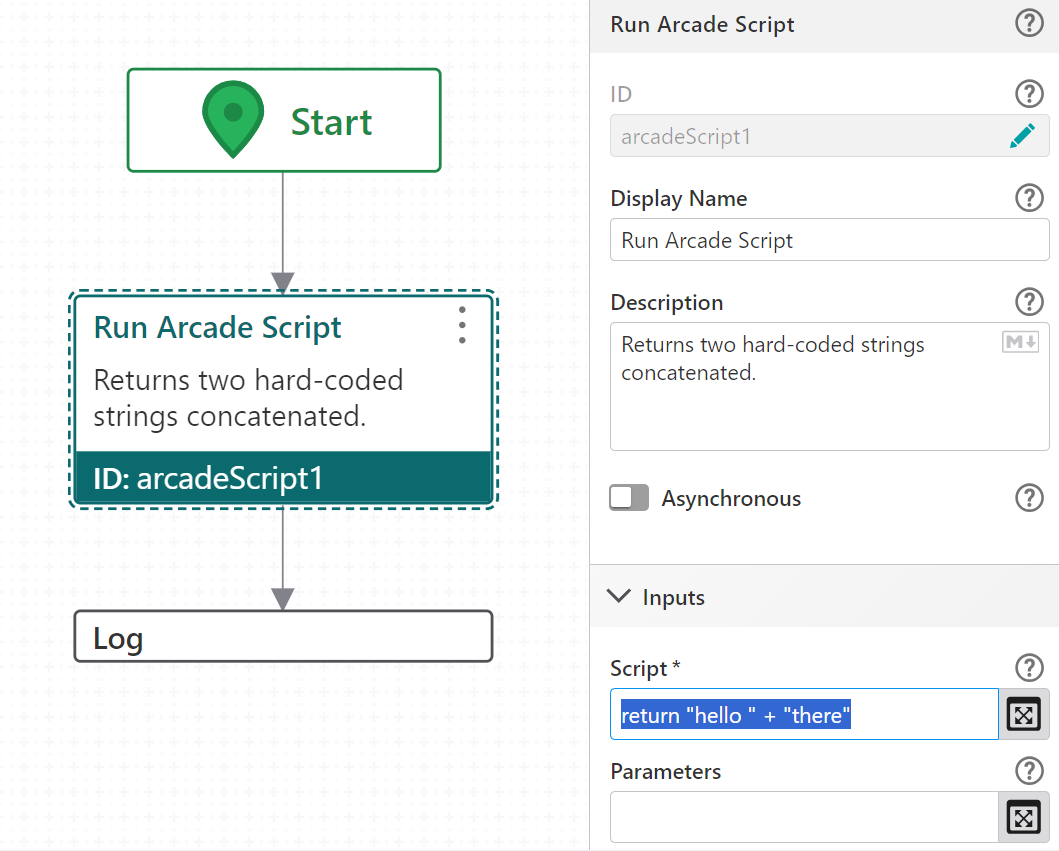
This example runs a simple Arcade script that joins two strings and logs the output to the browser console.
1.Add a Run Arcade Script activity after the Start activity.
2.Set the activity ID to arcadeScript1.
3.Set Script to:
return "hello " + "there"
4.Add a Log activity after arcadeScript1.
5.Set Message to:
=$arcadeScript1.result
6.Select Run in Sandbox, choose a VertiGIS Studio Web option, and select Run Workflow.
7.Open the browser console. The output hello there appears as a log entry.
Example 2: Concatenate Two Strings Using Parameters
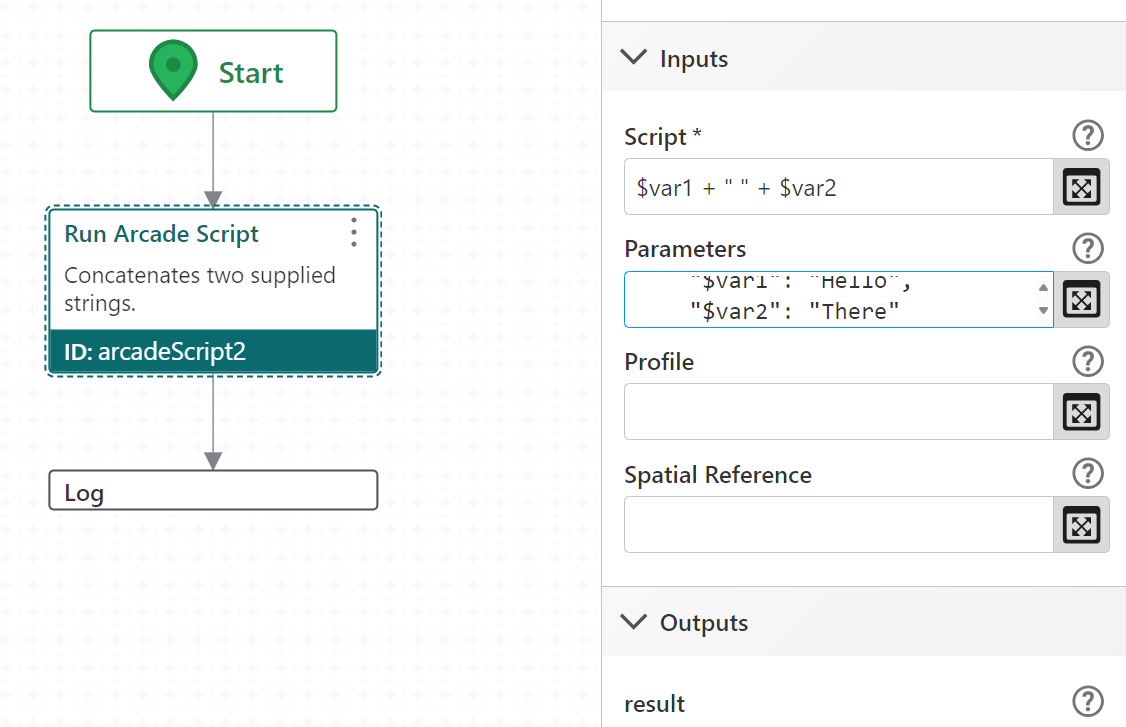
This example passes two values into an Arcade script via parameters and logs the concatenated result to the browser console.
1.Add a Run Arcade Script activity after the Start activity.
2.Set the activity ID to arcadeScript2.
3.Set Parameters to:
{
"$var1": "Hello",
"$var2": "There"
}
4.Set Script to:
$var1 + " " + $var2
5.Add a Log activity after arcadeScript2.
6.Set Message to:
=$arcadeScript2.result
7.Select Run in Sandbox, choose a VertiGIS Studio Web option, and select Run Workflow.
8.Open the browser console. The output Hello There appears as a log entry.
Example 3: Find a Coordinate Along a Polyline Using MeasureToCoordinate
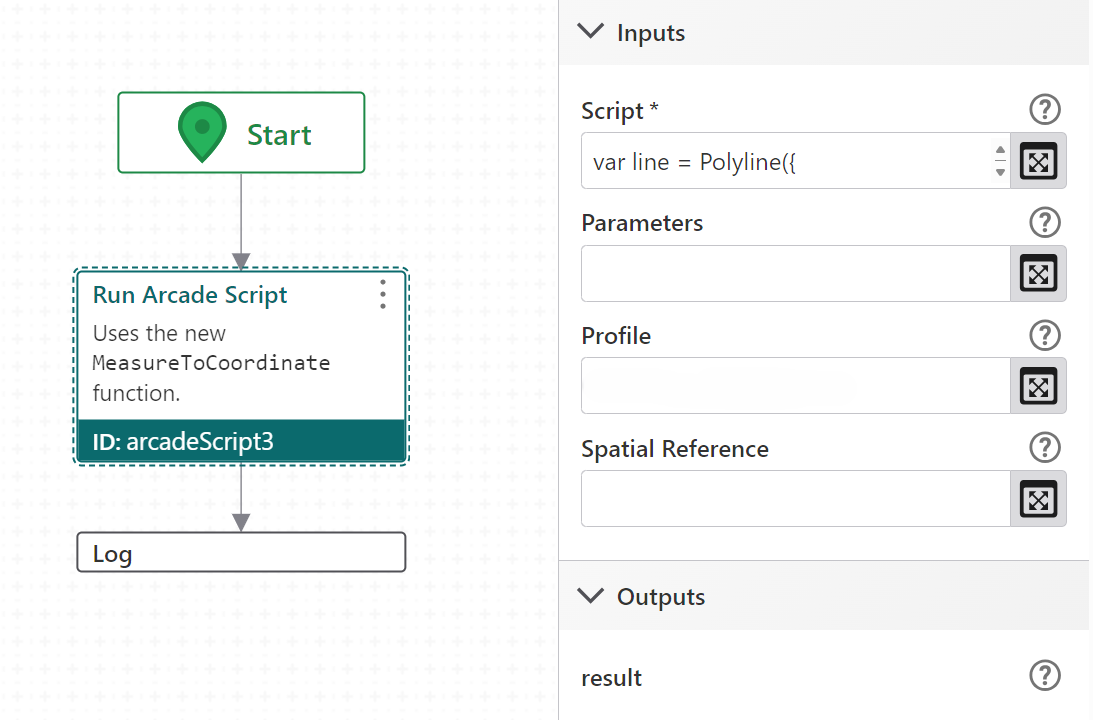
This example defines an M-aware polyline in Arcade and uses the MeasureToCoordinate function to find the coordinate at a given measure value. The resulting latitude and longitude are logged to the browser console.
1.Add a Run Arcade Script activity after the Start activity.
2.Set the activity ID to arcadeScript3.
3.Set Script to:
var line = Polyline({
paths: [
[
[-97.06138,32.837, 0],
[-97.06133,32.836, 10],
[-97.06124,32.834, 20],
[-97.06127,32.832, 30]
],
[
[-101.06138,32.837, 50],
[-101.06133,32.836, 60],
[-101.06124,32.834, 70],
[-101.06127,32.832, 80]
]
],
hasM: true,
spatialReference: { wkid: 102100 }
});
var result = MeasureToCoordinate(line, 60);
return result.coordinate;
4.Add a Log activity after arcadeScript3.
5.Set Message to:
=[$arcadeScript3.result.latitude, $arcadeScript3.result.longitude]
6.Select Run in Sandbox, choose a VertiGIS Studio Web option, and select Run Workflow.
7.Open the browser console. The latitude and longitude of the coordinate at measure 60 appear as a log entry.