Description
The Inject CSS activity injects Cascading Style Sheets (CSS) to an HTML application.
Usage
A workflow may require custom styles to alter how forms and other user interface components are rendered. Use this activity to inject CSS that targets specific form elements into the host application. Then use a Display Form activity to render those elements. The custom CSS will modify how the form elements are rendered.
Inputs
Content |
Optional Type: String The CSS content to inject. |
Url |
Optional Type: String The URL to an external CSS resource to inject. |
Outputs
This activity has no outputs.
Properties
For information about the ID, Display Name, and Description properties, see Properties Common to all Activities.
Connectivity Requirements
This activity works when the device has intermittent connectivity to the network.
Example
The Inject CSS activity injects Cascading Style Sheets (CSS) into a running HTML application. It applies styles globally, meaning any element in the app that matches the CSS selector will be affected, not just elements inside a form. Use specific selectors to limit the scope of your styles.
Use this activity sparingly. The app’s look and feel should primarily come from the defined theme, and this serves as an escape hatch for cases not covered by it. Note that class names and form structures may change in the future, so avoid relying on it heavily.
In this tutorial, you will build a workflow that injects custom styles before presenting a form to the user, so form elements render with your intended appearance.
Build a new Workflow
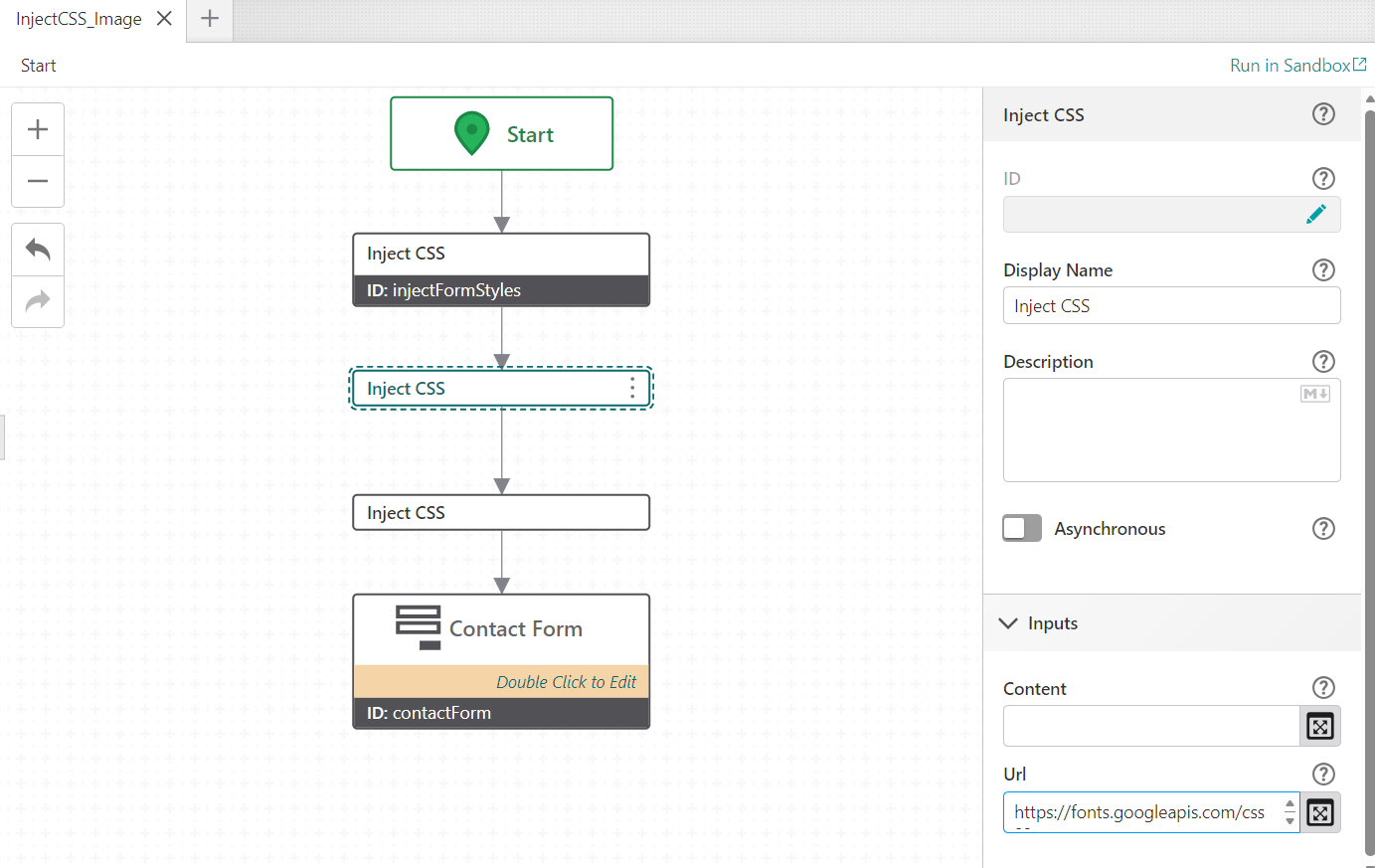
1.Open VertiGIS Studio Workflow and create a new workflow.
2.Drag an Inject CSS activity onto the canvas and connect it to the Start activity.
3.Set the activity ID to injectFormStyles.
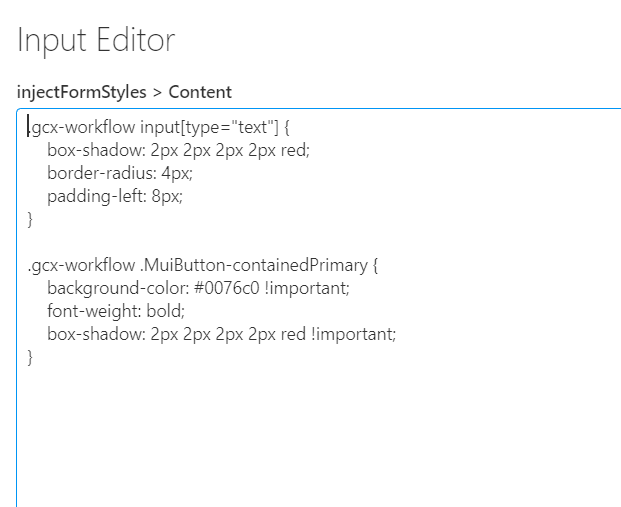
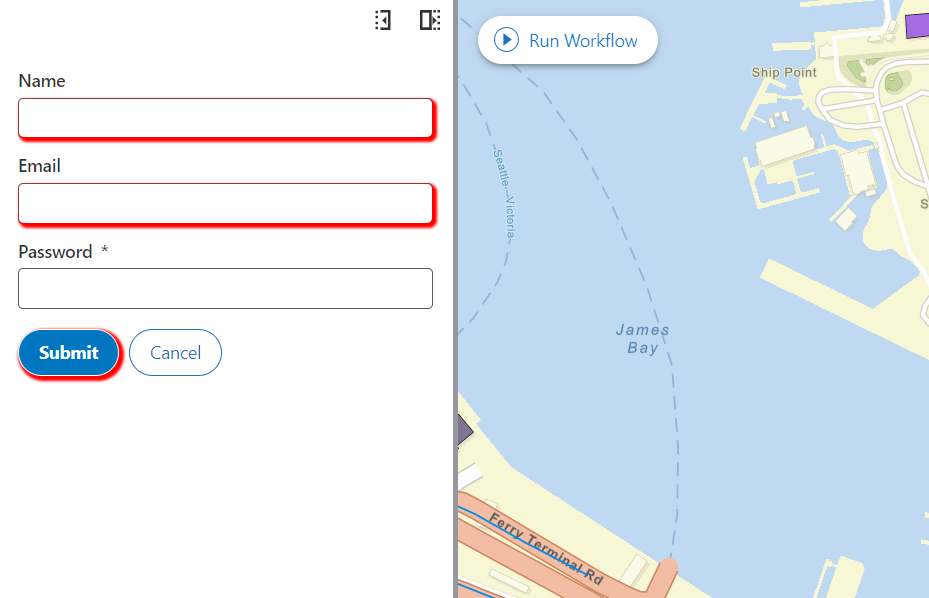
4.In the Content field, enter your CSS. The following example adds a box shadow to all text inputs inside a form and makes the submit button stand out:
.gcx-workflow input[type="text"] {
box-shadow: 2px 2px 2px 2px red;
border-radius: 4px;
padding-left: 8px;
}
.gcx-workflow .MuiButton-containedPrimary {
background-color: #0076c0 !important;
font-weight: bold;
box-shadow: 2px 2px 2px 2px red !important;
}
The activity has no outputs. Once it executes, the styles are live in the application.
Load an External CSS File
If your styles are hosted externally, such as a shared stylesheet or an icon library, use the Url input instead of Content.
1.Drag an Inject CSS activity onto the canvas and connect it to the Start activity.
2.Set the activity ID to injectGoogleFont.
3.Leave Content empty and set Url to the stylesheet address:
https://fonts.googleapis.com/css2?family=Bitcount+Grid+Double+Ink:wght@100..900&display=swap
4.In a subsequent Inject CSS activity, use the Content input to apply the loaded font to form elements:
.gcx-workflow input[type="text"] {
font-family: "Bitcount Grid Double Ink", system-ui !important;
font-optical-sizing: auto;
}
You can chain multiple Inject CSS activities to combine inline styles with external resources.
Display the Form
1.Drag a Display Form activity onto the canvas and connect it to injectFormStyles.
2.Set the activity ID to contactForm.
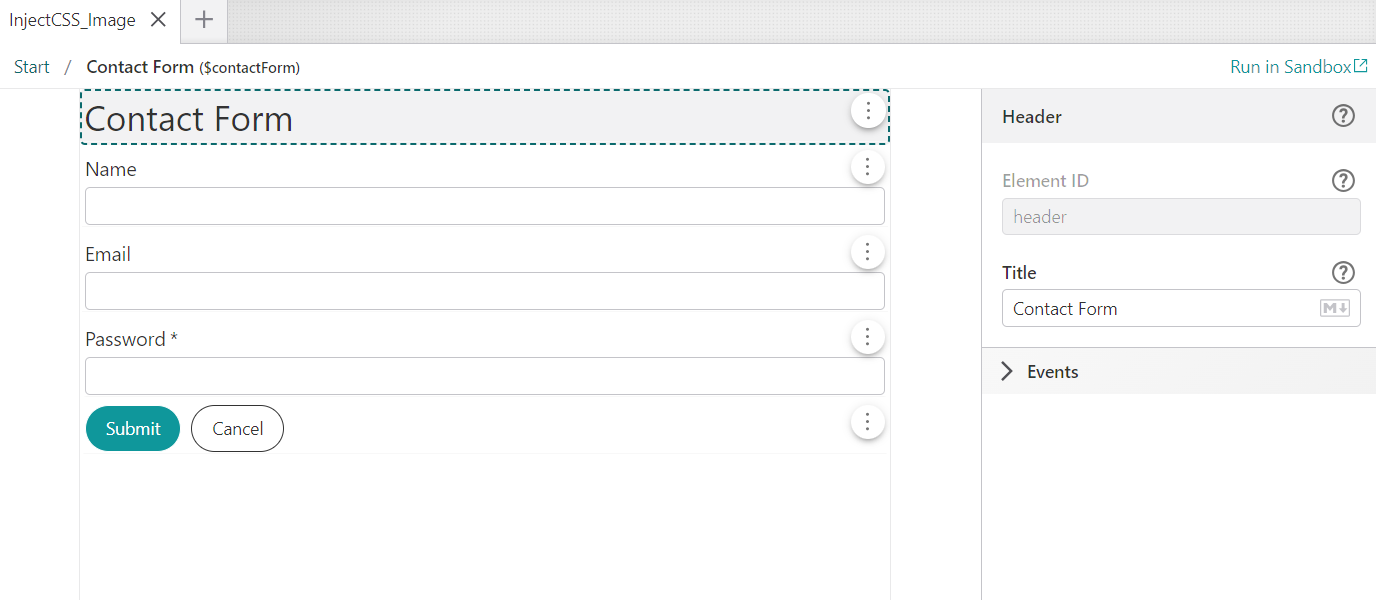
3.Design your form
Ensure that you add Text Box and Button elements.
When the workflow runs, the CSS is injected before the form appears, so form elements are styled correctly when the user sees them.
To view the workflow in action:
1.Select Run in Sandbox.
2.Select one of the VertiGIS Studio Web options from the sidebar.
3.Select Run Workflow.
The form appears with the custom styles configured using the Inject CSS activity.
How Inject CSS Works
The Inject CSS activity has two optional inputs:
•Content -- a string of raw CSS to inject directly into the page.
•Url -- the URL of an external CSS resource, such as a hosted stylesheet or web font.
Both inputs accept expressions, so you can build CSS strings dynamically:
= ".gcx-form { color: " + $colorPicker1.result + "; }"
The activity has no outputs and does not wait for user input. Injected styles persist for the lifetime of the page. If the workflow runs again, the styles are injected again, which is harmless for most use cases but can result in duplicate <style> tags.
Because styles apply to the entire page, prefer selectors scoped to the form container (such as .gcx-form) to avoid unintentionally restyling other parts of the application.