Description
The Remove Map Layer activity removes a layer from the currently selected map.
Inputs
Layer Id |
Required The ID of the layer to remove. If the workflow will run in VertiGIS Studio Web, VertiGIS Studio Mobile, or Web AppBuilder, you can either set Layer Id to the ID from the layer object or to the layer name from the web map. To run the workflow in the Geocortex Viewer for HTML5, set Layer Id to the map service ID. Get the map service ID from Geocortex Essentials Manager or from the Geocortex Essentials Sites Directory. |
Outputs
success |
Type: Boolean Whether the layer was removed. |
Properties
For information about the ID, Display Name, and Description properties, see Properties Common to all Activities.
Connectivity Requirements
This activity works when the device has intermittent connectivity to the network.
Example
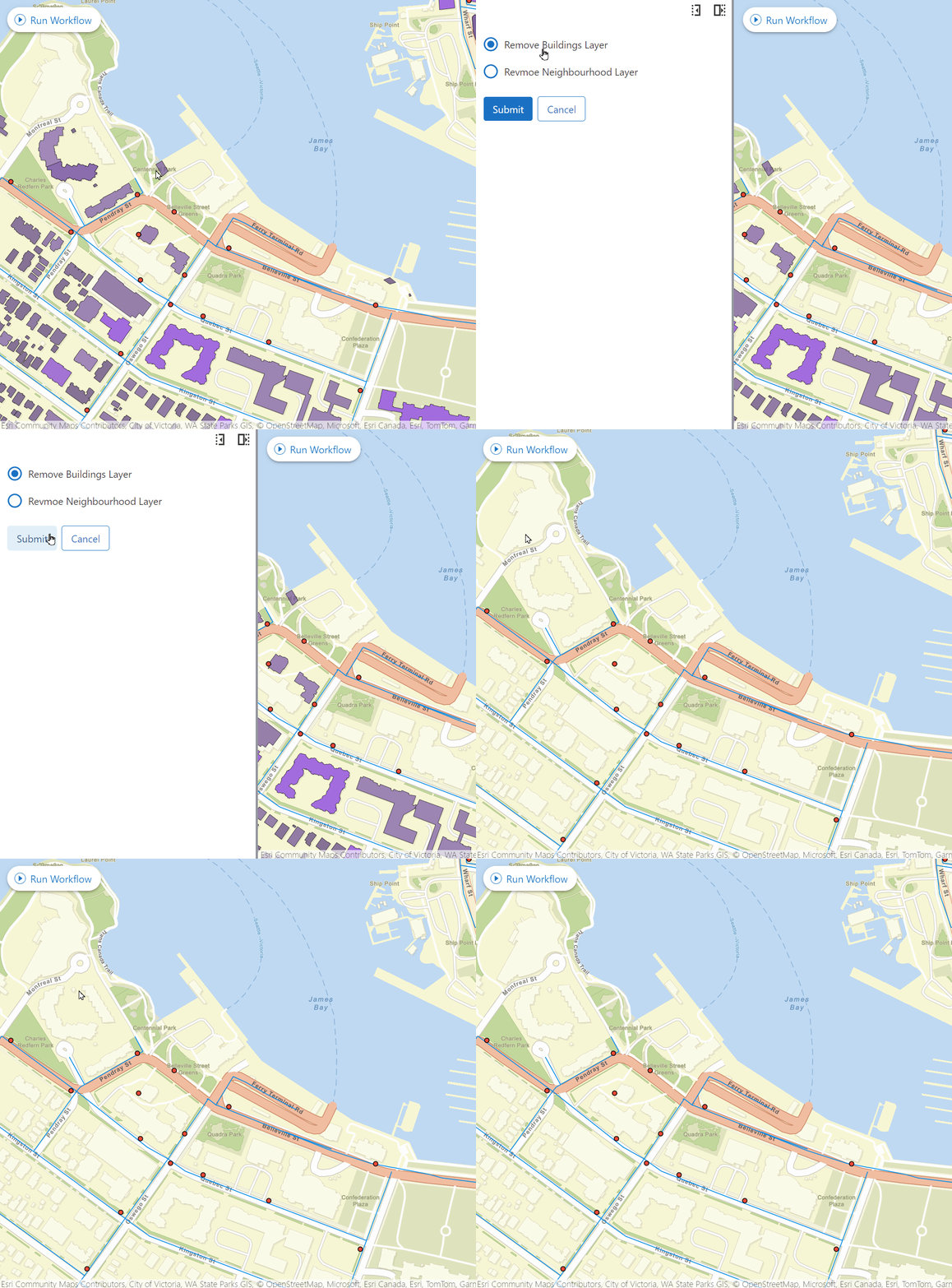
This example presents the user with a form containing a Radio Group to choose a layer, then removes the selected layer from the map on submission.
Set Up the Workflow
1.Add a Display Form activity after the Start activity.
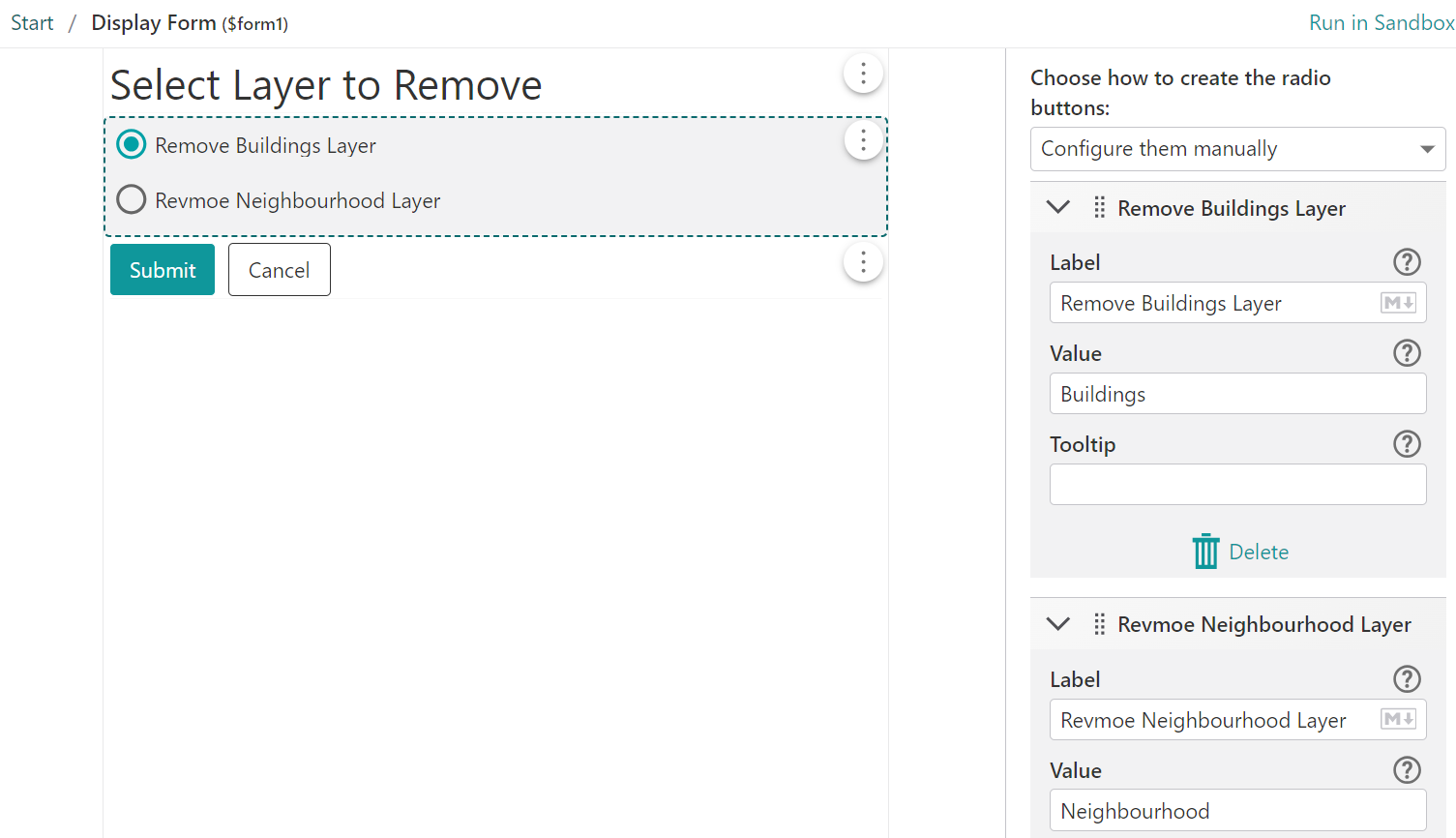
2.Double click on the Display Form activity to edit the form.
a.Leave the Form Footer as is as the example assumes that the Submit button has a value of submit
b.Add a Radio Group to the form.
c.Set the Label and Value of the radio buttons:
i.For the first item, set label value as Remove Buildings Layer and the value as Buildings
ii.For the second item, set label value as Remove Neighborhood Layer and the value as Neighborhood
3.Append an If activity to the workflow, and set the condition as:
=$form1.result === "submit"
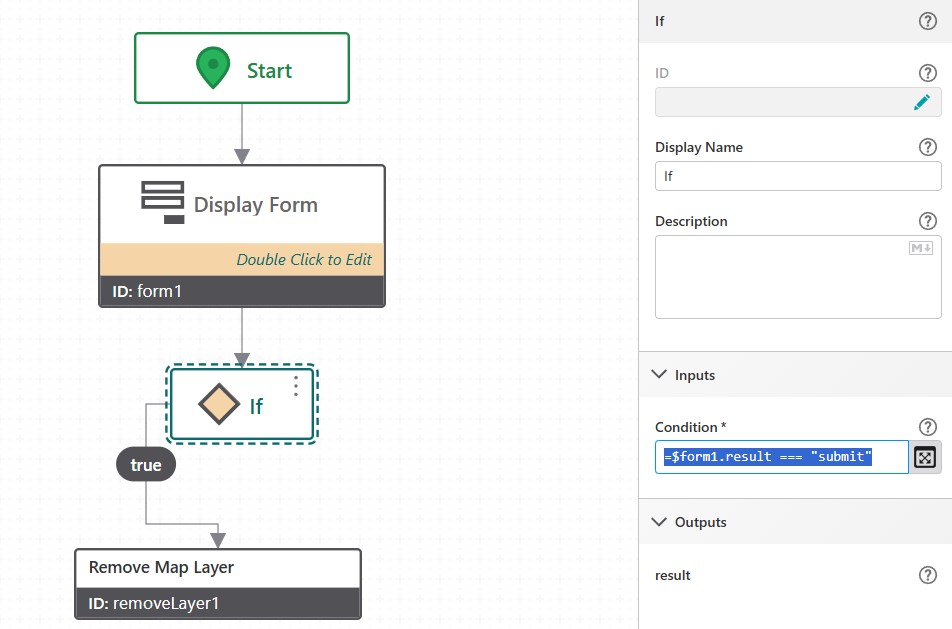
4.Add the Remove Map Layer activity to the True branch of the If activity.
Only If the user selects submit, the Remove Layer activity runs.
5.Set value of Layer Id to the following expression that reads the user's selection from the form:
=$form1.state.radioGroup1.value
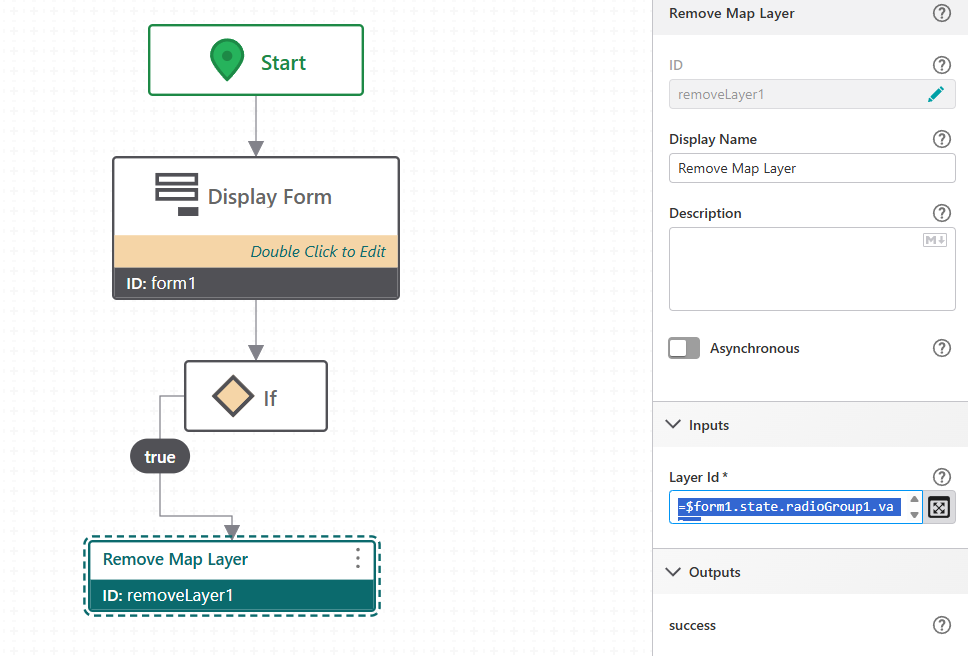
When the workflow runs, the user selects a layer from the form, then selects Submit. The Remove Map Layer activity receives the selected layer name and removes it from the map.
The value set on each Radio Group item must match the layer name in the web map item config. If the value does not match, the layer will not be found and removal will fail.