Description
The Send Web Request activity performs an HTTP web request.
Inputs
Url |
Required Type: String The URL for the request. |
Method |
Optional Type: "GET" | "POST" | String The request method. For example, GET, POST, PUT, DELETE, HEAD, OPTIONS. The default is GET. |
Headers |
Optional Type: Lookup<any> The headers for the request. |
Query |
Optional Type: Lookup<any> The query string parameters for the request. |
Form |
Optional Type: Lookup<any> The form parameters for the request. |
Blob |
Optional Type: ArrayBuffer | Blob The Binary/blob content for the request. |
Json |
Optional Type: any The JSON content for the request. |
Text |
Optional Type: String The Text content for the request. |
Expect |
Optional Type: "blob" | "json" | "text" | String The expected type of the response. For example, if json is selected, the response will be parsed as JSON and the json output argument will be assigned. |
Channel Name |
Optional Type: "default" | "arcgis" | "geocortex" | String The name of the channel used to issue the request. The channel controls aspects of how the request is issued, including how authentication and parameter serialization are handled. If unspecified, the default channel is used. When issuing a request to an ArcGIS endpoint use "arcgis". When issuing a request to a Geocortex endpoint use "geocortex". |
Timeout |
Optional Type: Number The amount of time (in milliseconds) to wait for a response from the server. The default is 60000 milliseconds (one minute). |
Cors with Credentials |
Optional Type: Boolean Whether or not to include credentials in a CORS request. This setting is only applicable to the default channel when used in a client workflow. Only set this to true for URLs you trust. The default value is false. |
Outputs
channel |
Type: ChannelInfo The channel that was used for the request. The channel provides access to the raw request and response objects. |
elapsed |
Type: Number The elapsed time (in milliseconds) of the request. |
blob |
Type: ArrayBuffer The binary/blob content of the response. |
json |
Type: any The JSON content of the response. |
text |
Type: String The text content of the response. |
Properties
For information about the ID, Display Name, and Description properties, see Properties Common to all Activities.
Connectivity Requirements
This activity does not work when the device has intermittent connectivity to the network.
Examples
GET Request with Custom Headers
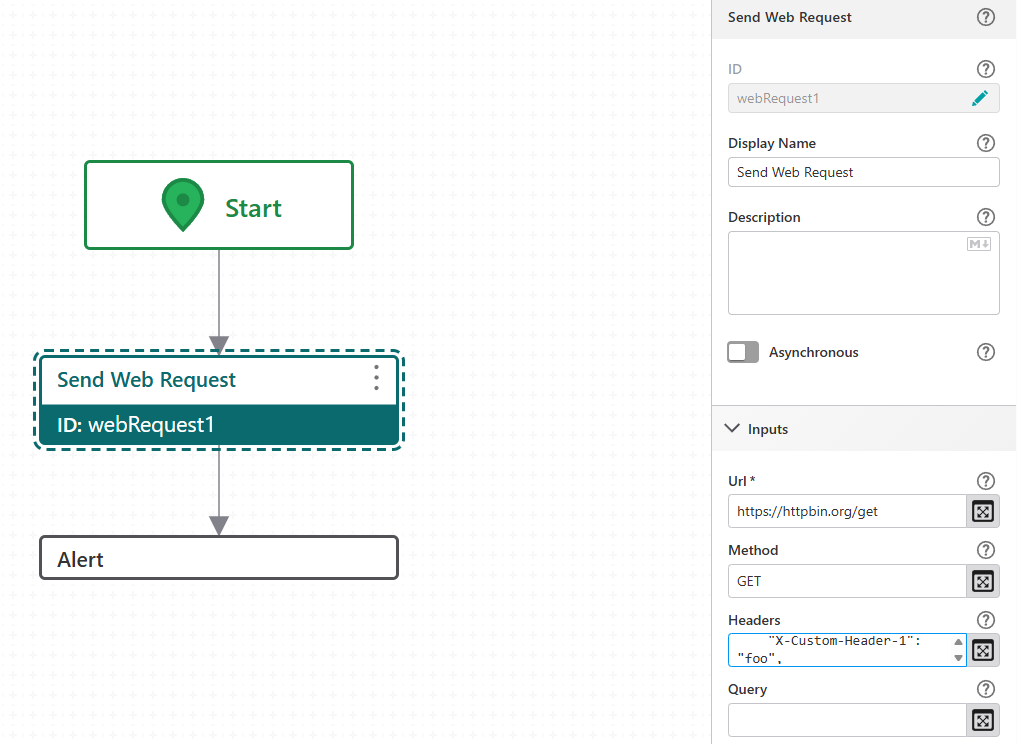
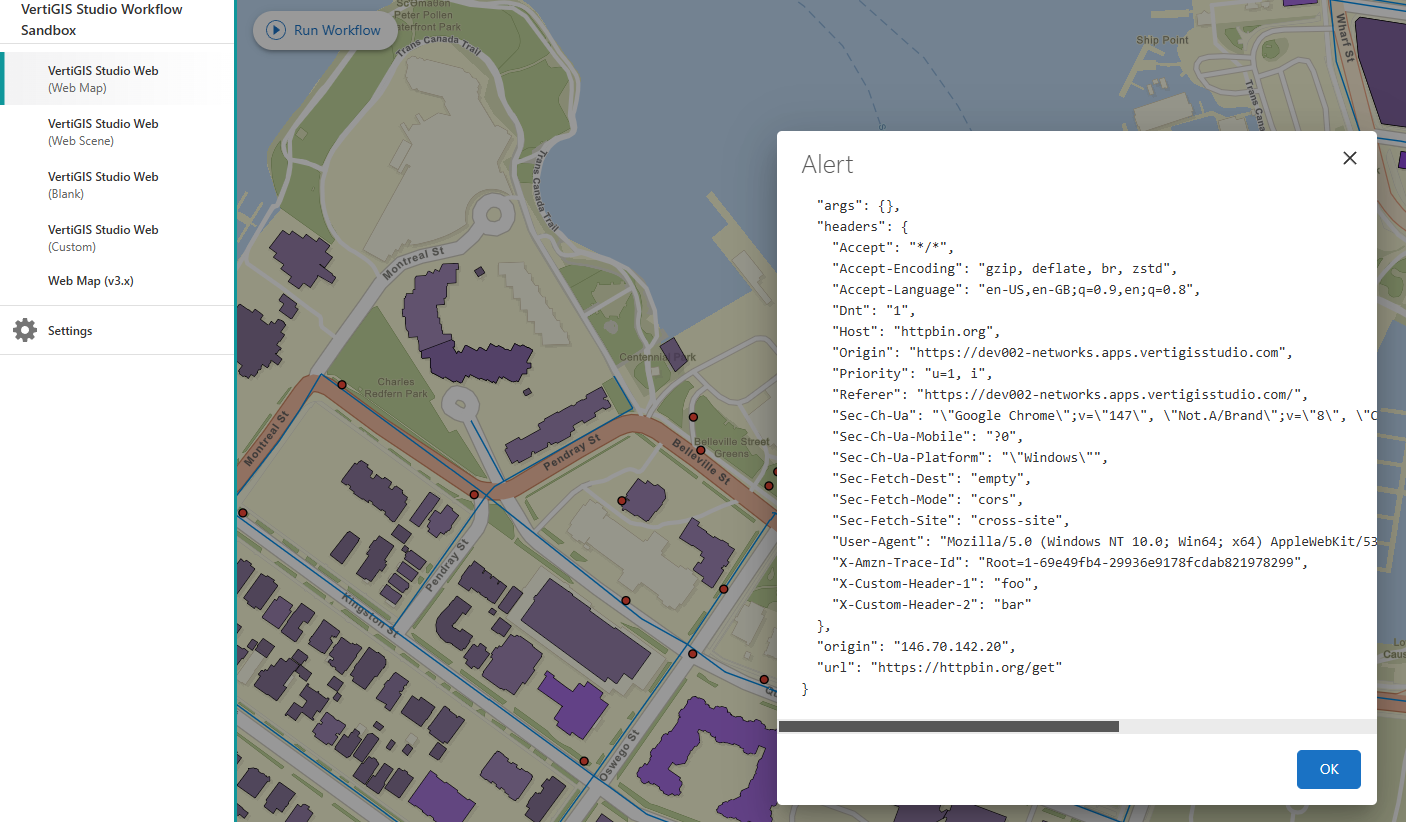
This example issues a GET request to an API endpoint with custom request headers and displays the raw text response in an alert.
1.Connect a Send Web Request activity to the Start activity.
2.Set the activity ID to webRequest1.
3.Set Url to the target endpoint, for example https://httpbin.org/get.
4.Leave Method as GET.
5.Set Headers to:
{
"X-Custom-Header-1": "foo",
"X-Custom-Header-2": "bar"
}
6.Connect an Alert activity to webRequest1.
7.Set Text to:
=$webRequest1.text
When the workflow runs, the GET request is issued with the custom headers attached, and the response body is shown in the alert.
POST Request with JSON Body
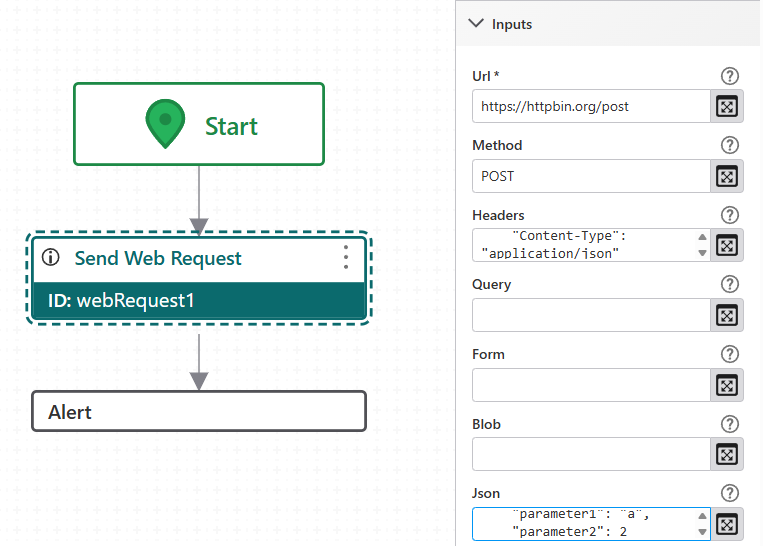
This example sends a JSON payload to an API endpoint using a POST request.
1.Connect a Send Web Request activity to the Start activity.
2.Set the activity ID to webRequest1.
3.Set Url to your target endpoint, for example https://httpbin.org/post.
4.Set Method to POST.
5.Set Headers to:
{
"Content-Type": "application/json"
}
6.Set Json to the payload you want to send, for example:
{
"parameter1": "a",
"parameter2": 2
}
7.Connect an Alert activity to webRequest1.
8.Set Text to:
=$webRequest1.text
The activity serializes the Json input and sends it as the request body. The response text is then shown in the alert.
POST Request with XML Body
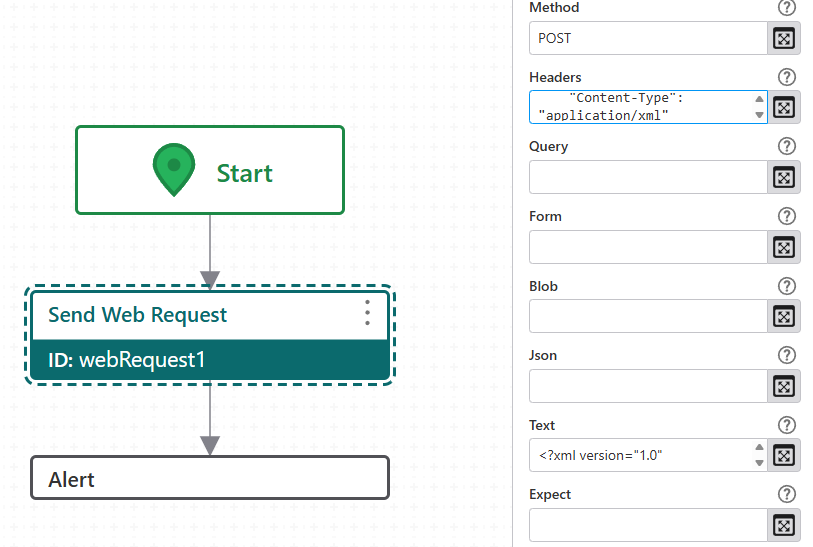
This example posts raw XML content to an endpoint using the Text input.
1.Connect a Send Web Request activity to the Start activity.
2.Set the activity ID to webRequest1.
3.Set Url to your target endpoint, for example https://httpbin.org/post.
4.Set Method to POST.
5.Set Headers to:
{
"Content-Type": "application/xml"
}
6.Set Text to your XML payload, for example:
<?xml version="1.0" encoding="UTF-8"?>
<test>
Hello world
</test>
7.Connect an Alert activity to webRequest1.
8.Set Text to:
=$webRequest1.text
Use the Text input whenever your payload is a raw string format such as XML. Set the Content-Type header to match the format of the content you are sending.
POST Request with Form-Encoded Body
This example submits form data using URL-encoded format.
1.Connect a Send Web Request activity to the Start activity.
2.Set the activity ID to webRequest1.
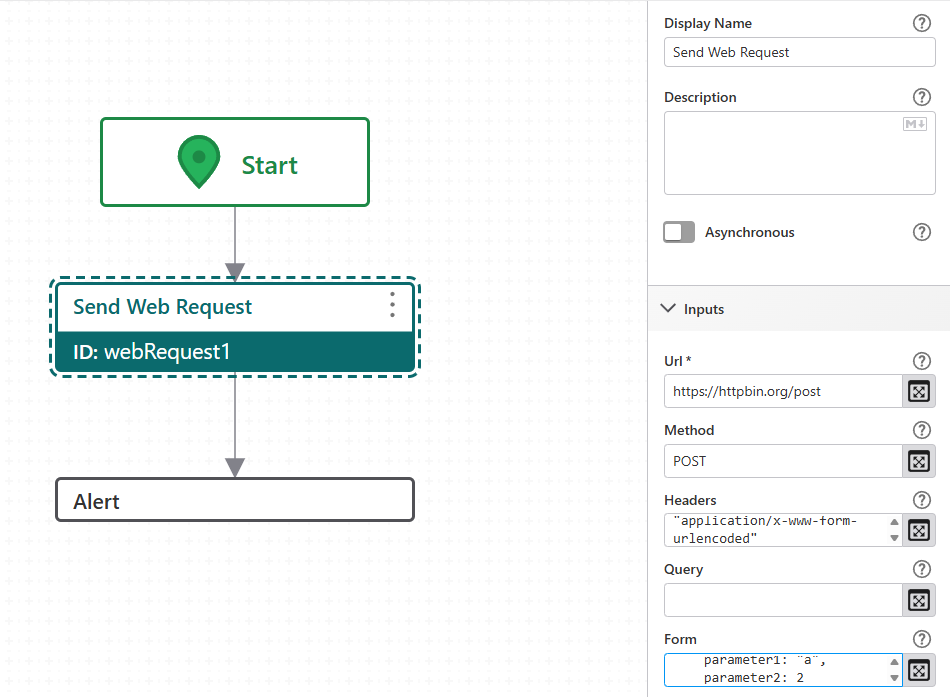
3.Set Url to your target endpoint, for example https://httpbin.org/post.
4.Set Method to POST.
5.Set Headers to:
{
"Content-Type": "application/x-www-form-urlencoded"
}
6.Set Form to the fields you want to submit, for example:
{
parameter1: "a",
parameter2: 2
}
7.Add an Alert activity after the Send Web Request activity.
8.Set Text to:
=$webRequest1.text
The Form input encodes each key-value pair as URL-encoded form data in the request body.
Learn more about HTTP protocol.