To add an ArcGIS Online account:
1.From the Analytics dashboard, navigate to Settings.
2.From the bottom left of the dashboard, choose ArcGIS Online from the Add Resource dropdown.
3.Click Add (+).
4.Select an Agent from the dropdown.
If there is not an Agent in the dropdown, click Add New Agent.
5.Click Next.
6.Configure access by entering the ArcGIS Online Organization subdomain and the Client ID (App ID) and Client Secret (App Secret) of a developer credentials item configured in ArcGIS Online for Analytics data collection and click Next.
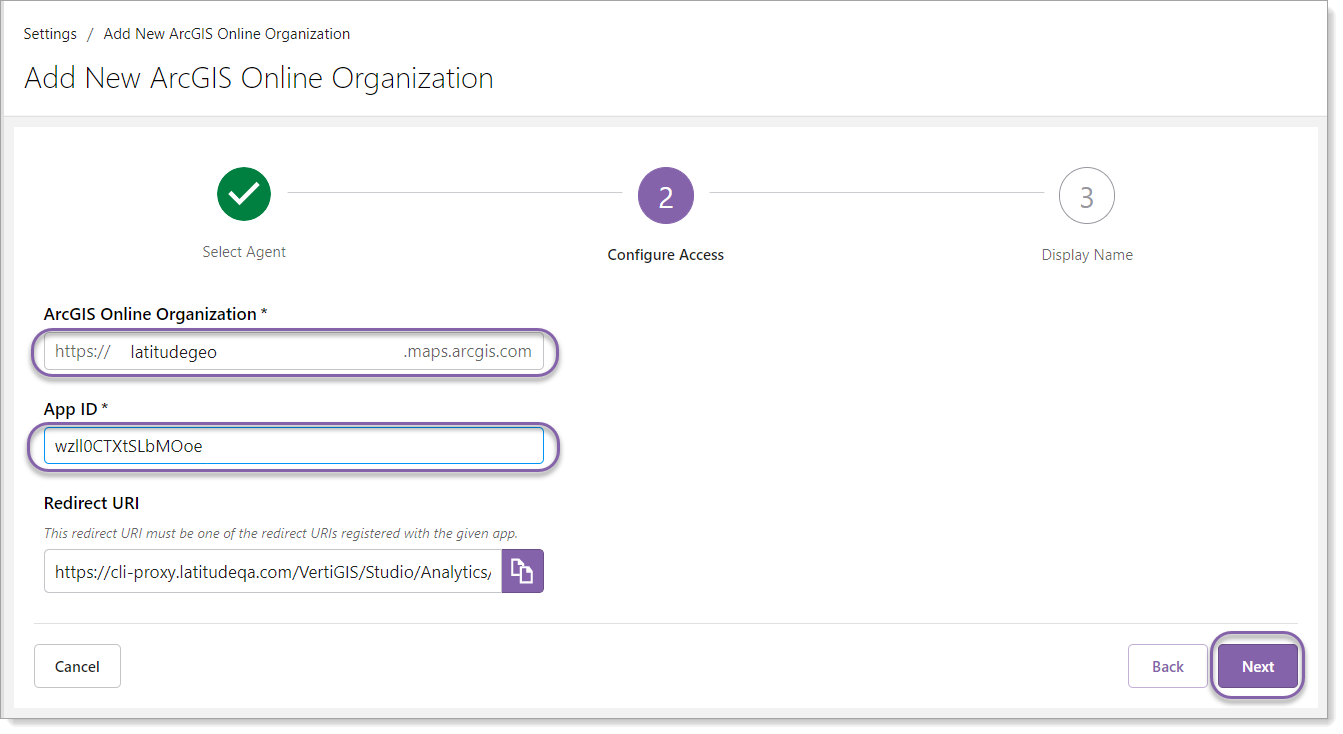
For more information on the Client ID and Client Secret, see Add Developer Credentials in Portal for ArcGIS and ArcGIS Online.
It is recommended to use an item that is dedicated to Analytics data collection and to protect the item from accidental deletion. This ensures its security settings are unlikely to be accidentally changed or lost.
Because a Client Secret is a long lived credential, we recommend resetting it once a year. This can be done on the Settings page of the portal item in ArcGIS Online. Once reset, reauthorize ArcGIS Online with Analytics in the Analytics Settings for the ArcGIS Online organization for data collection to continue.
7.Enter a display name that will be used by Analytics for this resource and click Finish