To record tiled request (cached service) activity in Reports, Analytics must process the ArcGIS Server's internal web server logs.
Tiles are static images stored as flat files on the ArcGIS Server. Requests for these tiles are handled directly by the server’s internal web server and do not pass through the ArcGIS Server logging framework. As a result, tile request activity is not written to the standard ArcGIS Server logs.
When internal logging is enabled, ArcGIS Server will write separate log files with information that includes tiled request activity that Analytics can use to collect tile request data for reporting, including data for cached map services, cached image services, and vector tiled services.
Enabling internal logging may impact ArcGIS Server performance.
To enable the ArcGIS Server internal logging:
Repeat these steps for each machine in the ArcGIS Server site.
1.In Analytics, go to Settings > ArcGIS Servers.
2.Select the ArcGIS Server.
3.Click Copy to clipboard to copy the XML snippet.
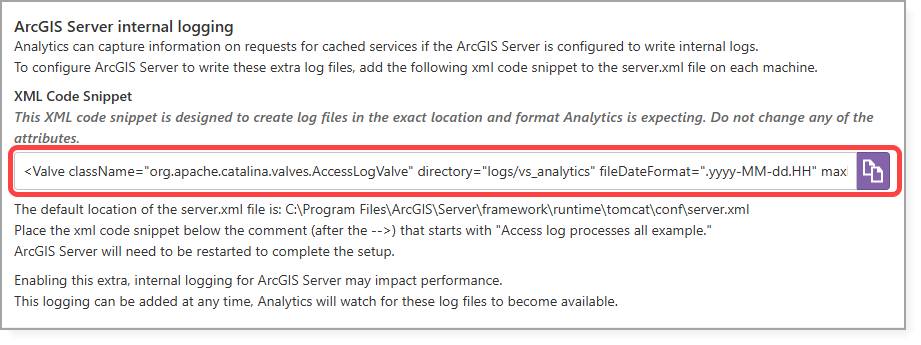
4.On the ArcGIS Server machine, navigate to where the ArcGIS Server is installed. The default location is as follows:
C:\Program Files\ArcGIS\Server\framework\runtime\tomcat\conf\server.xml
5.Open the server.xml file.
6.Search for the following comment:
Access log processes all example
7.Paste the copied XML snippet below the comment.
8.Save the file.
9.Restart the ArcGIS Server.
Internal logging can be enabled at any time. Analytics automatically detects changes to these log files.