VertiGIS Studio Analytics monitors ArcGIS Servers through Agents installed on the machines that participate in each ArcGIS Server site.
ArcGIS Servers that are actively monitored appear in the ArcGIS Servers menu and on the ArcGIS Servers page.
The ArcGIS Servers menu item is displayed only after at least one ArcGIS Server has been configured for monitoring.
To view details for each ArcGIS Server:
1.Click ArcGIS Servers in the Resources list.
2.Select a Server to open the ArcGIS Server Details panel.
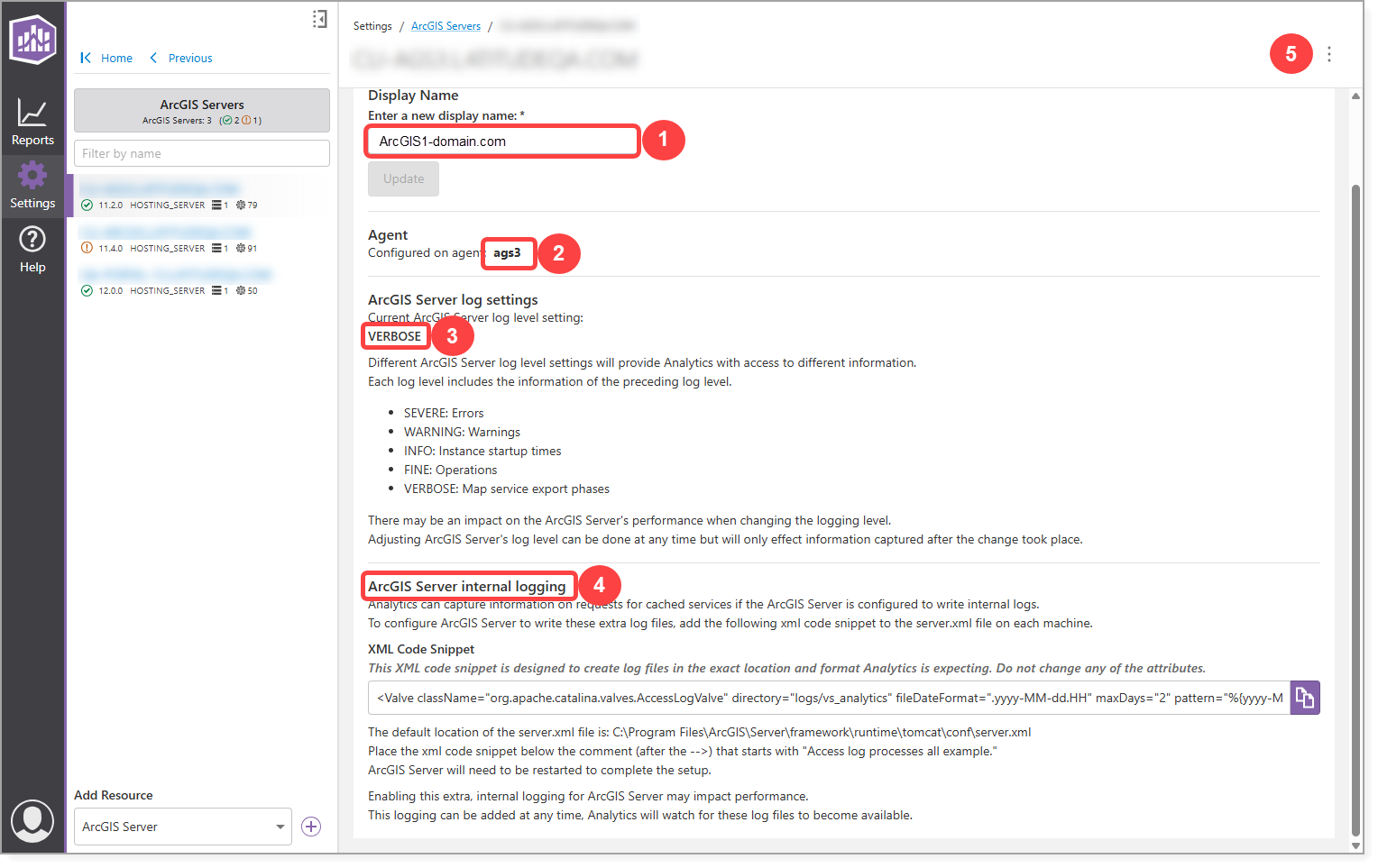
From the Details panel, you can:
|
Modify the Display Name. |
|
View the configured Agent. |
|
View the current log level. |
|
Access instructions to enable internal logging. |
|
Click the menu to access additional actions. |


Current Log Level
Analytics displays ArcGIS Server log data based on the log level configured in ArcGIS Server.
Log levels range from Severe (least detail) to Verbose (most detail). Each level includes messages from all preceding levels.
For example:
•If the log level is set to Severe, only severe errors are recorded.
•If set to Warning, warnings and severe messages are recorded.
To change the ArcGIS Server log level, refer to ArcGIS Server documentation.
Increasing the log level may impact server performance.
Available Log Levels
Log Level |
Description |
|---|---|
Severe |
Serious problems requiring immediate attention. Includes only severe messages. |
Warning |
Moderate problems requiring attention. Includes severe messages. |
Info |
Administrative messages such as service creation and startup. Includes severe and warning messages. |
Fine |
General server usage messages, such as operation request names. Includes severe, warning, and info messages. |
Verbose |
Detailed operational information, such as layer drawing performance and data access timing. Includes all preceding levels. |
ArcGIS Server Requirements
VertiGIS Studio Analytics data collection is supported for ArcGIS Server 10.9.1+.
Analytics only supports ArcGIS Server deployments that utilize traditional, Windows-readable file systems for the ArcGIS Server's configuration store and server directories. This includes local drives, mounted drives, or network shares (UNC paths). Deployments using a Cloud Blob Store (such as AWS S3 or Azure Blob Storage) for the configuration store are currently not supported.
For an ArcGIS Server to collect data and make that data available for reporting, you must:
•install an Agent on that server, and it must have a configured resource.
•ensure that Analytics has permissions to access Server directories.
It is recommended that ArcGIS Server be set to “verbose” logging in order to maximize data collection in Analytics.
Add an ArcGIS Server
To add an ArcGIS Server resource:
1.Go to Settings.
2.Select ArcGIS Server from the Add Resource dropdown.
3.Click Add (+).
4.Select the agent from the dropdown that is installed on the same server as the ArcGIS Server.
If an agent has not been installed on this server, click Add New Agent.
5.If the ArcGIS Server has multiple machines, click Add and select the associated agent for the next machine. Repeat this step for each machine that is part of this ArcGIS Server deployment.
6.Click Next.
7.Configure the installation directory for ArcGIS Server on each agent and click Next. This path should be local to the agent and will be accessed by the agent while monitoring ArcGIS Server.
8.Click Next on the Log Collection Details step.
9.Enter a Display Name and click Finish.
Ensure that an Agent is installed on each server in a multi-server ArcGIS environment.
Permissions
Analytics requires read-access to various server directories for ArcGIS Server, including the configuration store, system directory, and logs. If these directories have strict permissions, you may need to grant the Analytics agent access to these directories. Typically, this is only necessary if the directories are on network shares or if this ArcGIS Server is configured in a multi-machine site.
The location of the directory determines how you configure the permissions:
•If the directory is a local directory on the server, you can give direct access to the "NT Service\VertiGISStudioAnalytics-Agent" service account.
•If the directory is on the network, you can grant the server access via <domainname>\<computername>$.
If you are unsure if you need to add these extra permissions, try adding the ArcGIS Server to Analytics first. Analytics will report any errors it encounters during setup.