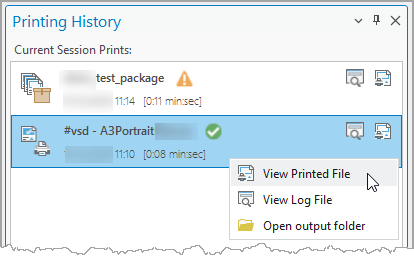
The Printing History pane lists completed print tasks and provides information about their status and output.
Each print task displays:
•Task name
•Status
•Completion date and time
Status icons indicate whether a print task completed successfully or encountered warnings or errors. Hover over a status icon to view additional information about warnings or errors.
Print tasks that you manually cancel are not added to the printing history.
The date and time are displayed using the Windows short date and time format and are automatically adapted to your regional settings.
Hover over a print task to view additional information about the output, including full file path and file size.
To access the print task options, right-click a print task. The context menu opens. Depending on the print task, the following options are available:
•Output Directory: Opens the directory containing the print output.
•View Log File: Opens the log file for the print task.
•Open Output Folder: Opens the folder containing the print output.
To manage layouts, use the standard Layouts list. Printing History is intended to provide information about print tasks and their output rather than to manage the source layouts.