The Map Navigator provides a list of components that make it easier to get started with the map and to navigate to specific locations. The following tools and components are available from the navigator:
•Bookmarks
•Geocoding
•Coordinates
•Class Navigation
•Catalogs
Launch the Map Navigator from the Navigate group on the Studio Toolkit ribbon tab.

Bookmarks
By default, the Map Navigator starts with a list of bookmarks that are available from the current active map.
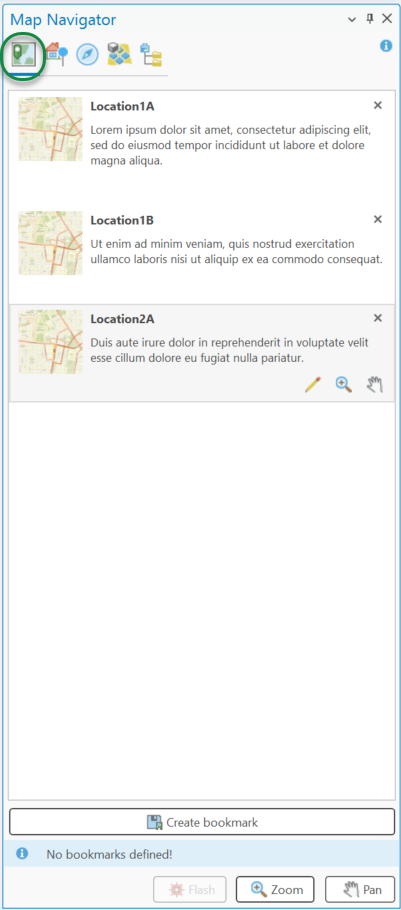
Zoom to a bookmark on the active map by double-clicking the selected entry in the bookmark list, or by clicking the Zoom or Pan buttons.
Add new Bookmarks
Add new bookmarks at the bottom of the Bookmark Navigator. Zoom the map to the desired extent and click Create Bookmark. This opens a dialog where you can enter a name and description for the saved extent.
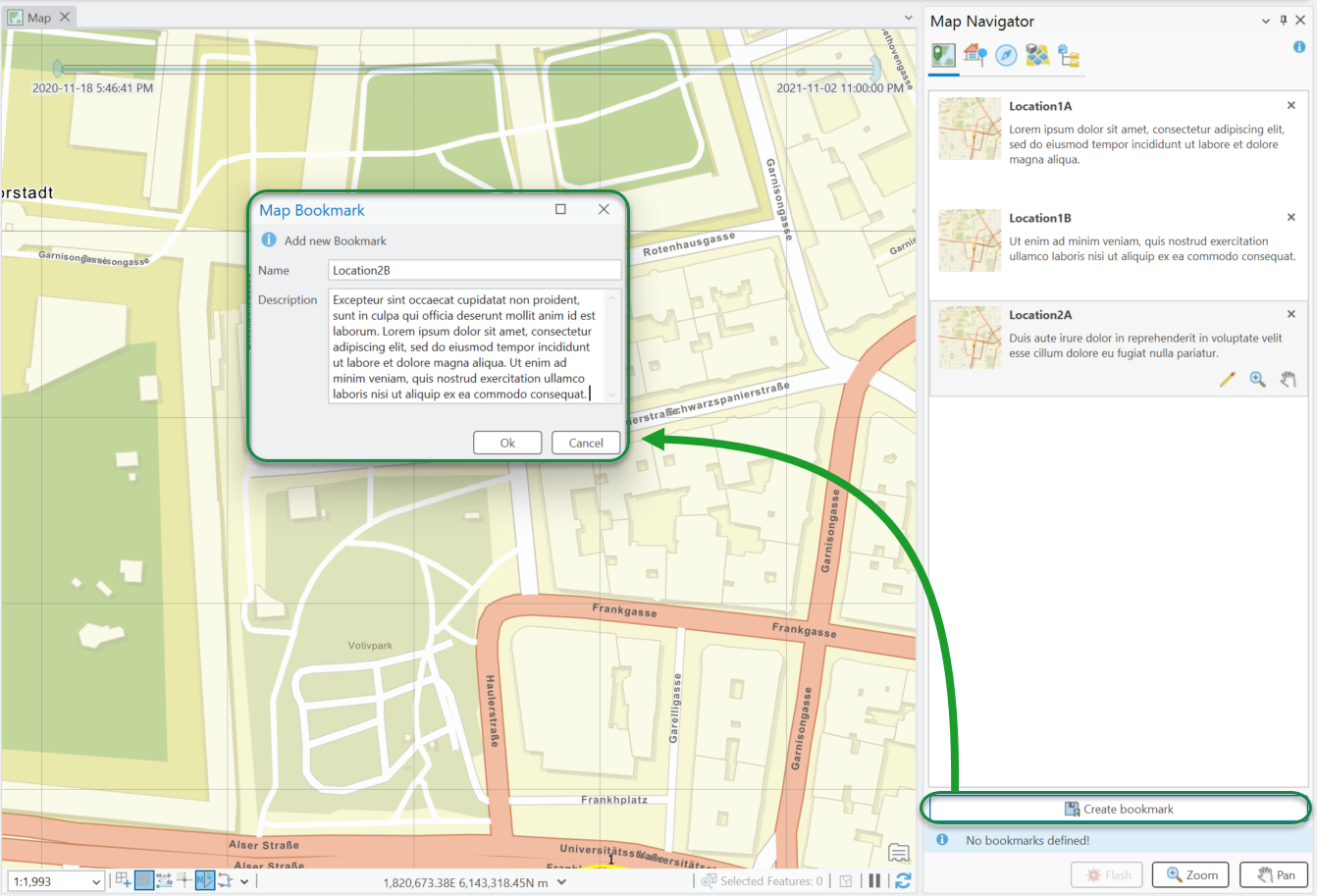
Modify Bookmarks
The following actions can be performed on a bookmark:
•X - Deletes the bookmark from the current map.
• - Edits the bookmark properties.
• - Zooms the active map to the current selection.
• - Pans the extent of the active map to the current selection.
Geocoding
The Geocoding tab in the Map Navigator allows you to query the ArcGIS Online World Geocoding Service. Enter search text to find addresses and places to visualize on the map.
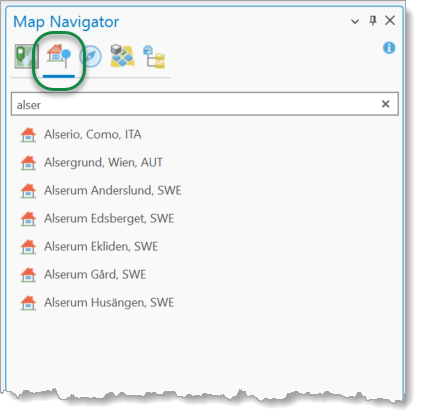
Pick a proper address entry from the list of suggestions and zoom the map to this location.
Coordinates
When you select the Coordinates tab, you can enter specific coordinate values to zoom directly to that location.:
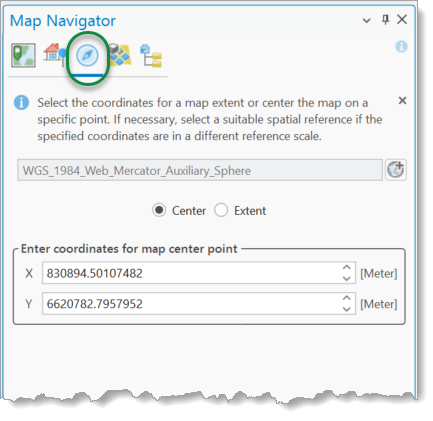
If your coordinates refer to a different coordinate system than the active map's spatial reference, select the appropriate coordinate system from the top drop-down list. You can zoom to a specific location on the map by defining either a single map point or a bounding coordinate extent.
All coordinate boxes are predefined with the current center or the current extent of the active map view.
Class Navigation
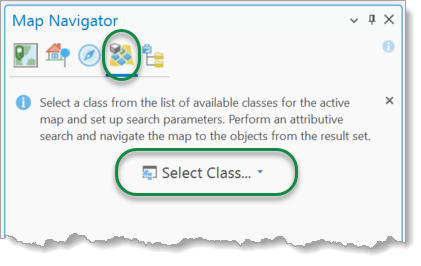
The Class Navigation component performs attribute searches on tables present on the active map. When you select the Class Navigation tab, the interface displays the class selector. Click the class selector button to open the list of available display tables on the active map. You can apply Flash, Zoom, or Pan actions to any item in the result set.
After selecting a feature class, you can iteratively add specific attribute conditions to the evaluation criteria list for the underlying geodatabase table. Expand the Additional SQL Clause section to add native SQL syntax to the query's WHERE clause.
Click Search to execute the attribute search in the geodatabase. Found records populate the results grid. Click the Flash, Zoom, or Pan button to apply that action to the selected record.
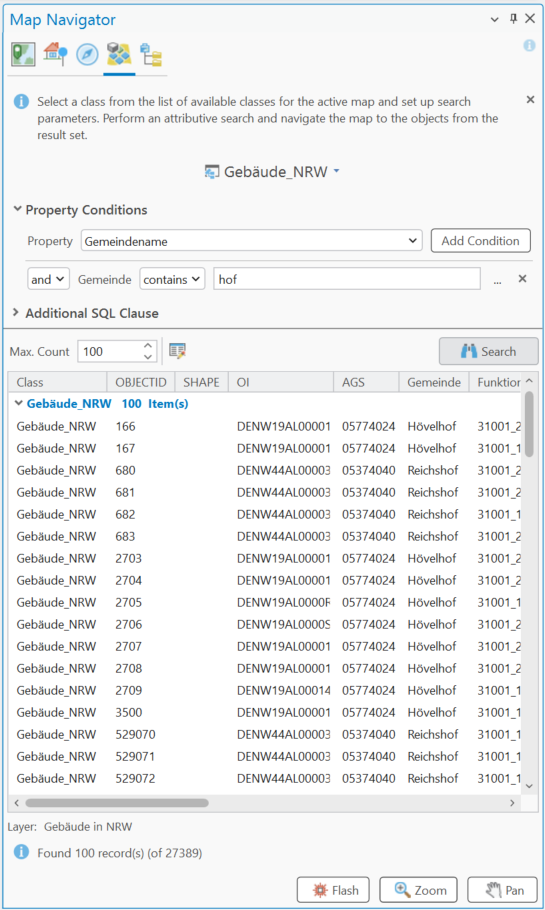
If any navigation button is pressed, but no explicit selection has been defined, all records from the current result set will be taken into account. This can cause a zoom or pan to a very large extent. Otherwise, the current selection is used for navigation actions on the current map.
Catalogs
Any catalog in the Schema Repository that is maintained by a specific feature class on the active map can be used for catalog navigation. Select a catalog from the top drop-down list and choose specific items. Navigable catalogs are either defined by a single list of entries (such as coded value domains) or maintained using hierarchically connected attributes (such as contingent values). See Catalog Schema Repository.
Domain Lookup Table
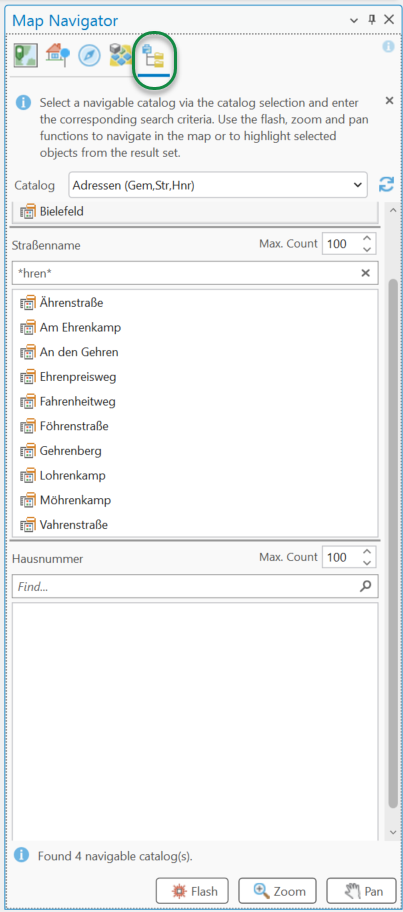
If the selected navigation catalog contains fewer than 100 entries, all items load automatically. If the catalog contains more than 100 items, only the first 100 items load by default, and a search box appears to let users enter filtering criteria.
Contingent Lookup Table
If the selected navigation catalog is a contingent or multi-stage catalog, a hierarchical user interface appears to guide users through selecting items step by step.
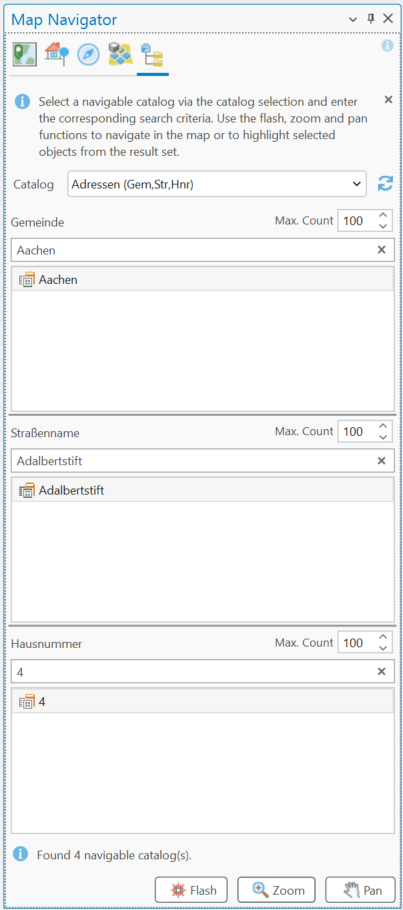
If a multi-stage navigation catalog is used, the current selection from the last chosen selector is used for the flash, zoom, and pan actions.