The Workflow Debugger allows you to observe and evaluate a workflow step-by-step during its execution in ArcGIS Pro. The debugger helps to understand the input and output data for a workflow activity in relation to the ArcGIS Pro environment. Use the debugger to troubleshoot a workflow for ArcGIS Pro by detecting and eliminating errors in the evaluation of input parameters or form elements.
Start the Workflow Debugger
The debugger starts when a workflow is run via the Studio Workflow Manager.
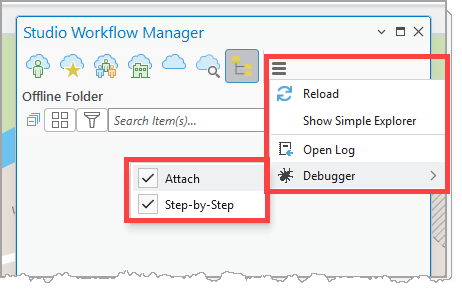
You can attach the debugger to any running workflow via the menu in the Studio Workflow Manager pane.
•Attach: Attach the debugger to any workflow started in the current session.
•Step-by-Step: Attach the debugger and interrupt workflow execution. See Step-by-Step Navigation for more information.
Workflow Insight Dialog
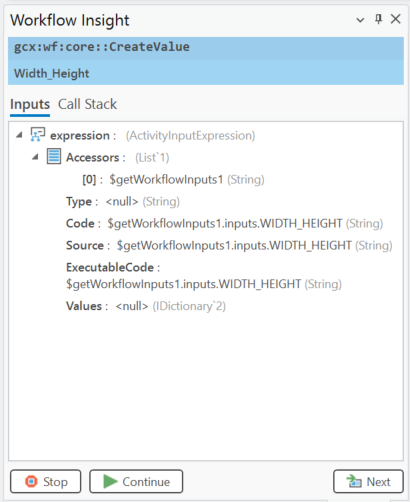
When a debugger is enabled and the target workflow has been started, the Workflow Insight pane opens automatically.
The debugger displays all activities that have been completed so far. Every activity hit by the debugger is listed twice. The first time the activity is called, it is listed with its Input parameters. The second time the activity is listed is when the activity has been completed. In that case, both the Input and Output parameters are listed.
Tree View Navigation
The Find Activity search box allows you to filter activities. Enter part of the activity identifier, such as $getMapInfo, to filter the debugger content for occurrences of the activity in the execution stack of the current workflow.
Expanding Node Entries
The contents of nodes from the Input and Output parameters are not loaded by default. If a node contains list data or complex entries, three dots (...) are displayed. Click the entry to load the enclosed data and expand its contents.
Inputs
At the Inputs tab, all data provided as input parameters to the current activity are displayed. Navigate through the tree and expand the values to view the data structure. This helps you to find data and create input expressions.
Copy and Paste
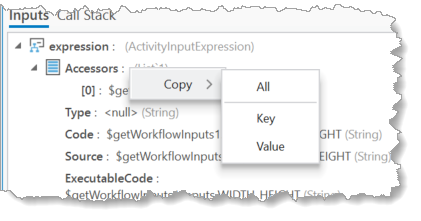
A copy action is available for every node in the debugger tree. Copying a node copies its content to the clipboard, allowing you to paste the text into a text editor.
The following options are available:
•All: Copies the complete node information to the clipboard.
•Key: Copies only the node name (key) to the clipboard.
•PropertyPath: Copies the complete property path from the parameter root node to the clipboard. For example, Inputs.result.selection[0].objectId.
•Value: Copies the value of the selected node to the clipboard.
Step-by-Step Navigation
When the debugger runs in Step-by-Step mode, workflow execution is interrupted at every step.
The available functions are as follows:
•Next: Advance forward one activity and review its input parameters.
•Stop: Cancels the execution of the current workflow. This button immediately stops the workflow and closes the pane.
•Continue: Lets the workflow run to completion without further interruption from the debugger.
Do not confuse the Continue button with the Next button. Next switches to the next activity, whereas Continue resumes workflow execution without further interruption from the debugger.