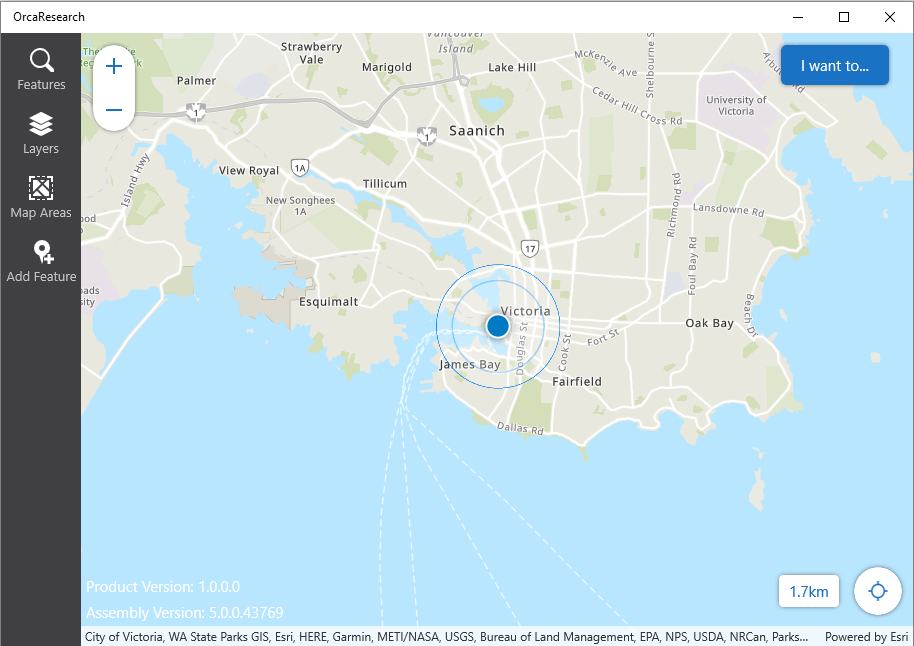
To build an app for Windows:
1.In Mobile Designer, click Deploy to open the Deploy panel.
2.Click Build App.
If your app is not in the Production stage, Build App is not be available.
3.When the Build App dialog opens, click the Choose a platform drop-down list.
4.Select Windows in the drop-down list, and then click OK.
The Windows options appear in the Build App dialog.
The App Name, App ID and Version number that you entered in App Settings for the Windows version of the app appear above the options.
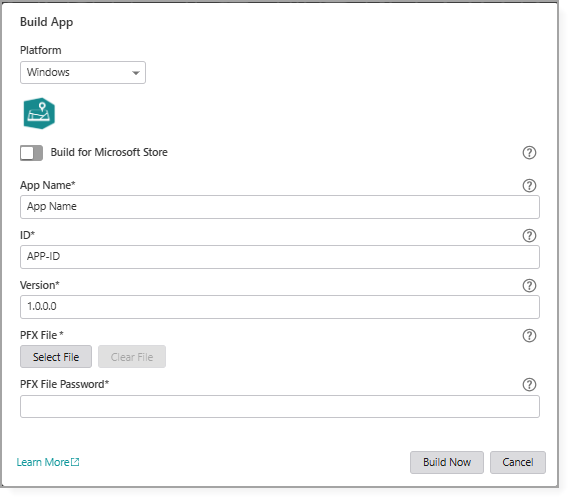
If you enable Build for Microsoft Store, the Publisher Display Name and Publisher ID settings replace the PFX File and PFX File Password settings.
5.Configure the required settings.
6.Click Build Now.
A dialog opens to show you the status of the Build, which can take a few minutes, depending on the size of the app and it's data.
When the build is complete, the dialog updates to show that the build was successful.
7.Do one of the following:
•Click Download to save a zip file containing the app to your computer.
•Click Show Link to display the URL to the location where the app build is located.
The link appears in the dialog, where you can copy and paste it to share with others, or click the link to open a dialog where you can save the zip file to your computer.
When the link is sent to others, they can save and extract the same zip file on their computer.
The link is valid for 60 minutes and cannot be recovered once the dialog is closed.
8.Once the zip file is downloaded, extract the contents to the location you want.
To install your app:
1.Navigate to the folder where you extracted the zipped app.
2.To begin the installation, double-click the VertiGISStudio.Mobile.Viewer.appxbundle file.
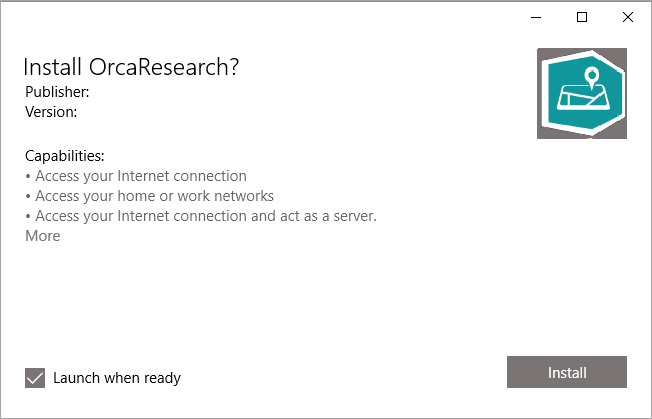
3.When the Install [Name-of-App]? dialog opens, click Install.
The Request to access your precise location opens.
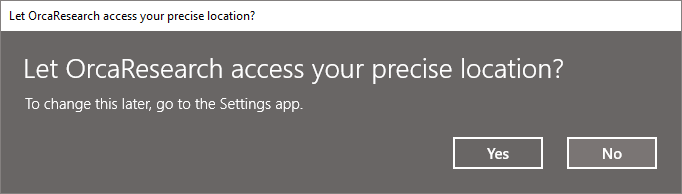
4.Click Yes.
The app opens. You may be asked to sign in if the app is secured.