You can import a component from another app or template into your app as a new component. If the component contains other components, they will also be imported. A window will appear where you can select the app or template that contains the component you want to import, and then a Get From panel will appear that allows you to drag components to your current layout in the Components panel.
If you want to replace the configuration of existing components, see Get Configuration.
The following example demonstrates importing the I want to... component from the Mobile Default template.
To import a component:
1.While editing your app in Designer, in the Components panel, click the expand arrow ( ) beside +Add Component and then click Import from another app.
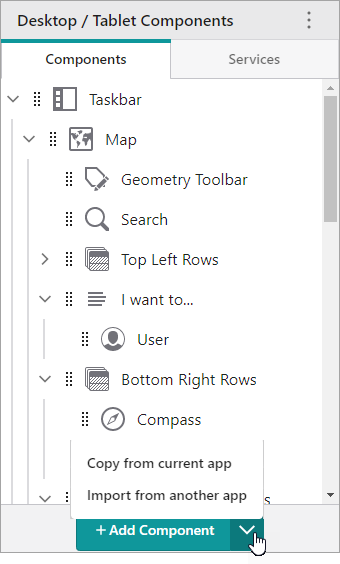
If the + Add Component button is not visible, you are likely viewing your app's Services; click Components to view the components of your layout.
The Get From panel appears.
2.If your app contains more than one layout, in the Get From panel, click the layout tab that contains the component you want to import.
3.In the Get From panel, drag  beside the I want to... component to where you want to place it in the Components panel.
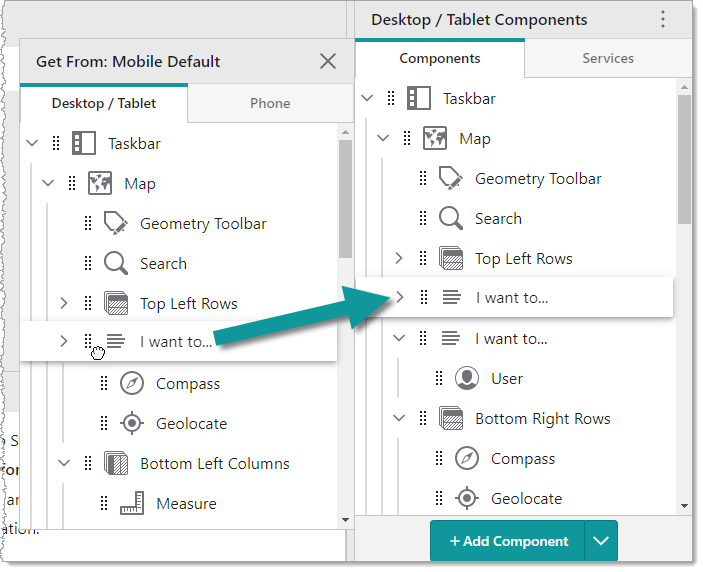
The I want to... component is imported to your layout.
