You can create a launch link to any Mobile app under Deploy by clicking the three-dot menu beside the Development, Testing, Staging or Production stage of that app. The launch link is different for each stage of the app just as there is a specific copy of the web map and the app for each stage.
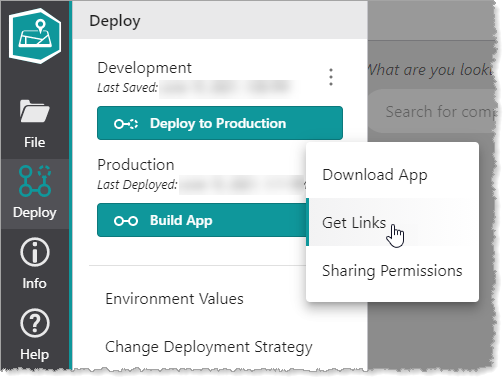
To create a launch link to a specific app:
1.Open or create an app in VertiGIS Studio Mobile Designer and click Deploy.
If you have unsaved changes, you will be asked to save the app.
2.Click the three-dot menu and select Get Links.
The App Launch Link window opens. The name of the window changes to reflect whether you are linking to a Development, Testing, Staging or Production app.
In the Launch URL, you can use the workflowParams URL parameter to specify input parameters for the workflow. The workflowParams URL parameter should be a key-value object in JSON format, where the keys are the names of workflow inputs and the values are the values for those workflow inputs. The type of the workflow input should match the type of the value specified. By default, this property is set to {}, which is an empty object.
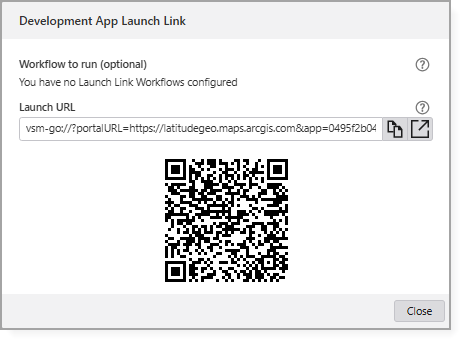
3.You can do any of the following:
•VertiGIS Studio Go | Custom App: To create a link to an app that you plan to open using VertiGIS Studio Go, select VertiGIS Studio Go. To create a link to a custom app, click Custom App. The Launch URL changes depending on the type you choose.
•Copy to Clipboard: To copy the URL to your clipboard, click Copy  .
.
•Open in VertiGIS Studio Go: To test the URL by opening the app using the new URL, click the Open in VertiGIS Studio Go icon  .
.
•QR Code: To use the QR Code to open the app directly on a device, activate your device's camera and point it at the QR Code. The app opens on your device.
