You can create an app template from an existing Mobile app that is in the Production stage. This allows you to configure an app once to meet your organization’s needs and then reuse the same configuration and settings as a template for future apps.
The app must be deployed as a Production app before it can be used as a template.
To create an app template:
1.Sign into ArcGIS Online or Portal for ArcGIS with the account you used to create the Production app that you want to use as a template.
2.Click Content.
3.In the Folders panel, click VertiGIS Managed Files (don't delete).
Your template app is listed at least twice; the Development stage of the app, and the Production stage of the app. The Production stage has (prod) added to its name. If you sent the app through Testing and Staging in Mobile Designer, you will see copies for those stages with (test) and (staging) after the name.
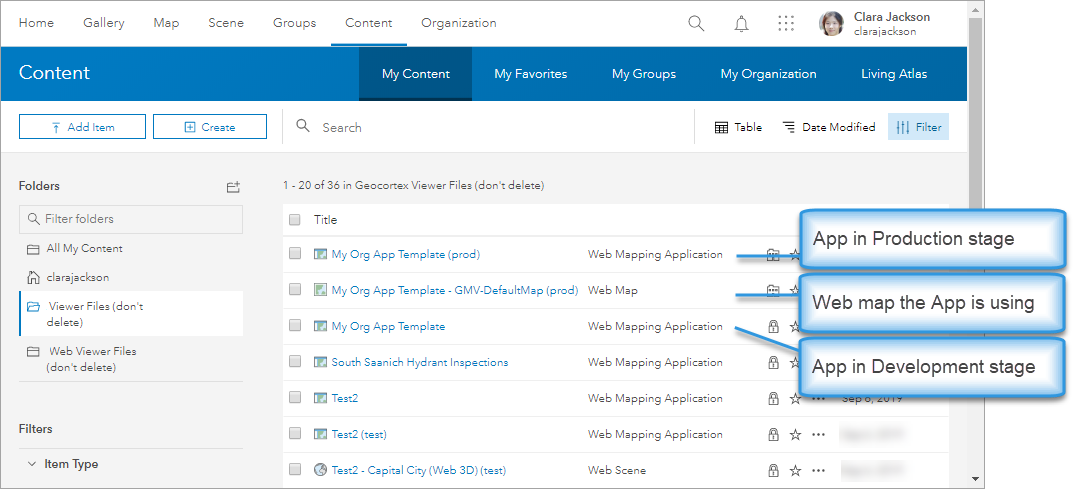
4.In the list, click the Production (prod) version of your app to open it.
If you do not use the Production version, it will not be shown in Mobile Designer as a template.
5.Scroll down until you see Tags in the right-hand panel, and then click Edit to open the Edit Tags box.
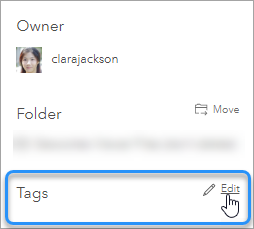
6.In the Edit Tags box, type VertiGIS Studio Mobile Template, and then click Save.
7.Share the app template with other users.
