You can configure settings in the Region component of Mobile Designer that control how numbers are treated in your whole app, or a particular layer, or right down to a field on a particular layer.
This means that Number settings can be set at the whole-app level and then inherited by all the layers and in turn, the fields on those layers. Or you can override the inherited settings to configure specific number formats for a particular layer, for example, if it contained property values you wanted to represent in dollars. Layer settings take precedence over app-level settings. If there is a particular field on a layer that contains dates, you can configure that particular field to format dates in a particular way. When you configure field-level numbers, they override all the number settings above them in the Layer or App.
In addition to the settings you can apply in Mobile Designer, there are also number settings that are applied to the Web Map in ArcGIS Online or Portal for ArcGIS. In the hierarchy, Web Map number settings take precedence over Region settings. But if you have number formatting configured in Mobile Designer at the Field level, they will take precedence of the web map settings.
Number formats that can be configured for Mobile at the following levels:
•Region settings: Defined in Mobile Designer. Sets the default number formatting for the whole application. These settings are inherited by the layer and field levels if those are not configured.
•Map Layer settings: Defined in Mobile Designer in the layer. Sets the default number format for all the fields in this layer. These settings override the Region settings when configured.
•Web map settings: Defined in ArcGIS as part of the web map field definition. These settings override the Region and Map Layer settings when configured.
•You can turn the web map field settings off in Mobile Designer. Under Map settings, turn off the Use Esri Field Formatting option. When you turn the Use Esri Field Formatting option off, then only the settings you define in Mobile Designer are used.
•Field settings: Defined in Mobile Designer in the field of a layer. Sets the default number format for one field. These settings override region, map Layer, and web map settings when configured.
If numbering format is set at the field level to Inherit Formatting, then the app looks up the hierarchy for the most specific settings. It will use ArcGIS web map settings first if they exist, then Map Layer settings, then Region settings. Unless the Use Esri Field Formatting option is turned off, in which case the web map settings are ignored.
Specific Types of Number Formats
Number format settings have different effects on different types of numbers. Some are general and affect all numbers and others have a specific effect on only the numbers that are applicable to the setting. For example:
•Number Format: Setting this attribute affects all integers and real numbers.
•Date Format: Setting this attribute affects only dates.
•Currency Format: The currency setting only comes into affect if the Number Format is set to Currency or Accounting.
•Decimal Places: Setting this attribute affects all numbers if they have decimals.
•Mobile Designer Number Formats: When you set the Number Formats in Mobile Designer, the settings apply to all date and number fields (both integer and real numbers) as well as to dates.
To set Region number formats:
1.In VertiGIS Studio Mobile Designer Help, click Region.
2.Change any of the following options:
•Measurement Units: Select the units of measurement you want your app to use:
•Detected Measurement: Detects whether the region settings in the browser use Metric or Imperial and then uses that setting.
•Metric : Sets the app to use metric units of measurement.
•Imperial: Sets the app to use the imperial units of measurement.
•Fallback Locale: Select the default locale to use when no translation exists for the currently-selected locale. For example, if you have translated the app into French but one word does not have a French word available, the Fallback Locale language will be used for that word. The default is English.
•Date Format: Select the format of the date to use for this app. The default is Date Time Short.
•Number Format: Select the number format to use for numbers displayed by this app. The default is Fixed Point.
•Currency: Select the currency you want your app to operate in. The default is USD.
•Decimal Places: Type in the number of digits to appear after the decimal point in fractions. If you do not set a number, the default applied to currency units depends on the currency. For a number format, the default applied is 4.
•Time Zone: Select the time zone your app will operate within.
3.Click File > Save.
To set Layer number formats:
1.In VertiGIS Studio Mobile Designer Help, click Map.
2.When the layers for the map display, click the layer you want to add number settings to.
3.In the panel of settings for that layer, scroll to the bottom of the panel and expand the Formatting section.
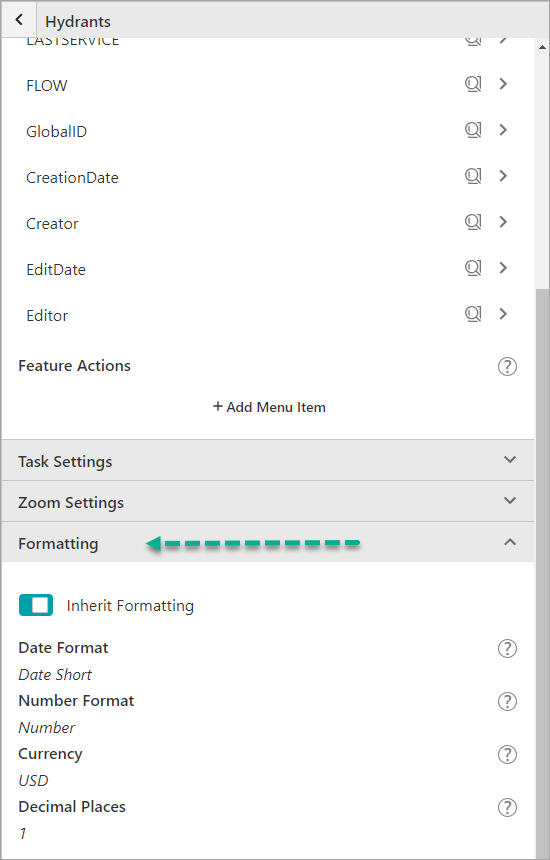
4.Click the Inherit Formatting option to turn inheritance off for number formatting on this layer.
The number settings activate and you are able to edit the number formatting options.
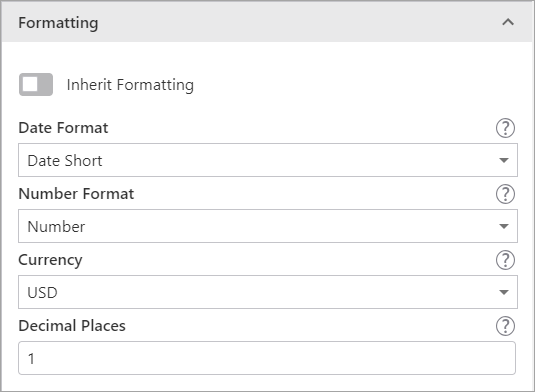
5.Change any of the following settings:
•Date Format: Select the format of the date to use for this layer.
•Number Format: Select the number format to use for numbers displayed on this layer.
•Currency: Select the currency you want this layer to use.
•Decimal Places: Type in the number of digits to appear after the decimal point in fractions.
6.Click File > Save.
To set Field level number formatting:
1.In VertiGIS Studio Mobile Designer Help, click Map.
2.When the layers for the map display, click the layer that contains the field you want to apply settings to.
3.In the Field Extensions panel, click the field where you want to change the number formatting.
Only some fields have the ability to change number formatting.
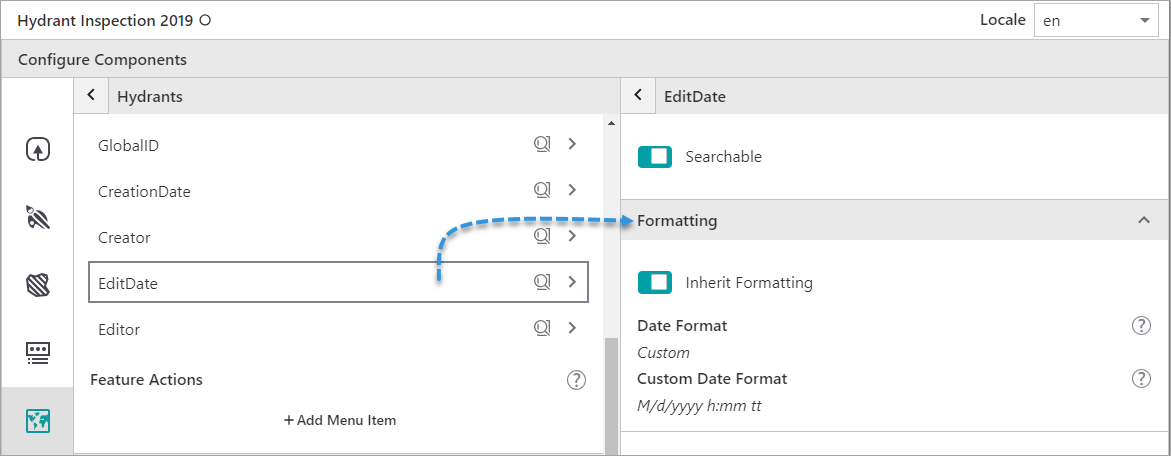
4.Click the Inherit Formatting option to turn inheritance off for number formatting for this field.
The number settings activate and you are able to edit the number formatting options. The type of settings available will differ depending on the field. For more information, see Map Settings
5.Click File > Save.
Settings
You can define the units of measurement that your app will use under Region Settings.
The number formatting settings are affected by the Use Esri Field Formatting option under Maps. If the option is on, then the Esri web map settings are respected. When the settings is off, then the settings you apply in Mobile Designer are used.
Select from the following options:
•Measurement Units: Sets the app to use one of the following:
•Detected Measurement: Detects whether the region settings in the browser use Metric or Imperial and then uses that setting.
•Metric : Sets the app to use metric units of measurement.
•Imperial: Sets the app to use the imperial units of measurement.
•Fallback Locale: Sets the default locale to use when no translation exists for the currently-selected locale.
•Date Format: Select the format of the date to use for this app. The default is Date Time Short.
•Number Format: Select the number format to use for numbers displayed by this app.
The default is Fixed Point. Select one of the following formats:
•Number: A localized representation of a number with a decimal separator, group separator and optional negative sign. For example, in the en-us locale: 12,345.67 or -42.
•Fixed Point: A localized representation of a number with a decimal separator and optional negative sign. For example, in the en-us locale: 12345.67 or -42.
•Currency: A localized representation of a monetary amount in a specific currency. For example, in the en-us locale: $123.45 for USD or £123.45 for GBP.
•Accounting: A localized representation of a monetary amount in a specific currency except negative values are displayed in brackets. For example, in the en-us locale, -$543.21 would be represented as: ($543.21) for USD.
•Percent: A localized representation of a percentage. For example, in the en-us locale, 0.99 would be represented as: 99%.
•Round Trip: An invariant representation of a number that guarantees the number can be parsed back into the same number, regardless of locale. For example, 12345.67.
•Custom: Use one or more numeric specifiers to define how to format numeric data. For more information, see Microsoft's Custom Numeric Format Strings.
•Currency: Select the currency you want your app to operate in. The default is USD.
•Decimal Places: Type in the number of digits to appear after the decimal point in fractions. If you do not set a number, the default applied to currency units depends on the currency.
For a number format, the default applied is 4.
•Time Zone: Select the time zone your app will operate within.
