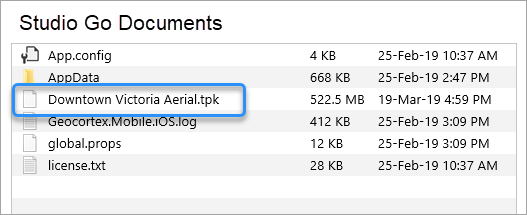
If you want to use high-resolution tile packages with map areas while offline, you can sideload the TPK, TPKX or VTPK file to the devices you want to use in the field.
You can use sideloaded TPKs with a Pre-generated map area or create a Custom map area on the device. Pre-generated map areas and Custom map areas behave slightly differently when they interact with TPK files on the device.
•Pre-generated map area: When you are offline and you activate a map area defined in an ArcGIS web map, the TPK file is used automatically in place of the basemap. When you reconnect online, the basemap is used.
•Custom map area: When you create a Custom map area on a device that has several TPKs sideloaded onto it, you can select whichever TPK you want to use with your map area, or choose to use the default base map. When you go offline, the map area uses whichever TPK you selected, or the default base map if it was selected. You can use any TPK on the device that is the same spatial reference as the web map.
You sideload TPKs onto your device using the file system in the case of Windows and Android, or iTunes in the case of iOS devices. It is essential that you add the TPK file to the correct folder on each type of device because Mobile apps look for TPKs in those specific folders.
Windows Devices
Use the file manager on your computer to transfer the TPK to the following folder on your device:
%userprofile%\AppData\Local\Packages\[GeocortexMobileViewerAppName]\LocalState
Android Devices
Use the file manager on your computer to transfer the TPK to the following equivalent folder on your device:
[Root Path]/Android/data/geocortex.mobile.viewer.custom/files
On Android devices, the first part of this path varies according to the device.
iOS Devices
To sideload a file onto an iOS device:
1.Open iTunes.
2.Plug your device into a computer and in iTunes, and then click the device icon in the top left corner.
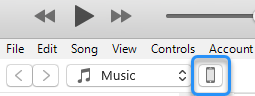
The panel on the left displays the Settings for the device.
3.Click File Sharing, and then click one of the following:
•For VertiGIS Studio Go, click VertiGIS Studio Go in the Apps box.
A list of the VertiGIS Studio Go Documents displays in the right-hand box.
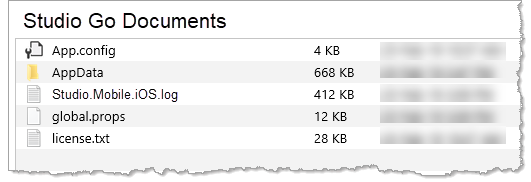
•For Custom apps, click the [app name] in the Apps box.
A list documents for your custom app displays.
4.From your file system, drag the .TPK file and drop it into the Documents box.
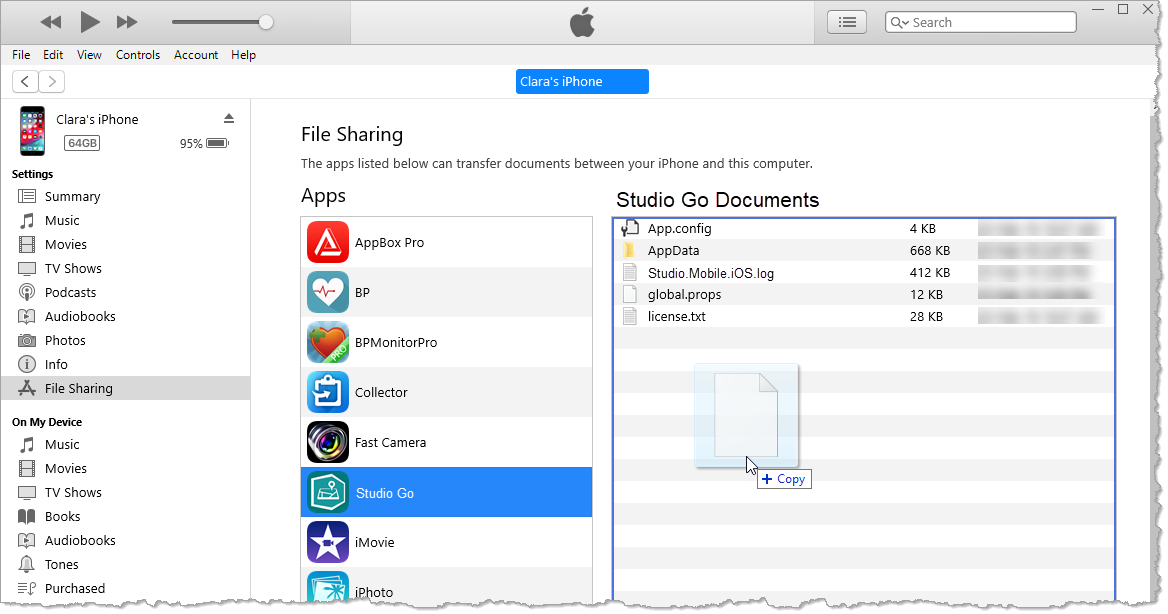
The status bar at the top of the window indicates that iTunes is copying the TPK file to the device.
Once the file is copied, it appears in the list of Documents.