To help you build expressions, Report Designer has a built-in Expression Editor that gives you easy access to the different types of elements you can use in an expression. The Expression Editor only shows items that are permitted in the current context.
To configure a property using an expression, open the Expressions Panel  and click the ... icon for one of the properties to open the Expression Editor.
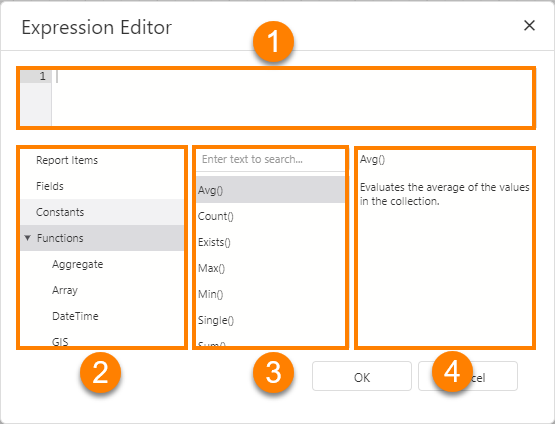
Expression Editor components
The components of the Expression Editor include:
1.Expression Viewer: Displays the expression. You can manually type an expression in the Expression Viewer, or you can use the Categories and Options to find and add the components you need.
2.Categories: Groups of options that can be added to an expression. When you select a category, the options for the category appear in the Options box.
3.Options: The options included in a category. Double-click an option to add it to the expression. You can search for an option using the search bar at the top of the box.
4.Description: Displays a description of the selected option. This box only appears for certain categories.
Categories
The categories available include:
•Report Items: When the Report Items category is selected, the Options displays a list of all items in the report in a tree hierarchy.
Use the options from this category to add a field to an expression.
•Fields: When the Fields category is selected, the Options displays any data sources, tables, fields, and parameters configured in the report.
•Constants, Functions, Operators, Variables: Common components of expressions.
•For more information on commonly used Functions in reports see Functions.
•For more information on the options available for each of these categories see: Operators, Literals, and Functions.
See also...
Tech Tip: How to format reports in VertiGIS Studio Reporting
Tech Tip: Working with Conditional Expressions in VertiGIS Studio Reporting
