Report Designer's File > Export function exports the active report to a .json file. The File > Import function imports a previously exported report into Designer. After importing a report, you can modify and run it just as you would any other report. Saving the report makes you the owner of the imported report in ArcGIS.
You cannot host an exported report locally and run the report from the .json file's URL.
Export and Import are most commonly used to copy reports between portals or share reports outside your organization.
In both cases, a report that was created in one instance of Designer is copied to a different instance of Designer. Because of this, there are several issues you can encounter when importing a report:
•Secured Resources: The importing author may not have the required permissions. In order to import and run a report, the author must have access to the data sources and other resources, such as images, used by the report.
•Data Sources: Exporting a report does not export the data source definitions. In order to run an imported report, the author must configure data sources that are identical to the original data sources used by the report and its subreports.
•>Table Names: Table names configured in the new data source must match those of the old data source.
•>Fields: Some field names may be different between the tables in the new and old data sources. If a field used in the imported report no longer exists, the query builder will display it as red. Any fields that do not exist in the new data source should be deleted from the query builder. Any report components that use the missing field must be modified to use an alternative field. New fields can be added to the query by updating the query filter.
•Software Versions: Older versions of VertiGIS Studio Reporting may not offer all the functionality of newer versions. If you import a report to an older version, the report may be invalid or it may not run correctly. Note that cloud Reporting always runs the newest version.
•Capabilities: On-premises Reporting has additional capabilities that are not available in cloud Reporting. For example, on-premises Reporting allows access to local resources. Reports that use on-premises-only capabilities will not work in the cloud.
Follow the instructions for the following Export/Import tasks:
•Copy Reports from One Portal to Another
•Share a Report with an Author Outside your Organization
Copy Reports from One Portal to Another
You can use the Export and Import functions to copy reports to a different portal. For example, you might want to copy your reports from cloud Reporting to on-premises Reporting, or you might want to move your reports from one on-premises portal to another, possibly on a different server.
You can adapt the following method to copy reports to a different instance of VertiGIS Studio Reporting on the same portal. In this case, you would work with source and destination instances instead of source and destination portals.
To copy reports from one portal (the source portal) to another portal (the destination portal):
1.Source Portal:
a.Sign in to Report Designer for the source portal.
b.Export the reports one at a time.
To export a report, open the report in Report Designer and click File > Export.
Report Designer exports the active report to a .json file.
2.Destination Portal:
a.Sign in to Report Designer for the destination portal.
b.For each report that you want to import, add the report's data source(s).
You must add all the data sources used by the report and its subreports.
c.Import the reports one at a time.
To import a report, click File > Import, select the .json file, and click Open.
d.Save each report.
This creates ArcGIS items for the reports.
e.Preview each report to verify that they work as expected.
f.If you want, share the reports and configure applications to host the reports.
Share a Report with an Author Outside your Organization
The Export and Import functions can be used to share a report with a report author outside your organization. This provides the outside author with a copy of the report.
You can also use this method to share reports with other authors within your organization.
To share a report with an author outside your organization:
1.You:
a.Export the report.
To export a report, open the report in Report Designer and click File > Export.
Report Designer exports the active report to a .json file.
b.Send the .json file to the outside author via email or any other method that is convenient.
c.Use a secure method to communicate the connection information for each of the report's data sources to the outside author.
You must include the connection information for all the data sources used by the report and its subreports.
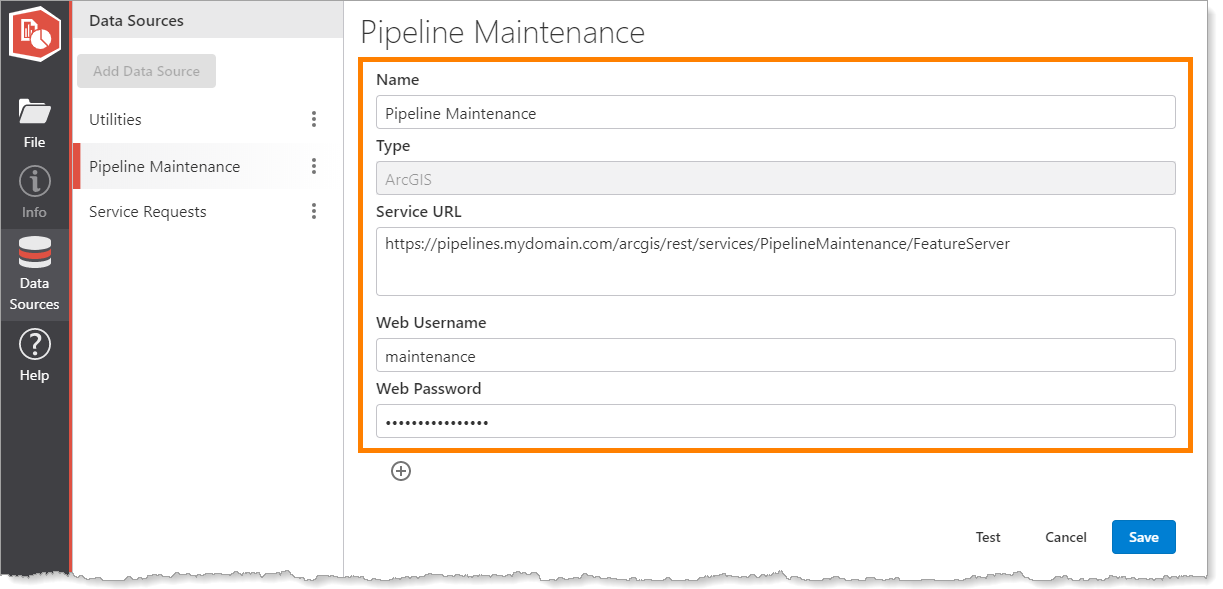
Example of a data source's information to send to the outside author
2.Outside Author:
a.Open Report Designer.
b.Add the report's data source(s).
Use the connection parameters provided by the author who is sharing with you.
You must add all the data sources used by the report and its subreports.
c.Import the report.
To import a report, click File > Import, select the .json file, and click Open.
d.Save the report.
This creates an ArcGIS item for the report.
e.Preview the report to verify that it works as expected.
f.If you want, share the report and configure applications to host the report.
