To create a Studio Web Search app:
1.Open the Studio Web Designer.
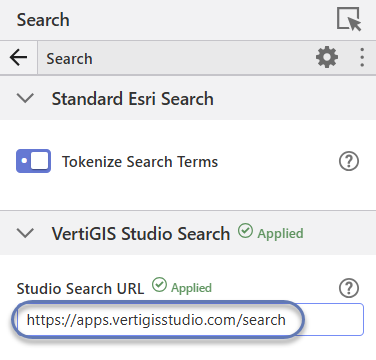
2.In Services tab > Search, add the Studio Search URL.
Available URLs are as follows:
•VertiGIS Studio SaaS offering, region North America: https://apps.vertigisstudio.com/search
•VertiGIS Studio SaaS offering, region Europe: https://apps.vertigisstudio.eu/search
•URL of on-premises installation: You must know the specific URL for your installation.
•no URL: Studio Search is not available.
3.In the Components tab > Map > Layer Extensions, select the layer that you want to make searchable. We choose our Fire Hydrants layer.
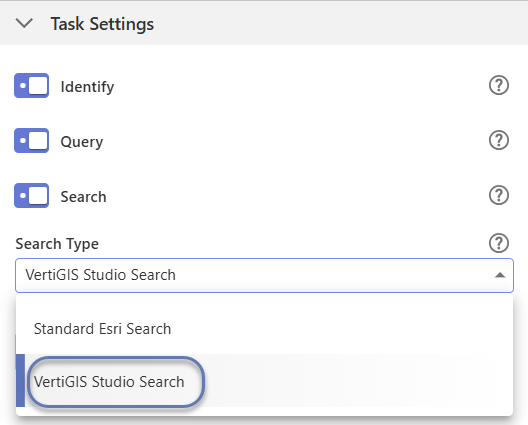
4.Navigate to Task Settings.
5.Ensure Search is enabled.
6.Choose VertiGIS Studio Search as the Search Type.
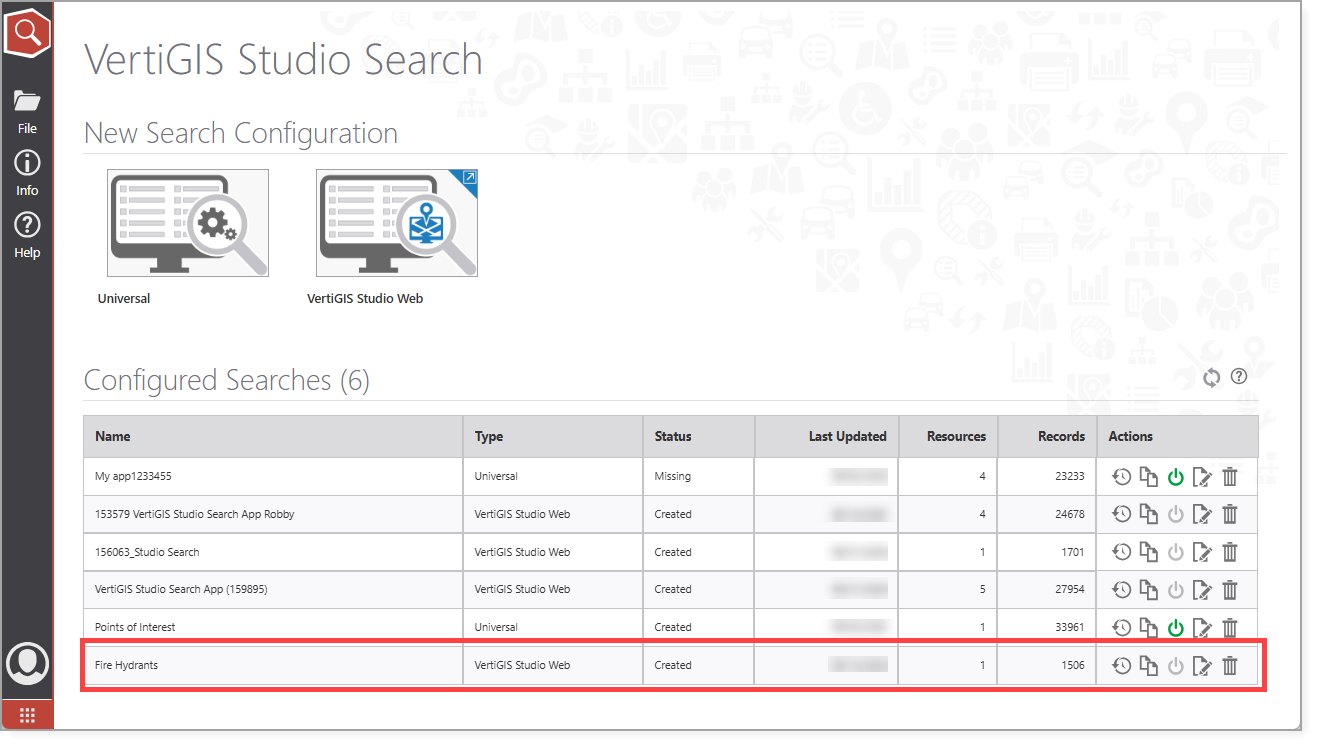
7.Save the app. We call ours Fire Hydrants.
8.Open VertiGIS Studio Search.
9.Select the Web app you just created appears in the Configured Searches.
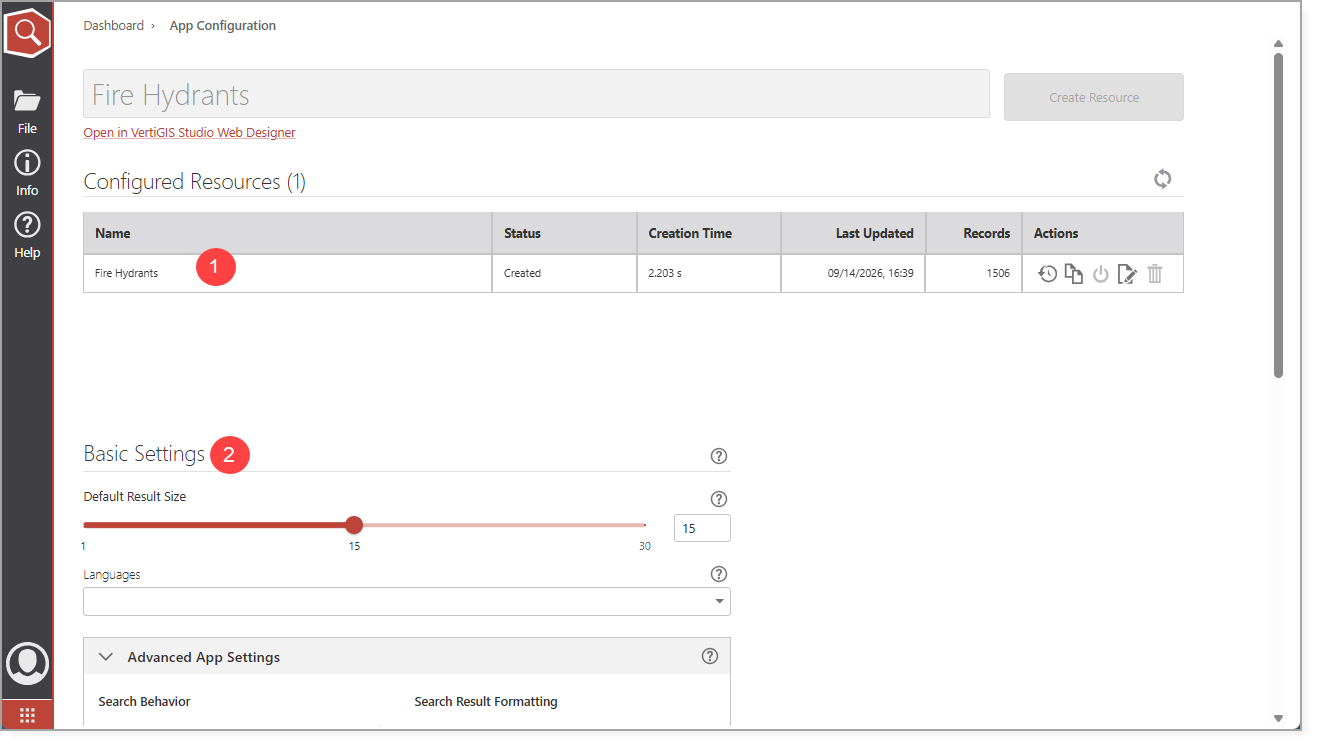
The app opens to App Configuration, where you can configure search suggestions (1) and the Basic Settings (2).
For each Configured Resource, you can view which fields are searchable, but you cannot edit the Search Fields in Studio Search. You must edit the Search Fields in Studio Web.
The table below describes the Basic Settings you can configure.
Setting |
Description |
|---|---|
Default Result Size |
The maximum number of search results to be returned. The default value is 15. the minimum value is 1. |
Languages |
The languages to use for search result descriptions. You can select multiple languages. |
See also....